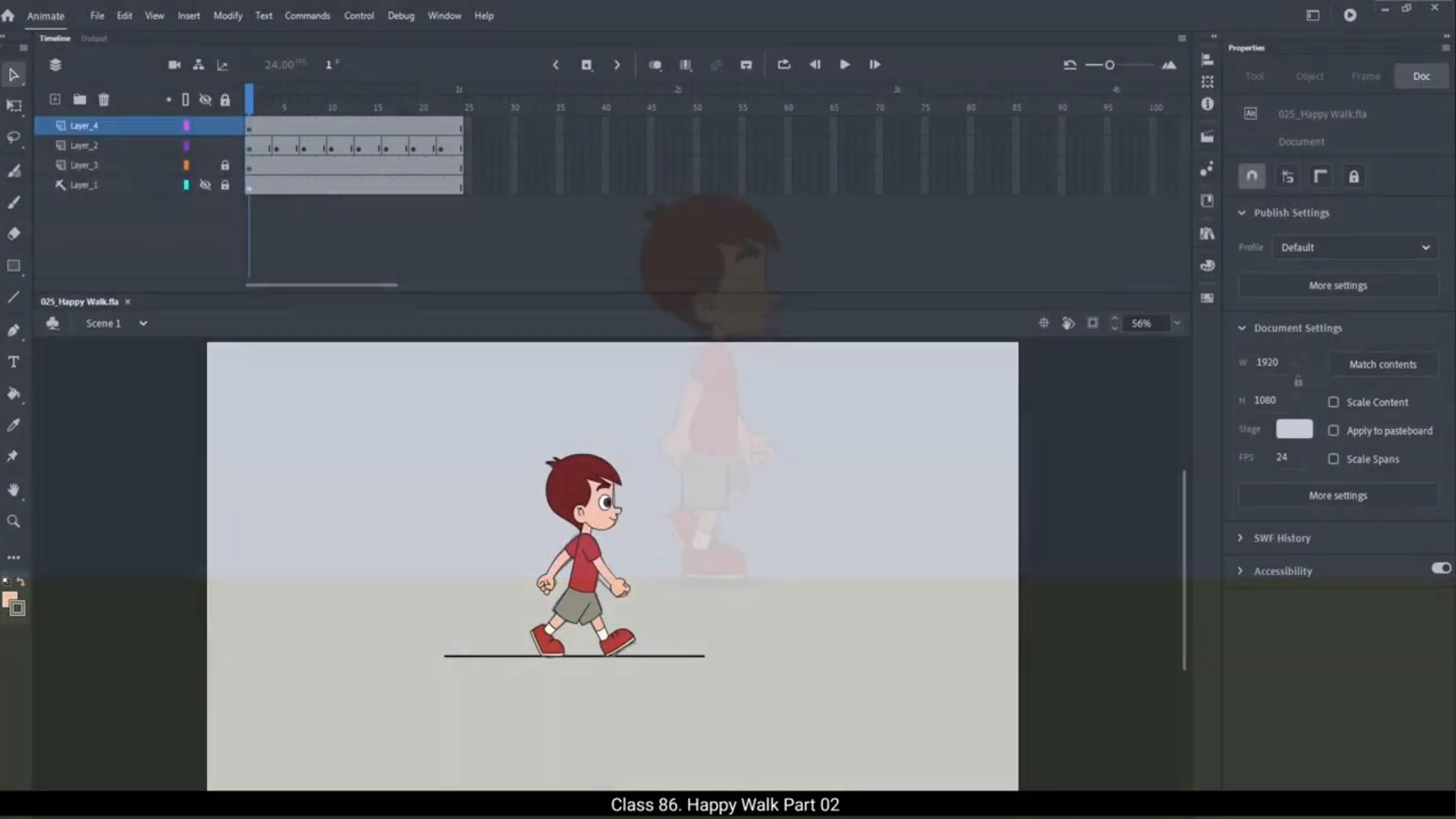
Now that we have drawn all the main key poses for our happy walk, we will vector the poses and apply shape between two our walk. As we can see that the first pose is already vectored and each and every outline and fill inside the shape is separated on an individual layer as we saw in our last walk. This process is done beforehand in this tutorial. To save time. We will now vector the second extreme pose on the frame 13. Please note that we have added.The keyframe on frame 13 because we need to change the pose on this keyframe.We go inside each symbol and add a keyframe on frame 13 and change the drawing.Please see the video and follow carefully. After we have successfully vectored the second extreme pose of our happy walk, we move to the contact pose on frame 4 again. On this frame we need to add a keyframe using F6 key on the keyboard. We then double click the torso symbol and enter it and add a keyframe again to make change to the shape of the torso. Here the torso bends slightly as the characters front leg make contact with the ground. We then adjust the head and the next symbol as seen in the video.We will enter the right leg symbol and lift the leg up and change the shape accordingly. Similarly, we go inside the left leg and hand symbol to change the drawings. Please do not forget to add a keyframe before changing the drawing or else the drawing will change on the previous keyframe. We will now vector all the key poses in our walk cycle. Please follow the video. Now that we have vectored every pose on the walk cycle, we will now apply Shape Tween and Classic Tween to it. We will select the frames on the 1st and the 4th keyframe as seen and click on the Classic Tween button in the timeline. We enter the torso symbol and select the frames between 1st and 4th keyframe. Right click and click on the Create Shape Tween option. From the menu. We can see that the shape distorts while morphing, so we need to use shape hints to remove this distortion. 😘 We select the back line of the torso and press Control plus Shift plus H on the keyboard. We select the hint A and drag it to the upper end of the line and on the 4th keyframe we move the same hint A on the upper end of the line. We can see that the hint turns green when it snaps to the end perfectly. Now the distortion in the line is removed and the one in the fill remains. We repeat the same process for the fill. We select the fill and press Control plus shift H to add a shape hint and move it to the top left.Owner of the fill and we do the same on 4th keyframe. We go back to the first keyframe and add another hint B using the shortcut and move it to the top right corner of the fill. We can see that the distortion has been removed completely. We enter the right hand symbol and add classic tween.We again enter the upper hand symbol and add shape between between the 1st and the 4th keyframe. We remove the distortion using the shape hints as we had done in the torso. There is no shape change between the keyframes so there will be no distortion. We will now add the classic and the shape tween in both the leg symbols. Similarly, we will add the classic tween to the symbols and shape tween inside the symbols. We fix any distortion in the shape between using the shape hints. Now that we have added classic and shaped between between all the keyframes, we will now fix any breaks or glitches in the shape. As you can see on the 2nd frame the right knee is broken so we enter the leg symbol and fix the brake by adding a keyframe on frame 2 and using the selection tool.By using the same method we fix all the breaks in our animation. Remember to add a keyframe on the frame which we want to fix the shape on. We have now completed the happy walk using the shape tween. 😘😘😘😘😘😘😘😘😘😘😘😘😘😘😘😘😘😘😘😘😘😘😘😘😘😘😘😘😘😘😘😘😘😘😘😘😘😘😘😘 अब जब हमने अपनी हैप्पी वॉक के लिए सभी मेन की पोज़ ड्रॉ कर ली हैं, तो अब हम इन पोज़ को वेक्टर करेंगे और अपनी वॉक के दो पोज़ के बीच शेप अप्लाई करेंगे। जैसा कि हम देख सकते हैं, पहली पोज़ पहले से ही वेक्टर की हुई है और शेप के अंदर की हर एक आउटलाइन और फिल अलग-अलग इंडिविजुअल लेयर पर सेपरेट की गई है, जैसा कि हमने अपनी पिछली वॉक में देखा था। यह प्रोसेस इस ट्यूटोरियल में पहले से ही किया गया है ताकि टाइम सेव हो सके। अब हम फ्रेम 13 पर सेकंड एक्सट्रीम पोज़ को वेक्टर करेंगे। प्लीज़ ध्यान दें कि हमने फ्रेम 13 पर कीफ्रेम ऐड किया है क्योंकि हमें इसी कीफ्रेम पर पोज़ चेंज करनी है। हम हर सिंबल के अंदर जाते हैं, फ्रेम 13 पर कीफ्रेम ऐड करते हैं और ड्रॉइंग चेंज करते हैं। प्लीज़ वीडियो को ध्यान से देखें और फॉलो करें। सेकंड एक्सट्रीम पोज़ को सक्सेसफुली वेक्टर करने के बाद, हम फिर से फ्रेम 4 पर कॉन्टैक्ट पोज़ पर आते हैं। इस फ्रेम पर हमें कीबोर्ड की F6 की का यूज़ करके एक कीफ्रेम ऐड करना होता है। इसके बाद हम टॉर्सो सिंबल पर डबल क्लिक करके उसके अंदर जाते हैं और शेप में चेंज करने के लिए फिर से एक कीफ्रेम ऐड करते हैं। यहाँ टॉर्सो थोड़ा सा बेंड होता है क्योंकि कैरेक्टर की फ्रंट लेग ज़मीन से कॉन्टैक्ट करती है। फिर हम वीडियो में दिखाए गए अनुसार हेड और नेक सिंबल को एडजस्ट करते हैं। इसके बाद हम राइट लेग सिंबल के अंदर जाते हैं, लेग को ऊपर उठाते हैं और उसके अनुसार शेप चेंज करते हैं। इसी तरह हम लेफ्ट लेग और हैंड सिंबल के अंदर जाकर ड्रॉइंग्स चेंज करते हैं। प्लीज़ यह मत भूलिए कि ड्रॉइंग बदलने से पहले कीफ्रेम ज़रूर ऐड करें, नहीं तो ड्रॉइंग पिछली कीफ्रेम पर ही बदल जाएगी। अब हम अपनी वॉक साइकिल की सभी की पोज़ को वेक्टर करेंगे, प्लीज़ वीडियो फॉलो करें। अब जब हमने वॉक साइकिल की हर पोज़ को वेक्टर कर लिया है, तो हम उस पर शेप ट्वीन और क्लासिक ट्वीन अप्लाई करेंगे। हम टाइमलाइन में पहली और चौथी कीफ्रेम के बीच के फ्रेम्स को सेलेक्ट करेंगे और क्लासिक ट्वीन बटन पर क्लिक करेंगे। इसके बाद हम टॉर्सो सिंबल के अंदर जाएंगे और पहली और चौथी कीफ्रेम के बीच के फ्रेम्स को सेलेक्ट करेंगे, राइट क्लिक करेंगे और क्रिएट शेप ट्वीन ऑप्शन पर क्लिक करेंगे। मेन्यू से हम देख सकते हैं कि मॉर्फिंग के दौरान शेप डिस्टॉर्ट हो रही है, इसलिए इस डिस्टॉर्शन को हटाने के लिए हमें शेप हिंट्स का यूज़ करना होगा। 😘 हम टॉर्सो की बैक लाइन को सेलेक्ट करते हैं और कीबोर्ड पर कंट्रोल + शिफ्ट + H प्रेस करते हैं। फिर हम हिंट A को सेलेक्ट करके उसे लाइन के अपर एंड तक ड्रैग करते हैं और चौथी कीफ्रेम पर जाकर उसी हिंट A को फिर से लाइन के अपर एंड पर मूव करते हैं। हम देख सकते हैं कि जब हिंट बिल्कुल सही एंड पर स्नैप होता है तो वह ग्रीन हो जाता है। अब लाइन में जो डिस्टॉर्शन था वह हट जाता है, लेकिन फिल में अभी भी डिस्टॉर्शन रहता है। अब हम फिल के लिए भी यही प्रोसेस दोहराते हैं। हम फिल को सेलेक्ट करते हैं और कंट्रोल + शिफ्ट + H प्रेस करके एक शेप हिंट ऐड करते हैं और उसे फिल के टॉप लेफ्ट कॉर्नर पर मूव करते हैं, और यही काम चौथी कीफ्रेम पर भी करते हैं। इसके बाद हम पहली कीफ्रेम पर वापस जाते हैं और शॉर्टकट की मदद से एक और हिंट B ऐड करते हैं और उसे फिल के टॉप राइट कॉर्नर पर मूव करते हैं। अब हम देख सकते हैं कि डिस्टॉर्शन पूरी तरह से रिमूव हो चुका है। इसके बाद हम राइट हैंड सिंबल के अंदर जाते हैं और क्लासिक ट्वीन ऐड करते हैं। फिर हम अपर हैंड सिंबल के अंदर जाकर पहली और चौथी कीफ्रेम के बीच शेप ट्वीन ऐड करते हैं। टॉर्सो की तरह ही हम यहाँ भी शेप हिंट्स का यूज़ करके डिस्टॉर्शन रिमूव करते हैं। क्योंकि कीफ्रेम्स के बीच शेप में ज़्यादा चेंज नहीं है, इसलिए यहाँ डिस्टॉर्शन भी नहीं होता। अब हम दोनों लेग सिंबल्स में भी क्लासिक ट्वीन और शेप ट्वीन ऐड करेंगे। इसी तरह हम सभी सिंबल्स पर क्लासिक ट्वीन और सिंबल्स के अंदर शेप ट्वीन लगाएंगे और जहाँ भी शेप में डिस्टॉर्शन होगा उसे शेप हिंट्स की मदद से ठीक करेंगे। अब जब हमने सभी कीफ्रेम्स के बीच क्लासिक और शेप ट्वीन ऐड कर दिए हैं, तो अब हम शेप में आने वाले किसी भी ब्रेक या ग्लिच को ठीक करेंगे। जैसा कि आप देख सकते हैं, सेकंड फ्रेम पर राइट नी ब्रोकन है, तो हम लेग सिंबल के अंदर जाते हैं और फ्रेम 2 पर एक कीफ्रेम ऐड करके सेलेक्शन टूल की मदद से उस ब्रेक को ठीक करते हैं। इसी मेथड का यूज़ करके हम अपनी एनिमेशन के सभी ब्रेक्स को फिक्स करते हैं। याद रखें, जिस फ्रेम पर शेप को ठीक करना हो, उस फ्रेम पर कीफ्रेम ज़रूर ऐड करें। अब हमने शेप ट्वीन का यूज़ करके अपनी हैप्पी वॉक को पूरी तरह से कंप्लीट कर लिया है।