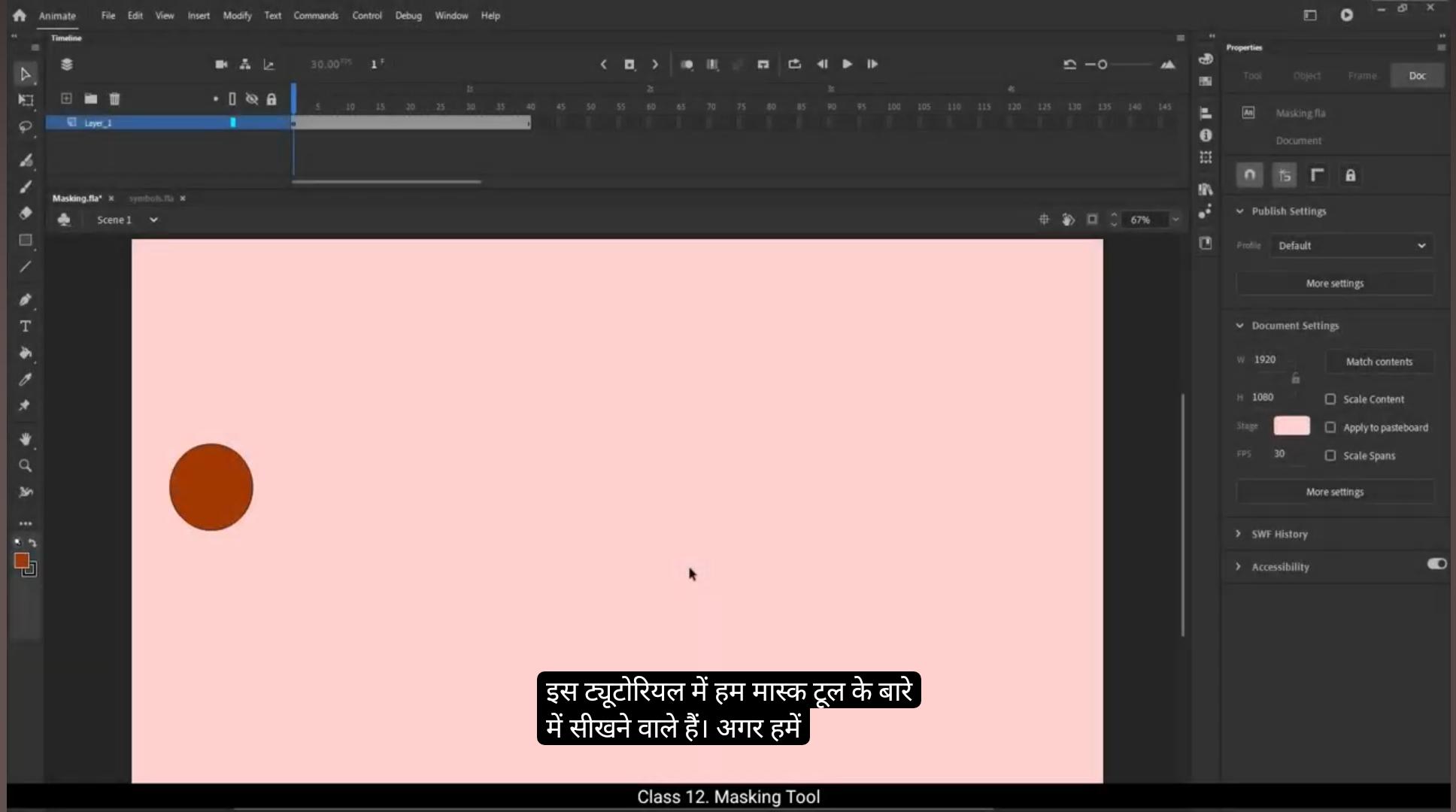
In this tutorial, we are going to learn about the mask tool. If we need to show an object or an animation in a particular area and not outside it, that's when we use the mask tool. Let's create a small example of the mask tool. We've got a small animation of a ball traveling on the screen. We add a new layer on top of the ball animation and we call it Mask.On this layer we draw a rectangle using the Rectangle tool. The shortcut key is R.We change the color and delete the outlines of the rectangle. It's always better to delete the outlines of a mask shape when we create one.The rectangle a bit using the selection tool as seen in the video. The shortcut for the selection tool is V. We now right click on the mask layer and select Mask from the menu that appears or simply use the shortcut M.We can now see that our ball animation is visible only inside the layer that we've created as a mask. The ball animation will not be visible outside this area. Hope you found this tutorial helpful. Thank you.
इस ट्यूटोरियल में, हम मास्क टूल के बारे में सीखने वाले हैं। अगर हमें किसी ऑब्जेक्ट या एनिमेशन को सिर्फ़ एक खास एरिया में दिखाना हो और उसके बाहर नहीं, तब हम मास्क टूल का इस्तेमाल करते हैं। चलिए मास्क टूल का एक छोटा सा example बनाते हैं। हमारे पास एक बॉल की छोटी सी एनिमेशन है जो स्क्रीन पर ट्रैवल कर रही है। हम बॉल एनिमेशन के ऊपर एक नई लेयर ऐड करते हैं और उसे “Mask” नाम देते हैं।
इस लेयर पर हम Rectangle टूल से एक rectangle ड्रॉ करते हैं। इसका शॉर्टकट key है R। हम rectangle का कलर बदलते हैं और उसके outlines डिलीट कर देते हैं। जब हम मास्क शेप बनाते हैं, तब हमेशा outlines हटाना बेहतर होता है। इसके बाद, rectangle को selection टूल से थोड़ा adjust करते हैं, जैसा वीडियो में दिखाया गया है। selection टूल का शॉर्टकट V है।
अब हम मास्क लेयर पर राइट क्लिक करते हैं और जो मेन्यू खुलता है, उसमें से “Mask” सेलेक्ट करते हैं या सीधा शॉर्टकट M का इस्तेमाल कर सकते हैं। अब हम देख सकते हैं कि हमारी बॉल एनिमेशन सिर्फ़ उस लेयर के अंदर दिखाई दे रही है जिसे हमने मास्क के रूप में बनाया है। बॉल एनिमेशन इस एरिया के बाहर विज़िबल नहीं होगी। उम्मीद है आपको यह ट्यूटोरियल हेल्पफुल लगा होगा। धन्यवाद।