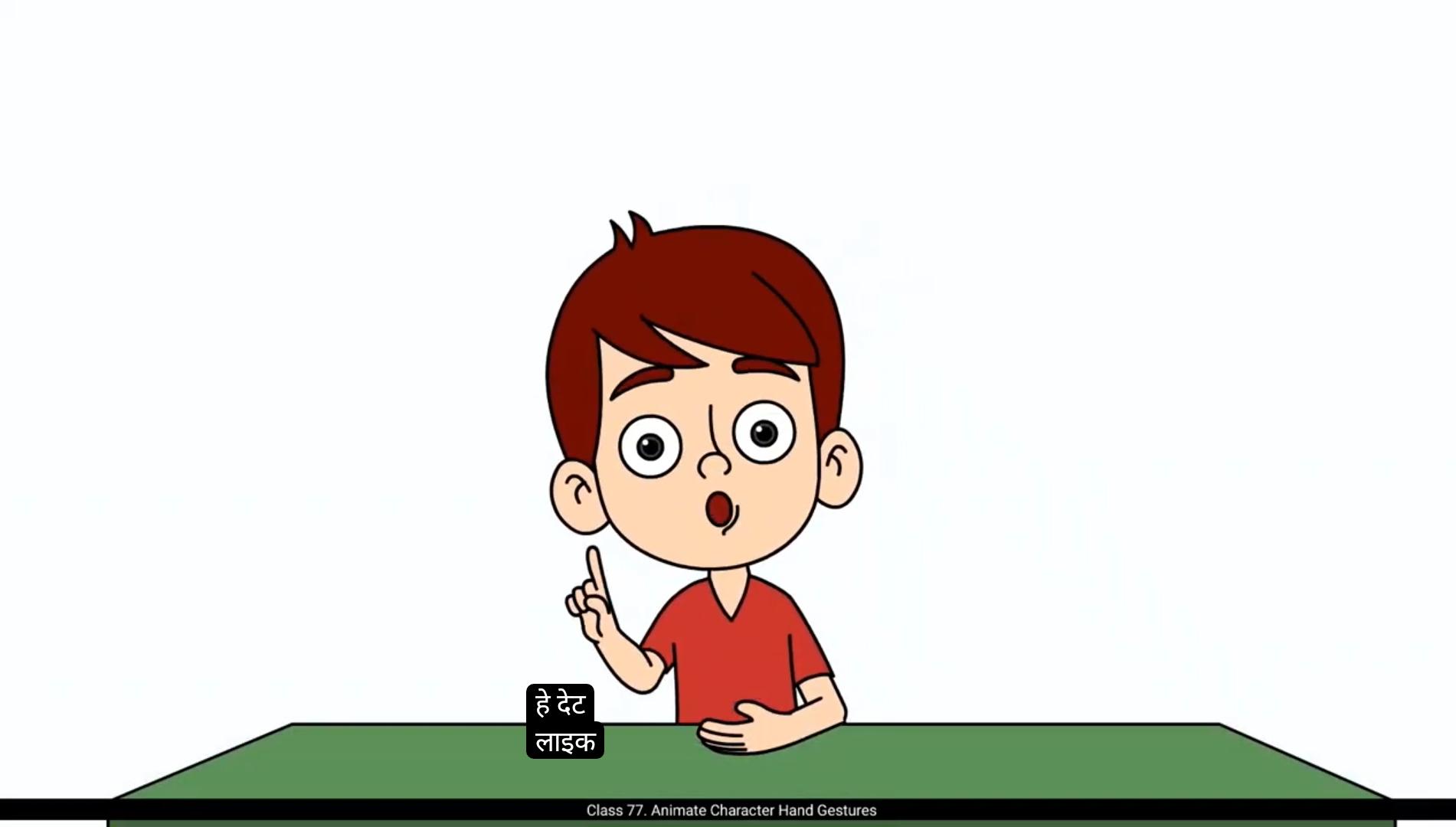
Hello students, and welcome back to another exciting tutorial. In the previous lesson, we explored how to sync your character's lip movements with audio. That was an important step in making your character feel expressive and connected to the dialogue. Now in this session, we're going one step further. We're going to add hand gestures to match the dialogue. This will bring an extra layer of life and personality to your character's performance.To save you time and help you understand the process more clearly.I've already created rough sketches of the hand gestures that match each line of the dialogue. You'll find these sketches available in the downloadable materials attached to this video. Feel free to download them and follow along.For instance, in one part of the dialogue, our character Orvin says 'hey there', and as he does, he gives a friendly wave. I've included a rough drawing to show how his hand moves during that moment.Similarly, I've created gesture sketches for each line of the script to help guide your animation.Let's first take a look at a quick preview of these rough drawings combined with the audio. This will help you visualize How the hand gestures align with the character's speech and overall performance.Hey there, ready to animate like a pro? Finish this course and you'll be creating magic like me.Now, this process of creating loose, expressive sketches before moving on to the final artwork is known as solid drawing. It's an essential step in the animation pipeline. Drawing rough poses allows you to experiment with timing, staging, and expression without worrying about perfect lines or details.
😘
Think of it as building the foundation for your scene.Once you're happy with your rough drawings and they effectively communicate the intended actions and emotions, and once they're reviewed or approved, you can move on to vectoring them or cleaning them up into final drawings. So remember, never skip the rough stage. It saves time, helps you plan better, and ensures your final animation is strong and expressive.Now that our rough drawings are ready, it's time to start vectoring them. First, I'll switch the rough drawing layer to outline mode. This will help us see the sketches more clearly while we trace over them.We'll begin from frame 7, where our character makes the first hand gesture.The goal is to match the pose exactly with the rough drawing. Now let's enter the character symbol. Once inside, we'll add a keyframe on frame seven across all layers.Next, we'll start adjusting the body parts. We'll move, rotate, and resize the different symbols to align them with the rough sketch beneath.This part is all about matching the pose as closely as possible using the existing symbols.Since we've covered the tracing process in detail in many of our earlier tutorials, I'm going to Fast forward this part a bit. I trust that by now you're becoming more comfortable with these steps.
Our first hand pose Is complete and matches the rough drawing perfectly. Now let's move on to the next pose. For that, we'll jump to frame 30. This particular pose is actually the same as the one on frame 1. So instead of creating it from scratch, we'll save time by copying all the keyframes from frame 1 and pasting them onto frame 30.Make sure to repeat this same step inside each symbol that includes the bicep, forearm, hand, and torso.We want to make sure everything is synchronized and looping correctly.
😘
Let's move on with the next steps inside the character symbol.1st I'll create a classic tween between the keyframes, then synchronize symbols. Once we confirm everything is synchronized, we'll go ahead and remove the classic tween.Moving ahead, frame 37 has the same pose as before, so we don't need to make any changes there, we'll simply leave it as it is.Now let's jump to frame 65.For this frame, we'll copy the pose from frame 7 that includes the torso, bicep, forearm, and hand and paste it onto frame 65.Then we'll make slight adjustments to match it perfectly with the rough drawing underneath.Next, we go to frame 96, where the character takes on a new pose. We'll trace over the rough drawing here just like we did before, adjusting each body part symbol to match the sketch accurately.At this point, I've now traced and completed all the major poses of the character, closely following the rough drawings we prepared earlier. So now let's play back the animation and see how it's coming together so far. So far, we've set up all the hand gesture poses according to the dialogue. Now it's time to bring them to life through animation. Let's begin by going inside the character symbol to start animating the poses.When Orvin says hey, we want his waving hand animation to begin and continue until he opens his eyes. To achieve this, we'll set up some keyframes to define the movement. First, I'll go to frame 21 and add a keyframe on all layers. This will mark the end of the waving motion. Then I'll also add another keyframe on frame 11 on all layers to start the waving movement in between.Next, I'll set the pivot point for the upper body movement at the bottom center of the torso. Now I'll select all body part symbols except the left forearm and left hand and rotate them slightly to the left to show a leaning gesture.For the waving motion, I'll rotate the right hand a bit towards the right.
😘
Then I'll go inside the right forearm symbol and on frame 11 I'll add a keyframe and slightly rotate the hand symbol again to the right.Then on frame 17, I'll copy all the keyframes from frame 7 and paste it here.Finally, I'll create a classic tween between these keyframes to smooth out the waving animation.At the beginning of the animation you might notice a slight distortion in the hand movement.Let's fix that first.The issue is happening between frame one and frame 7, so to correct it, we'll start by removing the classic tween between these two frames.Now, instead of beginning the hand movement directly from frame 7, we'll rotate the hand to the right and align it properly with the bicep.Next, let's go inside the forearm symbol and then further enter the hand symbol.On frame 6 I'll add a keyframe to begin adjusting the hand.Now exit the hand symbol and jump to frame 163 on the character symbol. Once again go inside the hand symbol and this time we'll copy the left hand artwork and paste it on frame 7 inside the right hand symbol.Since we're using the left hand shape for the right hand, we'll need to flip it horizontally and then align it with the forearm to maintain the correct hand placement.Next, we'll flip the forearm symbol vertically so it matches the flipped hand. Carefully align both the hand and forearm to ensure they connect properly and look anatomically correct.Now we'll synchronize the symbols on the right forearm layer to make sure everything is consistent.Going back inside the hand symbol, we'll shift the keyframe from frame 6 to frame 7 so it lines up correctly with the rest of the animation.To help us sync the hand gesture poses more accurately with the dialogue, we'll add a new layer and place our audio file on it. This way we can time the animation more precisely.
😘
Now let's add a waving movement to the hand. We'll add keyframes on frame 16 and frame 21 to define the up and down motion of the wave.At frame 16, where the position begins to change, will rotate the hand slightly to show a shift in the gesture.Then we'll create a classic tween between these frames.Lastly, I want to add a slight delay in the hand movement. To do that I'll simply move the animation 1 frame forward.Now let's add one more wave animation starting from frame 25.1st I'll add a keyframe on frame 25 and then rotate the forearm to begin the motion.Then we'll create a classic tween between these frames.To create a slight delay in the hands reaction, I'll go inside the forearm symbol and rotate the hand slightly until frame 26. This gives the movement a more organic feel, as if the hand is catching up with the forearm. Our character Orvin will say hey there, and after that he should return to his normal pose. To hold the final pose for a moment before settling, I'll add a keyframe on frame 35.Now to create a nice settle down motion, I'll add a keyframe on frame 29.Then remove the keyframes on frame 30 using shift F6 and add a classic tween.Since the post slightly changes here, we'll need to readjust the drawings of the forearm and hand. Let's start with the bicep.I'll add a keyframe on frame 32.And adjust the symbol's position on frame 30 to fit with the rest of the pose.Then I'll also add a keyframe on frame 31 and make fine adjustments to align the motion.Next I'll exit the symbol and on the bicep layer I'll add a keyframe on frame 30 to reposition the bicep symbol.Now I will refine the forearm position.Then go inside the forearm symbol and then into the hand symbol.
😘
Inside I'll move the keyframe from frame 30 to frame 32.And then I'll reuse the hand drawing from frame 7. I'll copy it and paste it on frame 30, then adjust the position to match the forearm correctly.Back on the forearm layer, I'll add a keyframe on frame 32 and again I'll copy the pose from frame 7 and paste it onto frame 30 to maintain consistency.Now we'll have to manually adjust the entire arms position just to make sure everything flows smoothly and aligns perfectly.We finished the animation for sentence. Hey there, next pose is for ready to animate like a pro. So for this pose animation, we'll follow the same process as before, adding keyframes, adjusting the arm symbols, and syncing the motion with the dialogue. Since we've already covered this earlier, I'll skip showing those steps here.I've added the animation for that second sentence. Now let's move on to the next animation. This time we'll add a bit of anticipation movement. The idea is simple. The character will slightly lean towards the right, creating a sense of anticipation, and then he'll return to a straight posture. We'll start by adding keyframes at frame 89.I'll also go inside the forearm symbol and add keyframes on the hand layer at the same frame to keep everything synced. By frame 94 the character should be leaning forward, so we'll add keyframes here.Rotate his torso to the left.And adjust the forearm and hand slightly to the opposite direction.At frame 96, we'll shift the weight to his right, continuing the motion.Then we'll create classic tweens between frame 89 to 94 and also from frame 96 to 104 to animate this lean smoothly.We also need to go inside the right forearm symbol and add a classic tween there for consistent movement.Similarly, we'll add a classic tween inside the left forearm as well.
😘
Now let's go back inside the right forearm symbol.On the forearm layer, I'll try adding a shape tween.But sometimes it causes distortion in between frames. To fix that, I'll remove the shape between.Add a keyframe and manually adjust the shape to maintain clean motion.
We'll now repeat the same process for the left arm.I'll start by adding a shape tween for the first three drawings and insert keyframes on each frame.After that, I'll manually adjust the shapes on every keyframe to make sure the arm movements look fluid.Next, I'll insert keyframes between the following drawings as well.Once that's done, play the animation with audio to check how it's syncing. If needed, make small adjustments to refine the hand movement and ensure smooth transitions.Now let's move on to the next sentence in the dialogue. Here, our character will do a finger snap, and to add realism, we'll include some anticipation in his body movement. That means he'll slightly lean back just before snapping his fingers.First add keyframes on frame 148 for all layers.Then at frame 153, select all the body elements, scale them down a bit and rotate the head slightly.Now let's go inside the hand symbol and move the keyframes to match the same timeline as the other body symbols.Next, we'll create a classic tween.And on frame 153 rotate the hand to the right for the snap motion.Inside the forearm symbol, we'll add a keyframe on frame 148, then rotate the hand on frame 153. To add a slight delay, shift keyframe 153 to frame 157, and then create a classic tween between these keyframes.To make this snapping movement smoother, we need to change this drawing on frame 149.Go back into the hand symbol and move the keyframe from frame 152 to frame 149.
😘
Then add a keyframe on frame 149 inside the forearm symbol and adjust the hands rotation and position.We'll hold that rotation until frame 156.We will add keyframes on frame 156 on forearm symbol.Create a classic tween and rotate the hand back to the left for a natural finishing motion.Inside the hand symbol, we'll now move the keyframe from frame 162 to 159 to end the snap properly.That completes the right hand snapping animation. Next, we'll focus on animating the left hand to match the pose and movement. First, I'll start by aligning the bicep, forearm, and hand positions on each keyframe.To make sure the bicep aligns perfectly with the forearm, I'll insert a new keyframe where needed.On frame 155, I'll slightly adjust the biceps key position to match the flow of the forearm movement.Similarly, I'll modify the drawing on frame 153 to better match the hands motion and maintain visual continuity.Next, at frame 159, I'll rotate the character's body slightly to the left, adding some follow through after the finger snap.Now, to settle the character's movement, we'll add keyframes on frame 163 across all layers.Select all symbols and slightly rotate and scale them down to make the character lean a bit. Also go inside the forearm symbol, add a keyframe on frame 163 and adjust the hands rotation.Now go inside the character symbol, add a classic tween between keyframes.This finger snap action happens when the character says the word magic, so it's important to sync this animation precisely with the audio.After that, for the next phrase magic like me, we need a slight pause before the word me to add that delay. Move all keyframes on frame 174 to frame 185 to create a small gap, then synchronize the timeline across all symbols to maintain alignment.Next, we need to adjust the keyframe positions inside the forearm, hand, and bicep symbols.
😘
So go inside each symbol and move the keyframe from frame 174 to frame 185 to keep everything In Sync with the updated timeline.Now I want the hand animation to continue rotating until frame 158.To add a cushioning effect which softens the motion, I'll add keyframes on frame 188.Select all the elements and slightly rotate them to ease into the next pose.Then I'll add keyframes on frame 183 for anticipation.And again on frame 179 to start the next action.At this point, the character is leaning slightly to the right and in the final pose he should lean to the left. So while transitioning from right to left, we need to add anticipation on frame 183.To do that, select the character upper body and adjust the pivot point.Move him slightly to his right side.And rotate the head to the left for a delayed reaction.Rotate the right arm as well to match the body movement.Then add a classic tween between these keyframes to smoothen the animation.Now let's fine tune the hand drawing, go inside the hand symbol and change the drawing on frame 184.
On this frame I'll scale the arm down to give the impression that it's moving backward in space.Then on this frame, I'll scale it slightly up to show it coming back toward the camera, showing a nice perspective effect.And that's it. You've now learned how to add detailed hand gestures and enhance your character animation with anticipation, follow through and expressive movements. From simple waves to finger snaps, every small adjustment adds life to your character. Now let's preview the animation.Hey there, ready to animate like a pro? Finish this course and you'll be creating magic like me.I hope this video helped you understand the process better.
We'll see you in the next one. Thanks for watching.
हेलो स्टूडेंट्स, और एक और एक्साइटिंग ट्यूटोरियल में आप सबका स्वागत है। पिछले लेसन में हमने देखा था कि अपने कैरेक्टर के लिप मूवमेंट्स को ऑडियो के साथ कैसे सिंक करते हैं। यह एक बहुत इम्पॉर्टेंट स्टेप था ताकि आपका कैरेक्टर एक्सप्रेसिव लगे और डायलॉग से कनेक्टेड महसूस हो। अब इस सेशन में हम एक स्टेप आगे बढ़ने वाले हैं। हम डायलॉग के साथ मैच करते हुए हैंड जेस्चर्स ऐड करने वाले हैं। इससे आपके कैरेक्टर की परफॉर्मेंस में लाइफ और पर्सनैलिटी का एक एक्स्ट्रा लेयर आ जाएगा।
आपका टाइम बचाने और प्रोसेस को और क्लियरली समझाने के लिए, मैंने पहले ही डायलॉग की हर लाइन के मैच के रफ हैंड जेस्चर स्केचेस बना लिए हैं। ये स्केचेस आपको इस वीडियो के साथ अटैच्ड डाउनलोडेबल मटीरियल्स में मिल जाएंगे। आप फ्रीली उन्हें डाउनलोड करके साथ-साथ फॉलो कर सकते हो।
एग्ज़ाम्पल के लिए, डायलॉग के एक पार्ट में हमारा कैरेक्टर ऑर्विन “हे देयर” कहता है, और उस मोमेंट पर वो एक फ्रेंडली वेव करता है। मैंने एक रफ ड्रॉइंग इन्क्लूड की है जो दिखाती है कि उस मोमेंट में उसका हाथ कैसे मूव करता है।
इसी तरह, मैंने स्क्रिप्ट की हर लाइन के लिए जेस्चर स्केचेस बनाए हैं ताकि आपकी एनिमेशन को गाइड मिल सके।
सबसे पहले, चलिए इन रफ ड्रॉइंग्स का ऑडियो के साथ एक क्विक प्रीव्यू देख लेते हैं। इससे आप विज़ुअलाइज़ कर पाओगे कि हैंड जेस्चर्स कैरेक्टर की स्पीच और ओवरऑल परफॉर्मेंस के साथ कैसे अलाइन होते हैं।
हे देयर, रेडी टू एनिमेट लाइक अ प्रो? फिनिश दिस कोर्स और यू विल बी क्रिएटिंग मैजिक लाइक मी।
अब, फाइनल आर्टवर्क पर जाने से पहले लूज़ और एक्सप्रेसिव स्केचेस बनाना सॉलिड ड्रॉइंग के नाम से जाना जाता है। यह एनिमेशन पाइपलाइन का एक एसेंशियल स्टेप है। रफ पोज़ेस ड्रॉ करने से आप टाइमिंग, स्टेजिंग और एक्सप्रेशन के साथ एक्सपेरिमेंट कर सकते हो बिना परफेक्ट लाइन्स या डीटेल्स की टेंशन लिए।
😘
इसे अपने सीन की फाउंडेशन बनाने जैसा समझिए। जब आप अपने रफ ड्रॉइंग्स से खुश हों और वे सही तरह से इंटेंडेड एक्शन्स और इमोशन्स को कम्युनिकेट कर रहे हों, और जब वे रिव्यू या अप्रूव हो जाएँ, तब आप उन्हें वेक्टर करने या क्लीन करके फाइनल ड्रॉइंग्स में बदल सकते हैं।
तो याद रखें, रफ स्टेज को कभी स्किप मत कीजिए। यह टाइम बचाता है, आपको बेहतर प्लान करने में मदद करता है, और यह सुनिश्चित करता है कि आपकी फाइनल एनिमेशन स्ट्रॉन्ग और एक्सप्रेसिव हो।
अब जब हमारी रफ ड्रॉइंग्स रेडी हैं, तो उन्हें वेक्टर करना शुरू करने का समय आ गया है। सबसे पहले, मैं रफ ड्रॉइंग लेयर को आउटलाइन मोड में स्विच करूँगा। इससे हमें स्केचेस को और क्लियरली देखने में मदद मिलेगी जब हम उनके ऊपर ट्रेस करेंगे।
हम फ्रेम 7 से शुरुआत करेंगे, जहाँ हमारा कैरेक्टर पहला हैंड जेस्चर करता है। यहाँ गोल यही है कि पोज़ को रफ ड्रॉइंग के साथ बिल्कुल मैच किया जाए।
अब चलिए कैरेक्टर सिंबल के अंदर एंटर करते हैं। अंदर जाने के बाद, हम फ्रेम 7 पर सभी लेयर्स में एक कीफ्रेम ऐड करेंगे।
इसके बाद, हम बॉडी पार्ट्स को एडजस्ट करना शुरू करेंगे। हम अलग-अलग सिंबल्स को मूव, रोटेट और रीसाइज़ करेंगे ताकि वे नीचे मौजूद रफ स्केच के साथ अलाइन हो जाएँ।
यह पूरा पार्ट मौजूदा सिंबल्स का इस्तेमाल करते हुए पोज़ को जितना हो सके उतना क्लोज़ली मैच करने पर फोकस करता है।
चूँकि हमने ट्रेसिंग प्रोसेस को अपनी कई पहले की ट्यूटोरियल्स में डिटेल में कवर किया है, इसलिए मैं इस पार्ट को थोड़ा फास्ट फॉरवर्ड कर रहा हूँ। मुझे भरोसा है कि अब तक आप इन स्टेप्स के साथ और ज्यादा कंफर्टेबल हो चुके होंगे।
हमारा पहला हैंड पोज़ पूरा हो चुका है और यह रफ ड्रॉइंग से परफेक्टली मैच करता है। अब चलिए अगले पोज़ पर चलते हैं।
इसके लिए, हम फ्रेम 30 पर जंप करेंगे। यह खास पोज़ असल में फ्रेम 1 वाले पोज़ जैसा ही है। तो इसे स्क्रैच से बनाने की बजाय, हम टाइम बचाने के लिए फ्रेम 1 के सभी कीफ्रेम्स को कॉपी करके उन्हें फ्रेम 30 पर पेस्ट कर देंगे।
ध्यान रखें कि यही स्टेप हर उस सिंबल के अंदर रिपीट करें जिसमें बाइसेप, फोरआर्म, हैंड और टॉर्सो शामिल हैं।
हम यह सुनिश्चित करना चाहते हैं कि सब कुछ सिंक में हो और सही तरह से लूप कर रहा हो।
😘
अब चलिए कैरेक्टर सिंबल के अंदर अगले स्टेप्स पर आगे बढ़ते हैं। सबसे पहले मैं कीफ्रेम्स के बीच एक क्लासिक ट्वीन बनाऊँगा, फिर सिंबल्स को सिंक्रोनाइज़ करूँगा। जब हम कन्फर्म कर लेंगे कि सब कुछ सिंक्रोनाइज़ हो गया है, तब हम क्लासिक ट्वीन को रिमूव कर देंगे।
आगे बढ़ते हुए, फ्रेम 37 में पहले जैसा ही पोज़ है, इसलिए वहाँ हमें कोई बदलाव करने की ज़रूरत नहीं है, हम उसे वैसे ही रहने देंगे।
अब चलिए फ्रेम 65 पर जंप करते हैं। इस फ्रेम के लिए, हम फ्रेम 7 वाला पोज़ कॉपी करेंगे जिसमें टॉर्सो, बाइसेप, फोरआर्म और हैंड शामिल हैं और उसे फ्रेम 65 पर पेस्ट कर देंगे।
इसके बाद, नीचे मौजूद रफ ड्रॉइंग के साथ परफेक्टली मैच कराने के लिए हम उसमें हल्के-फुल्के एडजस्टमेंट्स करेंगे।
इसके बाद हम फ्रेम 96 पर जाते हैं, जहाँ कैरेक्टर एक नया पोज़ लेता है। यहाँ हम रफ ड्रॉइंग के ऊपर उसी तरह ट्रेस करेंगे जैसे हमने पहले किया था, और हर बॉडी पार्ट सिंबल को एडजस्ट करेंगे ताकि वह स्केच से एक्युरेटली मैच करे।
इस पॉइंट पर, मैंने अब कैरेक्टर के सारे मेजर पोज़ेस को ट्रेस करके पूरा कर लिया है, जो हमने पहले तैयार किए गए रफ ड्रॉइंग्स को क्लोज़ली फॉलो करते हैं।
तो अब चलिए एनिमेशन को प्ले करके देखते हैं कि अभी तक यह कैसे शेप ले रहा है।
अब तक, हमने डायलॉग के अनुसार सारे हैंड जेस्चर पोज़ेस सेट कर लिए हैं। अब उन्हें एनिमेशन के ज़रिए लाइफ देने का समय आ गया है।
चलिए शुरुआत करते हैं कैरेक्टर सिंबल के अंदर जाकर पोज़ेस को एनिमेट करने से।
जब ऑर्विन “हे” कहता है, तो हम चाहते हैं कि उसका वेव करता हुआ हाथ एनिमेशन शुरू करे और तब तक चलता रहे जब तक वह अपनी आँखें नहीं खोलता।
इसे अचीव करने के लिए, हम मूवमेंट को डिफाइन करने के लिए कुछ कीफ्रेम्स सेट करेंगे।
सबसे पहले, मैं फ्रेम 21 पर जाऊँगा और सभी लेयर्स पर एक कीफ्रेम ऐड करूँगा। यह वेविंग मोशन का एंड मार्क करेगा।
फिर मैं फ्रेम 11 पर भी सभी लेयर्स में एक और कीफ्रेम ऐड करूँगा ताकि बीच में वेविंग मूवमेंट शुरू हो सके।
इसके बाद, मैं अपर बॉडी मूवमेंट के लिए पिवट पॉइंट को टॉर्सो के बॉटम सेंटर पर सेट करूँगा।
अब मैं लेफ्ट फोरआर्म और लेफ्ट हैंड को छोड़कर सभी बॉडी पार्ट सिंबल्स को सेलेक्ट करूँगा और उन्हें थोड़ा लेफ्ट की तरफ रोटेट करूँगा ताकि एक लीनिंग जेस्चर दिख सके।
वेविंग मोशन के लिए, मैं राइट हैंड को थोड़ा सा राइट की तरफ रोटेट करूँगा।
😘
फिर मैं राइट फोरआर्म सिंबल के अंदर जाऊँगा और फ्रेम 11 पर एक कीफ्रेम ऐड करूँगा और हैंड सिंबल को थोड़ा सा और राइट की तरफ रोटेट करूँगा।
इसके बाद फ्रेम 17 पर, मैं फ्रेम 7 के सभी कीफ्रेम्स को कॉपी करके यहाँ पेस्ट कर दूँगा।
आख़िर में, इन कीफ्रेम्स के बीच एक क्लासिक ट्वीन बनाऊँगा ताकि वेविंग एनिमेशन स्मूद हो जाए।
एनिमेशन की शुरुआत में आपको हैंड मूवमेंट में थोड़ी सी डिस्टॉर्शन नज़र आ सकती है। चलिये पहले उसे ठीक करते हैं।
यह प्रॉब्लम फ्रेम 1 और फ्रेम 7 के बीच हो रही है, तो इसे करेक्ट करने के लिए हम सबसे पहले इन दोनों फ्रेम्स के बीच का क्लासिक ट्वीन रिमूव करेंगे।
अब, हैंड मूवमेंट को सीधे फ्रेम 7 से शुरू करने की बजाय, हम हैंड को राइट की तरफ रोटेट करेंगे और उसे बाइसेप के साथ ठीक से अलाइन करेंगे।
इसके बाद, चलिए फोरआर्म सिंबल के अंदर जाते हैं और फिर आगे हैंड सिंबल के अंदर एंटर करते हैं।
फ्रेम 6 पर, मैं हैंड को एडजस्ट करना शुरू करने के लिए एक कीफ्रेम ऐड करूँगा।
अब हैंड सिंबल से बाहर निकलिए और कैरेक्टर सिंबल में फ्रेम 163 पर जंप करिए।
एक बार फिर हैंड सिंबल के अंदर जाइए और इस बार लेफ्ट हैंड की आर्टवर्क को कॉपी करके राइट हैंड सिंबल के अंदर फ्रेम 7 पर पेस्ट कर दीजिए।
क्योंकि हम राइट हैंड के लिए लेफ्ट हैंड की शेप इस्तेमाल कर रहे हैं, इसलिए हमें उसे हॉरिज़ॉन्टली फ्लिप करना होगा और फिर फोरआर्म के साथ अलाइन करना होगा ताकि सही हैंड प्लेसमेंट बना रहे।
इसके बाद, हम फोरआर्म सिंबल को वर्टिकली फ्लिप करेंगे ताकि वह फ्लिप किए गए हैंड से मैच करे।
हैंड और फोरआर्म दोनों को ध्यान से अलाइन कीजिए ताकि वे सही तरह से कनेक्ट हों और एनाटॉमिकली करेक्ट लगें।
अब हम राइट फोरआर्म लेयर पर सिंबल्स को सिंक्रोनाइज़ करेंगे ताकि सब कुछ कंसिस्टेंट रहे।
फिर से हैंड सिंबल के अंदर जाकर, हम कीफ्रेम को फ्रेम 6 से फ्रेम 7 पर शिफ्ट करेंगे ताकि वह बाकी एनिमेशन के साथ ठीक से लाइन अप हो जाए।
हैंड जेस्चर पोज़ेस को डायलॉग के साथ और ज्यादा एक्युरेटली सिंक करने के लिए, हम एक नई लेयर ऐड करेंगे और उस पर अपनी ऑडियो फाइल प्लेस करेंगे। इस तरह हम एनिमेशन को और ज्यादा प्रीसाइज़ टाइम कर पाएँगे।
😘
अब चलिए हैंड में एक वेविंग मूवमेंट ऐड करते हैं। वेव के अप और डाउन मोशन को डिफाइन करने के लिए हम फ्रेम 16 और फ्रेम 21 पर कीफ्रेम्स ऐड करेंगे।
फ्रेम 16 पर, जहाँ पोज़िशन बदलना शुरू होती है, हम जेस्चर में शिफ्ट दिखाने के लिए हैंड को थोड़ा सा रोटेट करेंगे।
इसके बाद, इन फ्रेम्स के बीच एक क्लासिक ट्वीन बनाएँगे।
आख़िर में, मैं हैंड मूवमेंट में थोड़ा सा डिले ऐड करना चाहता हूँ। इसके लिए, मैं बस एनिमेशन को 1 फ्रेम आगे मूव कर दूँगा।
अब चलिए फ्रेम 25 से शुरू होने वाली एक और वेव एनिमेशन ऐड करते हैं।
सबसे पहले, मैं फ्रेम 25 पर एक कीफ्रेम ऐड करूँगा और फिर मूवमेंट शुरू करने के लिए फोरआर्म को रोटेट करूँगा।
इसके बाद, इन फ्रेम्स के बीच एक क्लासिक ट्वीन बनाएँगे।
हैंड की रिएक्शन में थोड़ा सा डिले बनाने के लिए, मैं फोरआर्म सिंबल के अंदर जाऊँगा और फ्रेम 26 तक हैंड को हल्का सा रोटेट करूँगा।
इससे मूवमेंट को एक ज़्यादा ऑर्गैनिक फील मिलती है, जैसे हैंड फोरआर्म के साथ कैच अप कर रहा हो।
हमारा कैरेक्टर ऑर्विन “हे देयर” कहेगा, और उसके बाद उसे अपने नॉर्मल पोज़ में लौट आना चाहिए।
फाइनल पोज़ को थोड़ी देर होल्ड करने के लिए, मैं फ्रेम 35 पर एक कीफ्रेम ऐड करूँगा।
अब एक अच्छा सा सेटल डाउन मोशन बनाने के लिए, मैं फ्रेम 29 पर एक कीफ्रेम ऐड करूँगा।
फिर शिफ्ट + F6 का इस्तेमाल करके फ्रेम 30 के कीफ्रेम्स रिमूव करूँगा और एक क्लासिक ट्वीन ऐड करूँगा।
क्योंकि यहाँ पोज़ थोड़ी सी बदल जाती है, हमें फोरआर्म और हैंड की ड्रॉइंग्स को दोबारा एडजस्ट करना होगा।
चलिए शुरुआत बाइसेप से करते हैं। मैं फ्रेम 32 पर एक कीफ्रेम ऐड करूँगा।
और फ्रेम 30 पर सिंबल की पोज़िशन को एडजस्ट करूँगा ताकि वह बाकी पोज़ के साथ फिट हो जाए।
इसके बाद, मैं फ्रेम 31 पर भी एक कीफ्रेम ऐड करूँगा और मूवमेंट को अलाइन करने के लिए फाइन एडजस्टमेंट्स करूँगा।
अब मैं सिंबल से बाहर निकलूँगा और बाइसेप लेयर पर फ्रेम 30 पर एक कीफ्रेम ऐड करूँगा ताकि बाइसेप सिंबल को रीपोज़िशन किया जा सके।
अब मैं फोरआर्म की पोज़िशन को रिफाइन करूँगा।
इसके बाद, मैं फोरआर्म सिंबल के अंदर जाऊँगा और फिर हैंड सिंबल के अंदर एंटर करूँगा।
😘
अंदर जाकर मैं कीफ्रेम को फ्रेम 30 से फ्रेम 32 पर मूव करूँगा। और फिर मैं फ्रेम 7 की हैंड ड्रॉइंग को दोबारा यूज़ करूँगा। मैं उसे कॉपी करके फ्रेम 30 पर पेस्ट करूँगा और फिर फोरआर्म के साथ सही तरह से मैच करने के लिए उसकी पोज़िशन एडजस्ट करूँगा।
अब फोरआर्म लेयर पर वापस आकर, मैं फ्रेम 32 पर एक कीफ्रेम ऐड करूँगा और फिर से फ्रेम 7 वाला पोज़ कॉपी करके कंसिस्टेंसी बनाए रखने के लिए उसे फ्रेम 30 पर पेस्ट करूँगा।
अब हमें पूरे आर्म्स की पोज़िशन को मैन्युअली एडजस्ट करना होगा ताकि सब कुछ स्मूदली फ्लो करे और परफेक्टली अलाइन हो।
हमने “हे देयर” वाली सेंटेंस की एनिमेशन पूरी कर ली है। अगला पोज़ है “रेडी टू एनिमेट लाइक अ प्रो” के लिए।
इस पोज़ की एनिमेशन के लिए, हम पहले जैसा ही प्रोसेस फॉलो करेंगे, कीफ्रेम्स ऐड करेंगे, आर्म सिंबल्स को एडजस्ट करेंगे और मोशन को डायलॉग के साथ सिंक करेंगे।
क्योंकि यह सब हम पहले ही कवर कर चुके हैं, इसलिए मैं यहाँ उन स्टेप्स को दिखाना स्किप कर रहा हूँ।
मैंने सेकंड सेंटेंस की एनिमेशन ऐड कर दी है। अब चलिए अगली एनिमेशन पर चलते हैं।
इस बार हम थोड़ा सा एंटिसिपेशन मूवमेंट ऐड करेंगे। आइडिया सिंपल है।
कैरेक्टर थोड़ा सा राइट की तरफ लीन करेगा, जिससे एंटिसिपेशन का फील आएगा, और फिर वह वापस सीधे पोस्टर में आ जाएगा।
हम फ्रेम 89 पर कीफ्रेम्स ऐड करके शुरुआत करेंगे।
मैं फोरआर्म सिंबल के अंदर भी जाऊँगा और उसी फ्रेम पर हैंड लेयर में कीफ्रेम्स ऐड करूँगा ताकि सब कुछ सिंक में रहे।
फ्रेम 94 तक कैरेक्टर को आगे की तरफ लीन होना चाहिए, इसलिए हम यहाँ कीफ्रेम्स ऐड करेंगे।
उसके टॉर्सो को लेफ्ट की तरफ रोटेट करेंगे।
और फोरआर्म और हैंड को थोड़ा सा अपोज़िट डायरेक्शन में एडजस्ट करेंगे।
फ्रेम 96 पर, हम उसका वज़न राइट साइड की तरफ शिफ्ट करेंगे, जिससे मूवमेंट आगे कंटिन्यू हो।
फिर हम फ्रेम 89 से 94 के बीच और फ्रेम 96 से 104 के बीच क्लासिक ट्वीन बनाएँगे ताकि यह लीन मोशन स्मूदली एनिमेट हो।
हमें राइट फोरआर्म सिंबल के अंदर भी जाना होगा और वहाँ एक क्लासिक ट्वीन ऐड करना होगा ताकि मूवमेंट कंसिस्टेंट रहे।
इसी तरह, हम लेफ्ट फोरआर्म के अंदर भी एक क्लासिक ट्वीन ऐड करेंगे।
😘
अब चलिए वापस राइट फोरआर्म सिंबल के अंदर चलते हैं। फोरआर्म लेयर पर, मैं एक शेप ट्वीन ऐड करने की कोशिश करूँगा।
लेकिन कभी-कभी यह फ्रेम्स के बीच डिस्टॉर्शन पैदा कर देता है। इसे ठीक करने के लिए, मैं बीच का शेप रिमूव कर दूँगा।
फिर एक कीफ्रेम ऐड करूँगा और क्लीन मोशन बनाए रखने के लिए शेप को मैन्युअली एडजस्ट करूँगा।
अब हम यही प्रोसेस लेफ्ट आर्म के लिए भी रिपीट करेंगे।
मैं सबसे पहले पहली तीन ड्रॉइंग्स के लिए एक शेप ट्वीन ऐड करूँगा और हर फ्रेम पर कीफ्रेम्स इंसर्ट करूँगा।
उसके बाद, हर कीफ्रेम पर शेप्स को मैन्युअली एडजस्ट करूँगा ताकि आर्म मूवमेंट्स फ्लूइड लगें।
इसके बाद, अगली ड्रॉइंग्स के बीच भी कीफ्रेम्स इंसर्ट करेंगे।
यह सब हो जाने के बाद, ऑडियो के साथ एनिमेशन प्ले करें और चेक करें कि वह कैसे सिंक हो रहा है।
अगर ज़रूरत हो, तो हैंड मूवमेंट को रिफाइन करने के लिए छोटे-छोटे एडजस्टमेंट्स करें और स्मूद ट्रांज़िशन्स सुनिश्चित करें।
अब चलिए डायलॉग की अगली सेंटेंस पर चलते हैं।
यहाँ हमारा कैरेक्टर एक फिंगर स्नैप करेगा, और रियलिज़्म ऐड करने के लिए हम उसकी बॉडी मूवमेंट में थोड़ी सी एंटिसिपेशन डालेंगे।
इसका मतलब है कि उँगलियाँ स्नैप करने से ठीक पहले वह थोड़ा सा पीछे की तरफ लीन करेगा।
सबसे पहले, फ्रेम 148 पर सभी लेयर्स में कीफ्रेम्स ऐड करें।
फिर फ्रेम 153 पर, सभी बॉडी एलिमेंट्स को सेलेक्ट करें, उन्हें थोड़ा सा स्केल डाउन करें और हेड को हल्का सा रोटेट करें।
अब चलिए हैंड सिंबल के अंदर जाते हैं और कीफ्रेम्स को बाकी बॉडी सिंबल्स की उसी टाइमलाइन के साथ मैच कराएँ।
इसके बाद, एक क्लासिक ट्वीन बनाएँ।
और फ्रेम 153 पर, स्नैप मोशन के लिए हैंड को राइट की तरफ रोटेट करें।
फोरआर्म सिंबल के अंदर, हम फ्रेम 148 पर एक कीफ्रेम ऐड करेंगे, फिर फ्रेम 153 पर हैंड को रोटेट करेंगे।
थोड़ा सा डिले ऐड करने के लिए, कीफ्रेम 153 को फ्रेम 157 पर शिफ्ट करें, और फिर इन कीफ्रेम्स के बीच एक क्लासिक ट्वीन बनाएँ।
इस स्नैपिंग मूवमेंट को और ज्यादा स्मूद बनाने के लिए, हमें फ्रेम 149 की ड्रॉइंग को बदलना होगा।
वापस हैंड सिंबल के अंदर जाएँ और कीफ्रेम को फ्रेम 152 से फ्रेम 149 पर मूव करें।
😘
इसके बाद, फोरआर्म सिंबल के अंदर फ्रेम 149 पर एक कीफ्रेम ऐड करें और हैंड की रोटेशन और पोज़िशन को एडजस्ट करें।
हम इस रोटेशन को फ्रेम 156 तक होल्ड करेंगे।
फिर फोरआर्म सिंबल पर फ्रेम 156 पर कीफ्रेम्स ऐड करेंगे।
एक क्लासिक ट्वीन बनाएँ और नैचुरल फिनिशिंग मोशन के लिए हैंड को वापस लेफ्ट की तरफ रोटेट करें।
हैंड सिंबल के अंदर, अब कीफ्रेम को फ्रेम 162 से फ्रेम 159 पर मूव करें ताकि स्नैप सही तरीके से एंड हो।
इससे राइट हैंड की स्नैपिंग एनिमेशन पूरी हो जाती है।
अब हम लेफ्ट हैंड की एनिमेशन पर फोकस करेंगे ताकि वह पोज़ और मूवमेंट से मैच करे।
सबसे पहले, मैं हर कीफ्रेम पर बाइसेप, फोरआर्म और हैंड की पोज़िशन को अलाइन करूँगा।
यह सुनिश्चित करने के लिए कि बाइसेप फोरआर्म के साथ परफेक्टली अलाइन हो, मैं जहाँ ज़रूरत होगी वहाँ नया कीफ्रेम इंसर्ट करूँगा।
फ्रेम 155 पर, मैं बाइसेप की की पोज़िशन को थोड़ा सा एडजस्ट करूँगा ताकि वह फोरआर्म मूवमेंट के फ्लो से मैच करे।
इसी तरह, फ्रेम 153 पर ड्रॉइंग को मॉडिफाइ करूँगा ताकि वह हैंड मूवमेंट से बेहतर तरीके से मैच करे और विज़ुअल कंटिन्युटी बनी रहे।
इसके बाद, फ्रेम 159 पर मैं कैरेक्टर की बॉडी को थोड़ा सा लेफ्ट की तरफ रोटेट करूँगा, ताकि फिंगर स्नैप के बाद थोड़ा सा फॉलो थ्रू ऐड हो।
अब कैरेक्टर के मूवमेंट को सेटल करने के लिए, हम फ्रेम 163 पर सभी लेयर्स में कीफ्रेम्स ऐड करेंगे।
सभी सिंबल्स को सेलेक्ट करें और उन्हें हल्का सा रोटेट और स्केल डाउन करें ताकि कैरेक्टर थोड़ा सा लीन करे।
इसके अलावा, फोरआर्म सिंबल के अंदर जाएँ, फ्रेम 163 पर एक कीफ्रेम ऐड करें और हैंड की रोटेशन को एडजस्ट करें।
अब कैरेक्टर सिंबल के अंदर जाकर, कीफ्रेम्स के बीच एक क्लासिक ट्वीन ऐड करें।
यह फिंगर स्नैप एक्शन उस समय होता है जब कैरेक्टर “मैजिक” शब्द बोलता है, इसलिए इस एनिमेशन को ऑडियो के साथ बिल्कुल प्रीसाइज़ली सिंक करना बहुत ज़रूरी है।
उसके बाद, अगले फ्रेज़ “मैजिक लाइक मी” के लिए, हमें “मी” शब्द से पहले थोड़ा सा पॉज़ चाहिए ताकि डिले ऐड हो सके।
इसके लिए, फ्रेम 174 के सभी कीफ्रेम्स को फ्रेम 185 पर मूव करें ताकि एक छोटा सा गैप बन सके, और फिर सभी सिंबल्स में टाइमलाइन को सिंक्रोनाइज़ करें ताकि अलाइनमेंट बना रहे।
इसके बाद, हमें फोरआर्म, हैंड और बाइसेप सिंबल्स के अंदर कीफ्रेम्स की पोज़िशन एडजस्ट करनी होगी।
😘
तो अब हर एक सिंबल के अंदर जाएँ और अपडेटेड टाइमलाइन के साथ सब कुछ सिंक में रखने के लिए कीफ्रेम को फ्रेम 174 से फ्रेम 185 पर मूव करें।
अब मैं चाहता हूँ कि हैंड एनिमेशन फ्रेम 158 तक रोटेट करता रहे।
मोशन को सॉफ्ट बनाने के लिए एक कुशनिंग इफेक्ट ऐड करने हेतु, मैं फ्रेम 188 पर कीफ्रेम्स ऐड करूँगा।
सभी एलिमेंट्स को सेलेक्ट करें और उन्हें हल्का सा रोटेट करें ताकि अगली पोज़ में स्मूदली ईज़ इन हो सके।
इसके बाद, एंटिसिपेशन के लिए मैं फ्रेम 183 पर कीफ्रेम्स ऐड करूँगा।
और फिर अगली ऐक्शन की शुरुआत के लिए फ्रेम 179 पर दोबारा कीफ्रेम्स ऐड करूँगा।
इस पॉइंट पर, कैरेक्टर थोड़ा सा राइट की तरफ लीन कर रहा है, और फाइनल पोज़ में उसे लेफ्ट की तरफ लीन करना चाहिए।
तो राइट से लेफ्ट की तरफ ट्रांज़िशन करते समय, हमें फ्रेम 183 पर एंटिसिपेशन ऐड करना होगा।
इसके लिए, कैरेक्टर की अपर बॉडी को सेलेक्ट करें और पिवट पॉइंट को एडजस्ट करें।
उसे थोड़ा सा राइट साइड की तरफ मूव करें।
और डिले रिएक्शन दिखाने के लिए हेड को लेफ्ट की तरफ रोटेट करें।
राइट आर्म को भी बॉडी मूवमेंट के साथ मैच करने के लिए रोटेट करें।
इसके बाद, इन कीफ्रेम्स के बीच एक क्लासिक ट्वीन ऐड करें ताकि एनिमेशन स्मूद हो जाए।
अब चलिए हैंड ड्रॉइंग को फाइन ट्यून करते हैं। हैंड सिंबल के अंदर जाएँ और फ्रेम 184 पर ड्रॉइंग को चेंज करें।
इस फ्रेम पर, मैं आर्म को थोड़ा सा स्केल डाउन करूँगा ताकि ऐसा लगे कि वह स्पेस में पीछे की तरफ मूव कर रही है।
और फिर अगले फ्रेम पर, मैं उसे थोड़ा सा स्केल अप करूँगा ताकि वह वापस कैमरा की तरफ आती हुई लगे, और एक अच्छा सा पर्सपेक्टिव इफेक्ट दिखे।
और बस इतना ही। अब आपने सीख लिया है कि डिटेल्ड हैंड जेस्चर्स कैसे ऐड करें और एंटिसिपेशन, फॉलो थ्रू और एक्सप्रेसिव मूवमेंट्स के ज़रिए अपने कैरेक्टर एनिमेशन को कैसे एन्हांस करें।
सिंपल वेव्स से लेकर फिंगर स्नैप्स तक, हर छोटा एडजस्टमेंट आपके कैरेक्टर में जान डाल देता है।
अब चलिए एनिमेशन का एक प्रीव्यू देखते हैं।
हे देयर, रेडी टू एनिमेट लाइक अ प्रो? फिनिश दिस कोर्स और यू विल बी क्रिएटिंग मैजिक लाइक मी।
मुझे उम्मीद है यह वीडियो आपको प्रोसेस को बेहतर समझने में मददगार रहा होगा।
हम आपसे अगले वीडियो में मिलेंगे। देखने के लिए धन्यवाद।