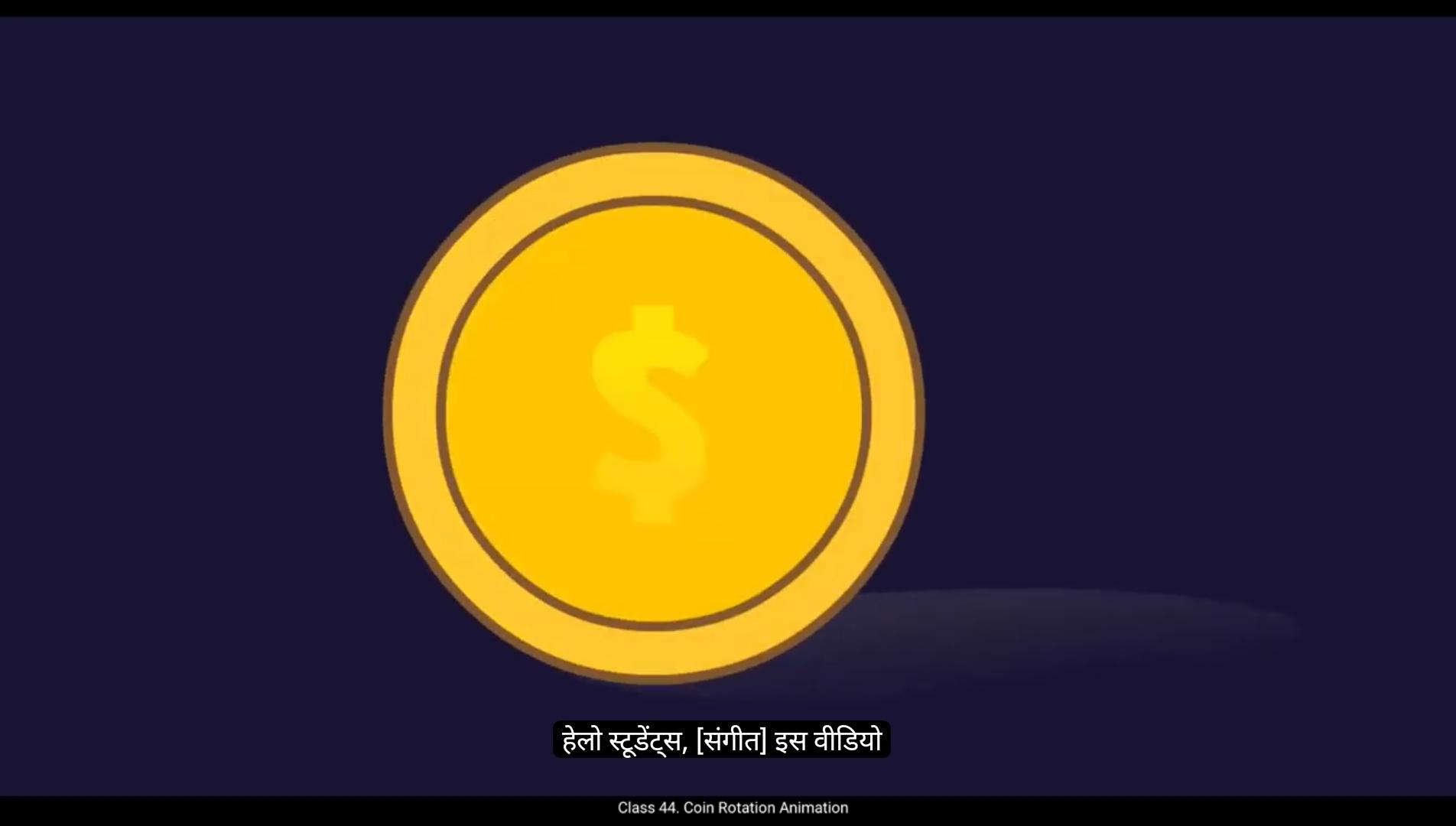
Hello students, in this video we are animating A rotating coin using the key by key classical animation method in Adobe animate. So let's start animating.We will be drawing on twos, meaning we create a new drawing on every alternate frame.1st we start by sketching a rough circular shape using the brush tool and then convert it into a symbol.Double click on the symbol to enter its editing mode. We enable the Onion Skin tool. This feature allows us to see the previous and next frames as transparent overlays, making it easier to maintain proper positioning and proportions while drawing. At this stage, our primary focus is not on achieving perfectly clean or detailed drawings, but on capturing the essential motion of the rotating coin.The goal is to ensure that the animation looks smooth and natural when played back.For this animation we are following the straight ahead principle of animation.This means that we are drawing each frame one after another, rather than setting key poses first and filling in the in betweens later.These rough drawings help us define the movement and spacing before we refine the artwork.Even if the drawings appear messy or scratchy, it's perfectly fine at this point because the accuracy of motion is more important than the quality of individual frames.To achieve smooth motion, we will draw on twos, meaning that each keyframe will be placed on every alternate frame rather than on every single frame.This means that the coins position updates every second frame, which balances smooth movement with efficiency.To create these keyframes, we add a blank keyframe every second frame using F7. 😘 This gives us an empty frame to draw the next stage of motion.By following this method, we ensure that the keyframes are properly spaced and aligned before moving on to the cleanup stage. As the coin rotates, there comes a point where only one side is visible before it starts turning to reveal the opposite side. Here we will copy the previous frames drawing, paste it onto a new frame. For example, copy the drawing from frame 7 to frame 11 and flip it horizontally. From this point onward, the sequence of frames will mirror what we have already drawn in reverse order.Instead of redrawing these frames from scratch, we can use a shortcut. To save time while maintaining accuracy. Copy the key drawings from the first half of the animation.Paste them into new keyframes in the correct order. Flip them horizontally to create the mirrored effect. By doing this, we effectively reuse the existing drawings, ensuring consistency in shape, size, and movement while speeding up the workflow. This technique is commonly used in animation to optimize time without compromising quality.Now that we have drawn all the keyframes, the next step is to clean up the rough sketches.In traditional animation, cleanup is a crucial process where we refine the drawings, ensuring smooth lines, consistent proportions, and polished shapes. However, tracing every keyframe perfectly and redrawing them with precision is a time-consuming process. Since the focus of this tutorial is on animation workflow rather than final rendering, we are skipping the detailed cleanup process in this video.Normally after cleanup we would proceed with.Adding color and highlights to enhance the look of the animation. This would involve filling in the base color of the coin, adding shading and highlights to give it a metallic appearance. However, instead of going through these steps, we are moving directly to the next part of the animation. At this stage, we shift our focus to the main timeline where we extend the frames based on the desired animation duration and rotation speed.Our rotating coin animation is now complete. The motion looks smooth and realistic, giving the illusion of a coin spinning naturally in space. Hope you found this tutorial helpful. Thanks for watching and see you in the next tutorial. हेलो स्टूडेंट्स, इस वीडियो में हम एक घूमते हुए सिक्के या rotating coin को key by key classical animation method से Adobe Animate में एनीमेट करने जा रहे हैं। तो चलिए एनीमेशन शुरू करते हैं। हम “drawing on twos” टेक्निक का इस्तेमाल करेंगे, यानी हर एक alternate फ्रेम पर एक नई ड्रॉइंग बनाएंगे। सबसे पहले हम ब्रश टूल से एक रफ गोल आकार (circular shape) स्केच करते हैं और फिर उसे symbol में कन्वर्ट करते हैं। अब symbol पर डबल क्लिक करके उसके editing mode में जाते हैं। यहाँ हम Onion Skin tool को ऑन करते हैं। यह फीचर हमें पिछले और अगले फ्रेम्स को ट्रांसपेरेंट ओवरले के रूप में दिखाता है, जिससे हर नई ड्रॉइंग की पोज़िशन और प्रपोर्शन सही रखने में मदद मिलती है। इस स्टेज पर हमारा फोकस परफेक्ट या क्लीन ड्रॉइंग्स पर नहीं है, बल्कि सिक्के के घूमने की सही motion capture करने पर है। हमारा मकसद यह सुनिश्चित करना है कि जब एनीमेशन चले तो मूवमेंट स्मूद और नेचुरल लगे। इस एनीमेशन के लिए हम straight ahead principle of animation को फॉलो कर रहे हैं। इसका मतलब है कि हम हर फ्रेम को एक के बाद एक ड्रॉ करेंगे, बजाय इसके कि पहले सारे की पोज़ेस बनाएं और बाद में इन-बिटवीन फ्रेम्स जोड़ें। ये रफ ड्रॉइंग्स हमें मूवमेंट और स्पेसिंग को परिभाषित करने में मदद करती हैं, इससे पहले कि हम फाइनल आर्टवर्क को रिफाइन करें। अगर इस स्टेज पर ड्रॉइंग्स थोड़ी मैसी या स्क्रैची दिखें तो कोई बात नहीं — क्योंकि इस समय motion की accuracy ज्यादा ज़रूरी है बजाय हर फ्रेम की क्वालिटी के। स्मूद मूवमेंट पाने के लिए हम “drawing on twos” करेंगे — यानी हर कीफ्रेम हर दूसरे फ्रेम पर रखा जाएगा, न कि हर फ्रेम पर। इसका मतलब है कि सिक्के की पोज़िशन हर दूसरे फ्रेम पर अपडेट होगी, जिससे स्मूदनेस और एफिशिएंसी दोनों बनी रहती हैं। इन कीफ्रेम्स को बनाने के लिए, हम हर दूसरे फ्रेम पर F7 दबाकर blank keyframe ऐड करते हैं। 😘 यह हमें अगला motion stage draw करने के लिए एक खाली frame देता है। इस method को follow करके, हम सुनिश्चित करते हैं कि keyframes सही तरीके से spaced और aligned हों, cleanup stage पर जाने से पहले। जब coin rotate करता है, तो एक point ऐसा आता है जब उसकी सिर्फ एक side दिखती है, और फिर वह दूसरी side reveal करने के लिए मुड़ना शुरू करता है। यहाँ हम पिछले frame की drawing को copy करेंगे और एक नए frame में paste करेंगे। उदाहरण के लिए, frame 7 की drawing को frame 11 में copy करो और उसे horizontally flip करो। अब इस point से आगे, frame sequence वही होगा जो हमने पहले draw किया था — लेकिन reverse order में। इन frames को फिर से scratch से draw करने के बजाय, हम एक shortcut use करेंगे ताकि time भी बचे और accuracy भी बनी रहे। Animation के पहले आधे हिस्से के key drawings को copy करो। फिर उन्हें सही order में नए keyframes पर paste करो। उन्हें horizontally flip करो ताकि mirrored effect मिल सके। ऐसा करने से हम existing drawings को reuse करते हैं, जिससे shape, size और movement में consistency बनी रहती है, और workflow भी fast होता है। यह technique animation में बहुत commonly use होती है ताकि time बचाया जा सके बिना quality compromise किए। अब जब हमने सारे keyframes draw कर लिए हैं, अगला step है rough sketches को clean up करना। Traditional animation में cleanup एक बहुत जरूरी process है जहाँ drawings को refine किया जाता है — smooth lines, consistent proportions और polished shapes के साथ। लेकिन हर keyframe को perfectly trace करना और दोबारा redraw करना एक बहुत time-consuming process है। क्योंकि इस tutorial का focus animation workflow पर है, final rendering पर नहीं, इसलिए हम detailed cleanup process को इस video में skip कर रहे हैं। Normally cleanup के बाद हम color और highlights add करते हैं ताकि animation की look enhance हो सके। इसमें coin के base color को fill करना, shading और highlights add करना शामिल होता है ताकि उसे metallic appearance मिल सके। लेकिन इन steps से गुजरने के बजाय, हम सीधे animation के अगले part पर जा रहे हैं। अब हम main timeline पर focus करते हैं, जहाँ हम frames को extend करते हैं — desired animation duration और rotation speed के हिसाब से। हमारी rotating coin animation अब complete हो गई है। Motion smooth और realistic दिख रहा है, जिससे coin के naturally spin करने का illusion बनता है। उम्मीद है आपको यह tutorial helpful लगा होगा। Thanks for watching, और मिलते हैं अगले tutorial में।