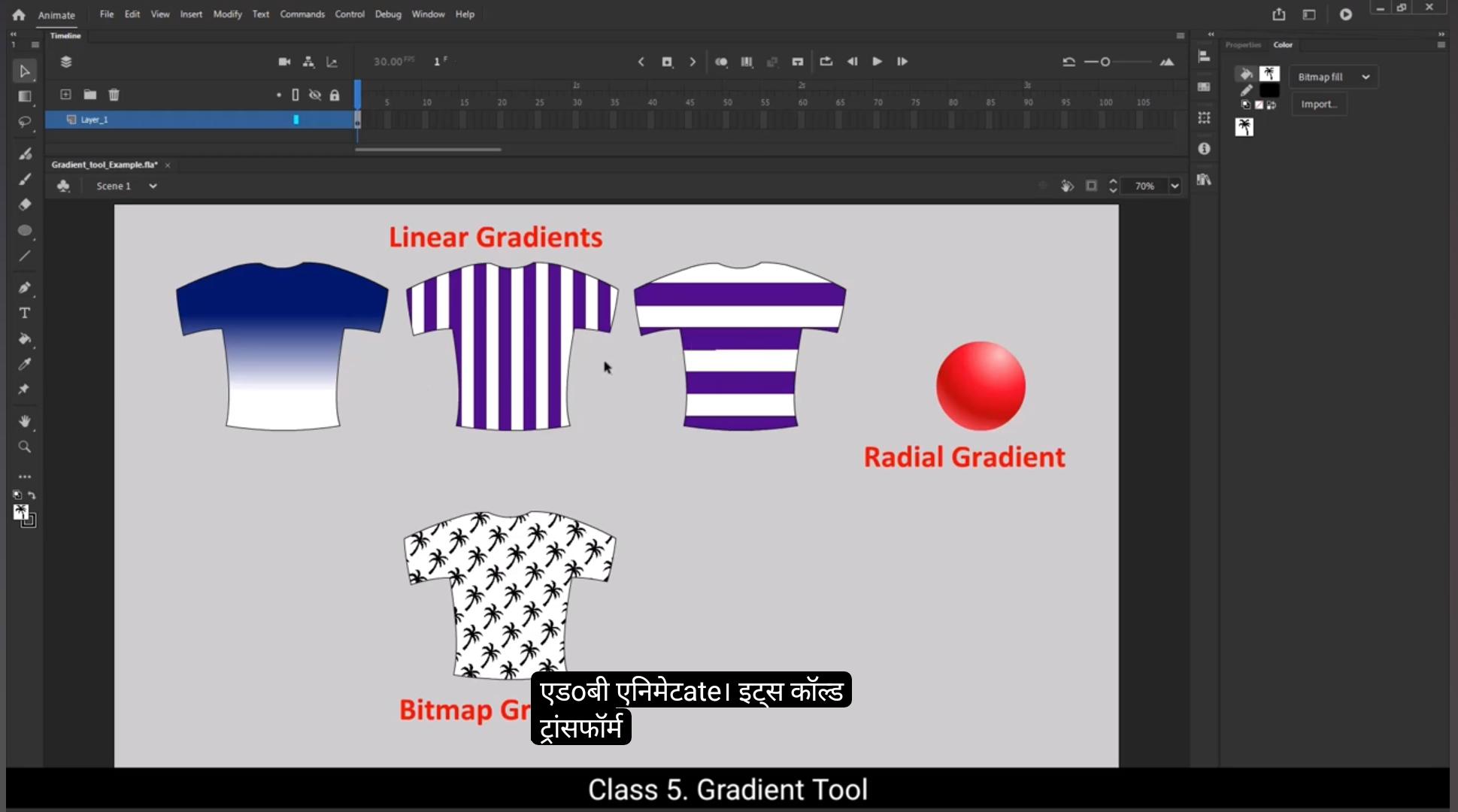
Hello students, we're going to explore very important tools in Adobe Animate, the Gradient Transform tool. This tool is very useful for creating dynamic and visually appealing designs. So let's get started.You will find this tool under the Transform tool. Right click and you will see the Gradient transform tool. The shortcut for this is F.To make things simple, I've prepared a basic drawing of AT shirt or jersey. Let's get started and see how we can use this tool effectively.To begin, let's make sure we have the color panel handy. You can open it by dragging it near the Properties tab. This panel will allow us to select and modify colors easily. Once it's open, we can start filling the jersey with some color. There are multiple ways to fill the T-shirt with a solid color. You can use the Fill Color option from the side panel or the Color tab in the Properties panel.Let's choose red as our first color and use the Paint bucket tool to fill the jersey.See how it fills up nicely with a single solid color? In Adobe Animate terms, it is called a solid color because it's just one plain color without any gradients or effects.There are three main types of fills we'll learn in this tutorial. Linear Gradient, Radial Gradient, Bitmap fill.Let's start with a linear gradient. In the color panel, change the fill type to linear gradient. By default, you'll see a black and white gradient. We can customize this gradient to suit our design.Double click on the color stops here and select the color you want from the Swatch.Or you can select a color from the color picker palette also.Let's make the gradient go from blue to white. As you edit the colors, you'll notice a preview showing how the gradient will look. Now click on Design to fill the gradient color.To refine the gradient, we use the Gradient Transform tool. The shortcut for this tool is F Let's select it and we can adjust the direction and fill size. Use the pivot point to decide where the gradient starts. Drag it to the position where you want the gradient to begin. It moves along the X axis.To move it along the Y axis, you'll need to rotate the gradient. Look for the small white circle at the corner to rotate it. This changes the angle of the gradient, allowing you to choose the starting point of the gradient.Use these handles to stretch or shrink the gradient. Notice how the gradient adjusts in size and intensity.You can also edit color after applying gradients as well. Select color in color palette, then select paint bucket tool and fill the color. If you want to try a different color and want to see immediate preview on your design then select Fill color using selection tool and change color.You'll see the changes instantly on your design, making it easy to try out different color options.You can add another color to the gradient. For that, go to the Gradient bar in the Properties panel. Simply click on the Gradient bar and a small square called a color stop will appear. From here, you can select a new color to add to the gradient, allowing you to create smoother transitions between shades.Now, if you want to remove the color stop, simply click on the extra color stop, then drag it below the gradient bar. This action will delete the unwanted color. To add a new color stop and further refine your gradient, simply click anywhere on the middle section of the gradient rectangle. Once clicked, a new color stop will appear and you can select the colour you want to add to your gradient.You can drag the color stop to refine your gradient. For example, I'll bring the color stop to the middle to create a smooth transition between two colors, resulting in two vertical fills. This technique allows you to fill a shape with two different colors without needing to manually trace or fill each area separately.You can also use the Repeat Color option to create multiple instances of a color. Select Fill and choose this option. You'll see another strip appear, creating a seamless pattern of repeating colors. You can further adjust the appearance of the gradient by using the Gradient Transform tool and drag the handle to scale the gradient and fine tune its positioning.You can resize to change width of stripes or rotate it and make it horizontal also. This way you can create multiple horizontal lines or any other design you need by adjusting the gradient tool. In this manner you can create a variety of different designs from simple patterns.Next, let's explore the radial gradient. This type of gradient radiates outwards from a central point.In the Properties panel, switch to Radial Gradient, then select the Oval tool and draw a circle. Edit The colour stops in the gradient bar.Then change its color.And select Extend Color option in Flow. This is a simple radial gradient, but you can always tweak it further using the Gradient Transform tool. Here we have the pivot point or the center of the gradient. I'll shift the pivot point to focus more like a light source, giving the illusion of light reflecting off the surface of the iron ball. Next I'll enhance the 3D effect in the color panel. I can add a new color by double clicking on the color stop.I'll choose a slightly brighter shade to simulate light reflecting on the ball's surface.You can see the result, but this isn't quite the look we want for the Iron Bowl yet.To fine tune it, I'll use the scale option the middle circle you can see here. By moving the cursor, I can adjust the size and positioning of the gradient. I want the red color to occupy most of the ball's surface, so I'll drag the middle red color stop to the left side. You can immediately see the effect of this change.Now let's refine the white color. I'll click on the white color, stop and change it to a more reddish tone to simulate shading. To add more depth, I'll click here on the gradient bar and add another color, this time a darker shade to enhance the 3D effect.Finally, remove the outline to give the iron ball a more polished look.Now you can see that a nice 3D effect has appeared on the iron ball thanks to the radial gradient.Now let's explore the bitmap fill option. To use the bitmap fill option, the first step is to select a solid color and fill it into the shape or drawing you've created.After filling the solid color, you can pro ceed to select the bitmap fill. When you choose bitmap fill, a dialogue box will appear allowing you to import an image. For this demonstration, I'll import an image of a coconut tree. Select the image and click open. Initially you might not see the effect clearly because the fill hasn't been applied yet, but as soon as I apply the bitmap fill, you'll notice that the coconut tree image appears within the.Like a design printed on AT shirt.You can further refine this bitmap fill using the Gradient Transform tool.You can resize the bitmap image to fit the design or create a multiple pattern. Or you can rotate it to change its perspective. Using the Bitmap Fill tool, you can create unique designs, decorative elements, or any other image. The Gradient Transform tool allows you to manipulate and fine tune the fill to suit your creative vision. Keep practicing these techniques. As always, the more you experiment, the better you'll get.Thank you for joining and see you in the next tutorial.