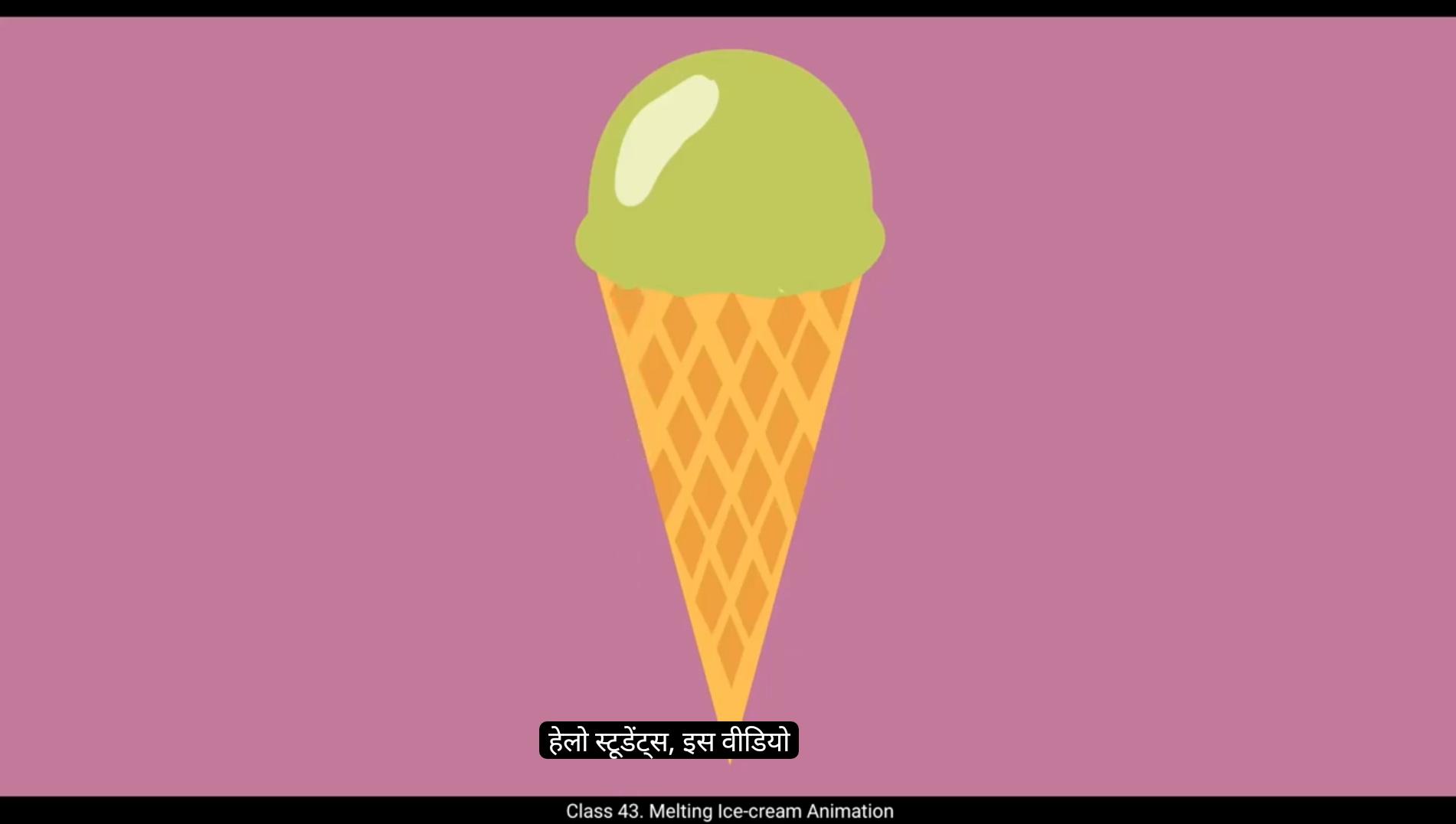
Hello students, in this video we are going to animate a melting ice cream cone using frame by frame animation in Adobe Animate. We'll focus on how an ice cream scoop melts in real life and use animation principles like straight ahead and squash and stretch to bring realism to our animation. So let's get started.To recreate this, we follow the straight ahead principle by drawing frame by frame as it is done in traditional animation. Inside the ice cream symbol, we first extend the timeline to 9 seconds, which is frame 225 using F5.Then we add a new layer on top and insert a keyframe at frame 11 using F6. Selecting the brush tool, we pick color from scoop using eyedropper tool and start sketching the melting progression.After drawing the first keyframe, we select it and press F8 to convert it into a symbol and named it drip.We enter the symbol and start drawing the keyframes using the brush tool. We follow the traditional animation method of drawing on twos, meaning each drawing lasts for 2 frames. To do this, we add a blank keyframe at frame 3 using F7. We continue drawing the melting motion as seen in the video, ensuring each new frame builds upon the last.Think about how ice cream melts in reality. Initially the scoop holds its shape, but as it warms up, the outer layer softens, forming small blobs.These blobs gradually elongate into drips, which eventually detach and fall due to gravity.When animating, ensure that each new keyframe builds upon the previous one. For smooth motion, keep referencing the last keyframe while drawing the next to maintain fluidity.Adding keyframes at appropriate intervals helps in achieving a natural realistic melting effect. 😘 As the drips fall, they transform into drops.While descending, these drops stretch due to gravity. This is where the principle of squash and stretch is applied, giving the motion a sense of weight and flexibility. On keyframe 31 we convert the drop into a symbol, then add a keyframe on frame 50 and move the drop out of the screen.We select the frames in between and add a classic tween from the menu.To speed up the effect we reduce a few frames from the animation, making the drop fall faster. We exit the symbol and on main timeline we extend frames till frame 225 and preview the animation so far.We now start coloring the keyframes that we have drawn using brush tool. For a more efficient workflow, you can also use the Paint Bucket tool, which allows you to fill enclosed areas quickly and easily. This helps save time while ensuring smooth and consistent coloring across frames.Once we have finished coloring all the keyframes, we add highlights to enhance the depth and realism of the dripping effect. Highlights help create the illusion of light reflecting off the melting ice cream, making the animation more visually appealing.To do this, select a lighter shade of the ice cream color and use the brush tool to draw thin, curved lines along the edges of the dripping blobs and falling drops.Focus on areas where light would naturally hit, such as the outer curves of the drips.This subtle addition gives the melting effect more dimension and makes the drops appear more glossy and wet. We add a new layer on top.Next, we copy the drip animation, paste it onto the new layer starting from frame 25, and move it slightly to the right side of the cone. 😘 This duplication creates a more natural melting effect, as another drip will start falling at a different time on the right side. Staggering the drips in this way makes the animation feel more dynamic and realistic, mimicking how ice cream melts unevenly rather than all at once.Finally, we animate the main scoop Melting.We use a shape tween to gradually shrink the scoop.1st on the ice cream layer, we insert a keyframe at frame 150 using F6. Using the sub selection tool, we adjust the vector nodes to make the scoop smaller and more deformed. As more ice cream melts away, the scoop itself begins to shrink and lose its original shape. Over time it deforms, becoming more irregular until it is almost entirely melted away. This gradual change should be animated carefully.To reflect the natural process of melting realistically.To make the melting effect smooth, we add a keyframe at frame 100 using F6. Then we select the keyframes in between right click and choose Create shape tween. The shape changes gradually, but it may look distorted.To fix this, we use shape hints.Press Control shift H to add hints A&B, placing them on opposite corners of the scoop. Shape hint B on the right and shape hint A on the left. On the keyframe 150 we place this hints again on the same place as earlier.With all the elements in place, our melting ice cream animation is now complete. The drips are falling naturally, the scoop is shrinking over time, and the highlights add depth to make it look more realistic.Keep practicing these techniques to improve your animation skills.Thank you for watching, keep animating and see you in the next tutorial. हेलो स्टूडेंट्स, इस वीडियो में हम Adobe Animate में फ्रेम बाय फ्रेम एनीमेशन का इस्तेमाल करते हुए एक मेल्टिंग आइसक्रीम कोन को एनीमेट करना सीखेंगे। हम फोकस करेंगे कि रियल लाइफ में आइसक्रीम का स्कूप कैसे पिघलता है और एनीमेशन प्रिंसिपल्स जैसे “स्ट्रेट अहेड” और “स्क्वैश एंड स्ट्रेच” का इस्तेमाल करके अपनी एनीमेशन में रियलिज़्म लाएँगे। तो चलिए शुरू करते हैं। इसे रिक्रिएट करने के लिए, हम स्ट्रेट अहेड प्रिंसिपल को फॉलो करेंगे जिसमें पारंपरिक एनीमेशन की तरह फ्रेम बाय फ्रेम ड्रॉ किया जाता है। आइसक्रीम सिंबल के अंदर, हम सबसे पहले एफ5 दबाकर टाइमलाइन को 9 सेकंड यानी फ्रेम 225 तक एक्सटेंड करते हैं। फिर हम ऊपर एक नई लेयर ऐड करते हैं और फ्रेम 11 पर एफ6 दबाकर एक कीफ्रेम इंसर्ट करते हैं। अब ब्रश टूल सेलेक्ट करते हैं, आईड्रॉपर टूल से स्कूप का कलर पिक करते हैं और मेल्टिंग प्रोग्रेशन की स्केचिंग शुरू करते हैं। पहला कीफ्रेम ड्रॉ करने के बाद, उसे सेलेक्ट करें और एफ8 दबाकर एक सिंबल में कन्वर्ट करें और उसका नाम रखें “ड्रिप”। अब सिंबल के अंदर जाएँ और ब्रश टूल का इस्तेमाल करके कीफ्रेम्स ड्रॉ करना शुरू करें। हम पारंपरिक एनीमेशन मेथड “ड्रॉइंग ऑन टूज़” को फॉलो करेंगे, यानी हर ड्रॉइंग 2 फ्रेम तक चलेगी। ऐसा करने के लिए, हम फ्रेम 3 पर एफ7 दबाकर एक ब्लैंक कीफ्रेम ऐड करेंगे। अब हम वीडियो में दिखाए अनुसार मेल्टिंग मोशन को ड्रॉ करते रहेंगे, यह सुनिश्चित करते हुए कि हर नया फ्रेम पिछले वाले पर आधारित हो। सोचिए कि रियलिटी में आइसक्रीम कैसे पिघलती है — शुरुआत में स्कूप अपनी शेप बनाए रखता है, लेकिन जैसे-जैसे वो गर्म होता है, बाहरी लेयर नरम पड़ जाती है और छोटे-छोटे ब्लॉब्स बनने लगते हैं। ये ब्लॉब्स धीरे-धीरे लम्बे होकर ड्रिप्स में बदल जाते हैं, जो आखिर में ग्रेविटी की वजह से नीचे गिर जाते हैं। जब आप एनीमेट कर रहे हों, तो ध्यान रखें कि हर नया कीफ्रेम पिछले कीफ्रेम पर आधारित हो ताकि मोशन स्मूद रहे। हर नया फ्रेम ड्रॉ करते समय पिछले कीफ्रेम को रेफरेंस में रखें ताकि मूवमेंट में फ्लूइडिटी बनी रहे। सही इंटरवल्स पर कीफ्रेम्स ऐड करना नैचुरल और रियलिस्टिक मेल्टिंग इफेक्ट हासिल करने में मदद करता है। 😘 जैसे-जैसे ड्रिप्स नीचे गिरती हैं, वे ड्रॉप्स में बदल जाती हैं। नीचे आते समय ये ड्रॉप्स ग्रेविटी की वजह से स्ट्रेच होती हैं। यही वह जगह है जहाँ “स्क्वैश एंड स्ट्रेच” का प्रिंसिपल अप्लाई होता है, जिससे मोशन में वज़न और फ्लेक्सिबिलिटी का अहसास आता है। कीफ्रेम 31 पर हम ड्रॉप को एक सिंबल में कन्वर्ट करते हैं, फिर फ्रेम 50 पर एक कीफ्रेम ऐड करके ड्रॉप को स्क्रीन से बाहर मूव करते हैं। बीच के फ्रेम्स को सेलेक्ट करके मेन्यू से “क्लासिक ट्वीन” ऐड करते हैं। इफेक्ट को तेज़ करने के लिए, हम एनीमेशन से कुछ फ्रेम्स कम करते हैं ताकि ड्रॉप जल्दी गिरे। अब हम सिंबल से बाहर निकलते हैं और मेन टाइमलाइन पर फ्रेम 225 तक फ्रेम्स एक्सटेंड करते हैं और अब तक की एनीमेशन का प्रीव्यू देखते हैं। अब हम ब्रश टूल का इस्तेमाल करते हुए बनाए गए कीफ्रेम्स को कलर करना शुरू करते हैं। एक बेहतर और तेज़ वर्कफ़्लो के लिए आप “पेंट बकेट टूल” का भी इस्तेमाल कर सकते हैं, जिससे बंद एरियाज़ को जल्दी और आसानी से फिल किया जा सकता है। इससे समय बचता है और फ्रेम्स में स्मूद और कंसिस्टेंट कलरिंग सुनिश्चित होती है। जब हम सभी कीफ्रेम्स को कलर कर लेते हैं, तब हम हाइलाइट्स ऐड करते हैं ताकि ड्रिपिंग इफेक्ट में डेप्थ और रियलिज़्म बढ़े। हाइलाइट्स मेल्टिंग आइसक्रीम पर लाइट रिफ्लेक्शन का इल्यूजन पैदा करने में मदद करती हैं, जिससे एनीमेशन और भी आकर्षक दिखती है। ऐसा करने के लिए, आइसक्रीम के कलर से थोड़ा हल्का शेड चुनें और ब्रश टूल की मदद से ड्रिपिंग ब्लॉब्स और फॉलिंग ड्रॉप्स के किनारों पर पतली, मुड़ी हुई लाइन्स बनाएं। उन जगहों पर फोकस करें जहाँ नैचुरली लाइट गिरती है, जैसे ड्रिप्स के बाहरी कर्व्स पर। यह छोटा सा ऐडिशन मेल्टिंग इफेक्ट को और डायमेंशन देता है और ड्रॉप्स को ज़्यादा ग्लॉसी और वेट दिखाता है। अब हम ऊपर एक नई लेयर ऐड करते हैं। इसके बाद, हम ड्रिप एनीमेशन को कॉपी करते हैं, उसे नई लेयर पर फ्रेम 25 से पेस्ट करते हैं और कोन के दाहिने हिस्से में थोड़ा मूव कर देते हैं। 😘 यह डुप्लीकेशन एक और नैचुरल मेल्टिंग इफेक्ट क्रिएट करता है, क्योंकि अब एक और ड्रिप दाहिनी तरफ से अलग समय पर गिरना शुरू करेगी। इस तरह से ड्रिप्स को स्टैगर करने से एनीमेशन ज़्यादा डायनामिक और रियलिस्टिक लगता है, जैसा कि असल में आइसक्रीम एक साथ नहीं बल्कि असमान रूप से पिघलती है। आख़िर में, हम मेन स्कूप की मेल्टिंग को एनीमेट करते हैं। इसके लिए हम “शेप ट्वीन” का इस्तेमाल करते हैं ताकि स्कूप धीरे-धीरे सिकुड़ता हुआ दिखे। सबसे पहले आइसक्रीम लेयर पर फ्रेम 150 पर F6 दबाकर एक कीफ्रेम इंसर्ट करते हैं। अब “सब सिलेक्शन टूल” का उपयोग करके वेक्टर नोड्स को एडजस्ट करते हैं ताकि स्कूप थोड़ा छोटा और डिफॉर्म्ड दिखे। जैसे-जैसे ज़्यादा आइसक्रीम पिघलती जाती है, स्कूप खुद छोटा होने लगता है और अपनी मूल आकृति खो देता है। समय के साथ यह और अधिक अनियमित होता जाता है, जब तक कि लगभग पूरी तरह पिघल न जाए। इस ग्रेजुअल बदलाव को बहुत ध्यान से एनीमेट करना चाहिए ताकि यह नैचुरल लगे। मेल्टिंग इफेक्ट को स्मूद बनाने के लिए, हम फ्रेम 100 पर F6 दबाकर एक कीफ्रेम ऐड करते हैं। फिर बीच के कीफ्रेम्स को सेलेक्ट करके राइट क्लिक करते हैं और “Create Shape Tween” चुनते हैं। अब शेप धीरे-धीरे बदलती है, लेकिन यह थोड़ा डिस्टॉर्टेड लग सकती है। इसे ठीक करने के लिए हम “शेप हिंट्स” का उपयोग करते हैं। Control + Shift + H दबाकर हिंट्स A और B ऐड करते हैं, और उन्हें स्कूप के विपरीत कोनों पर रखते हैं — हिंट B दाहिनी तरफ और हिंट A बाईं तरफ। फ्रेम 150 पर फिर से इन हिंट्स को उसी जगह पर रखते हैं जहाँ पहले रखे थे। अब जब सारे एलिमेंट्स अपनी जगह पर हैं, हमारी मेल्टिंग आइसक्रीम एनीमेशन पूरी तरह तैयार है। ड्रिप्स नैचुरली गिर रही हैं, स्कूप धीरे-धीरे सिकुड़ रहा है, और हाइलाइट्स डेप्थ ऐड कर रही हैं जिससे यह और रियलिस्टिक दिखे। इन टेक्निक्स का अभ्यास करते रहें ताकि आपकी एनीमेशन स्किल्स और बेहतर होती जाएँ। देखने के लिए धन्यवाद — एनीमेट करते रहिए, और अगले ट्यूटोरियल में मिलते हैं।