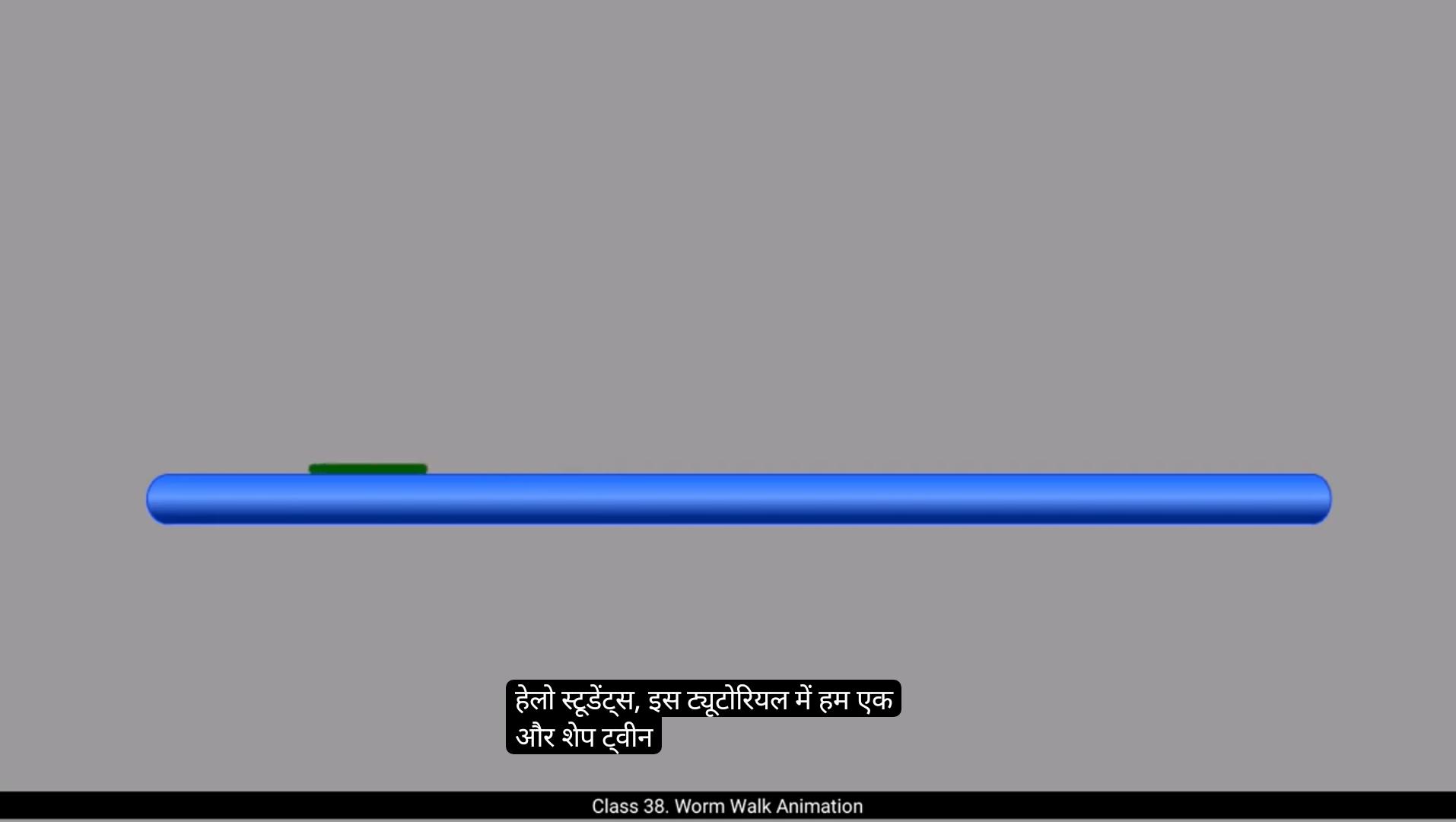
Hello Students, in this tutorial we will learn another example of shape tween animation by creating a crawling or walking motion of a worm. So let's get started.For this animation I have created a pipe like shape to serve as the ground or surface where the worm will crawl. Let's rename this layer as surface and locked it to prevent accidental edits.Next add a new layer and named it Worm.Now we will draw a single line to represent the worm. First select the line tool from the toolbar. Then change the stroke color to a dark green to make it more noticeable.Draw a line and set the stroke size to 8 to give the line a bold look. If needed, you can slightly increase the stroke size further for better emphasis. Next we will increase the timeline frames up to frame 25.Then on frame 25, we'll insert a keyframe and move the line to the right indicating the direction we want the worm to crawl. After that, we'll go to the middle of the timeline and add another keyframe on frame 15. Using the sub selection tool will modify the shape of the worm at this point by adding curves to the line. This will create a more natural worm like movement as it appears to crawl.Now we'll add a shape tween between the keyframes.At this point we have an animation, but the worm isn't really crawling, it's just sliding.To fix this, select the selection tool and go to frame 15. Here, click on the left node of the line and move it slightly to the right to create a directional motion. We'll adjust the worm's shape properly using the sub selection tool, ensuring the curves look natural and the movement feels smooth. Keep the proportions consistent to maintain the volume of the worm.There's still a sliding effect from frame 15 to frame 25.That we need to fix.To avoid this, we'll first turn on the rulers for reference.Next, we'll drag a reference guideline from the ruler to the point where the last part of the worm is positioned on the last frame. Now, on frame 15, we'll select the sub selection tool and choose the last node of the line. We'll move this node to align with the reference guideline. This ensures that the worm's tail reaches the right position at the correct frame.Eliminating the sliding effect between frames 15 and 25.Now we're almost done, but to make the animation repeat, we'll need to duplicate the layer. Let's say we want a four second animation, so we'll extend the surface layer until frame 120.Next on the worm layer will increase the frame range until frame 35 to add a brief pause, allowing the worm to stop for a moment before continuing.Once that's done, we'll duplicate the layer and rename the duplicated layer as WORM one.Then select all keyframes on worm one layer and move it to frame 36 by simply dragging it into position.Next, lock the worm layer to prevent any accidental changes while we work on the next part of the animation. Now to ensure the second animation starts right where the first one ends, the next animation should begin from the last reference line of the first layer. To do this, select the entire worm one layer, then enable the Edit Multiple Frames option on the timeline. Cover all keyframes.The Edit Multiple frames option in Adobe Animate.Allows you to select and edit multiple frames at once, rather than editing them individually. This is particularly useful when you want to apply the same changes, such as resizing, repositioning, or modifying properties to several frames at the same time. Now use the shortcut control A on the keyboard to select all keyframes on the layer. Once they are selected, move all the keyframes to the right side. Holding Shift and using the arrow key will precisely match the keyframes to the reference line. To make sure everything aligns perfectly, zoom in to ensure the frames are exactly positioned.Let's check what we have now.Ensuring that the next animation starts from the last frame of the first layer, and the 1st frame of the second layer is in the exact same position as the previous one. This way there's no difference in position between the two layers, ensuring a smooth transition.Next, we'll duplicate the layers and create 4 copies of the worm layer.After that, we'll hide all the unnecessary layers to keep things organized. We'll keep the surface layer visible, and then we also make Worm One and Worm 2 layers visible as we'll be working with them. Before we move ahead, rename all the duplicated layers sequentially, starting with Worm 2, Worm 3, and so on, to keep the layers properly organized and easy to identify.Now select all the layers from Worm 2 to Worm 5 and increase the frames by pressing F5 on the keyboard.Next, do the same for the layers from Worm 3 to Worm 5, increasing the frames. This step is necessary for the repetition of the action, so the animation continues smoothly. At this point, the animation has been extended to 7 seconds. To match this, increase the surface layer frames to 7 seconds, which corresponds to frame #210.Now go to the last frame of the worm two layer, which is frame 105, and set the reference line to the left end of the worm's position to ensure accuracy. Zoom in so that everything matches up exactly.Unhide worm three layer and select first keyframe on the layer.Then lock all other layers, leaving only the worm three layer unlocked.Select the Edit Multiple Frames option and then press Control A on the keyboard to select all keyframes on this layer. Now move all the keyframes and match their position with the reference line, ensuring everything aligns correctly.We'll repeat same process for remaining layers.Go to the last frame of worm three layer. Adjust the reference line to match the position of the worm's tail at the last frame.Next lock the worm three layer and unlock the worm four layer and select 1st frame of the layer. On the worm four layer select all the keyframes and shift them to the right side to match them with the reference line.Now go to the last frame of the Worm four layer and move the reference line to align with the last position of the worm's tail. After this, lock the Worm four layer, unlock the Worm 5 layer and select 1st frame of the layer using the Edit Multiple Frames option. Again, select all keyframes on the Worm 5 layer and move them to match them with the reference line, ensuring everything aligns perfectly.Finally, play the animation and you'll see the worm crawling toward the right side with realistic movement. With these steps, you've successfully created a crawling worm animation using Shape Tween in Adobe Animate. Thank you for following along and see you in the next tutorial. हेलो स्टूडेंट्स, इस ट्यूटोरियल में हम एक और शेप ट्वीन एनीमेशन का उदाहरण सीखेंगे, जिसमें हम एक कीड़े की रेंगने या चलने की मोशन बनाएंगे। तो चलिए शुरू करते हैं। इस एनीमेशन के लिए मैंने एक पाइप जैसी शेप बनाई है जो ग्राउंड या सरफेस का काम करेगी जहाँ कीड़ा रेंगता हुआ चलेगा। अब इस लेयर का नाम "सर्फेस" रख देते हैं और इसे लॉक कर देते हैं ताकि गलती से एडिट न हो जाए। अब एक नई लेयर ऐड करें और उसका नाम रखें "वर्म"। अब हम एक सिंगल लाइन ड्रॉ करेंगे जो वर्म को रिप्रेजेंट करेगी। सबसे पहले टूलबार से लाइन टूल सेलेक्ट करें। फिर स्ट्रोक का कलर डार्क ग्रीन में बदलें ताकि वह ज्यादा दिखाई दे। एक लाइन ड्रॉ करें और स्ट्रोक साइज को 8 सेट करें ताकि लाइन थोड़ी बोल्ड दिखे। अगर ज़रूरत हो तो स्ट्रोक साइज को थोड़ा और बढ़ा सकते हैं ताकि और इम्पोर्टेंस मिले। अब हम टाइमलाइन फ्रेम्स को बढ़ाकर फ्रेम 25 तक करेंगे। फिर फ्रेम 25 पर एक कीफ्रेम इंसर्ट करेंगे और लाइन को दाईं तरफ मूव करेंगे जिससे ये दिखे कि वर्म किस दिशा में रेंग रहा है। उसके बाद हम टाइमलाइन के बीच में जाएंगे और फ्रेम 15 पर एक और कीफ्रेम ऐड करेंगे। सब सेलेक्शन टूल का इस्तेमाल करके हम इस पॉइंट पर वर्म की शेप को मॉडिफाई करेंगे, लाइन में थोड़े कर्व्स ऐड करके। इससे एक नेचुरल वर्म जैसी मूवमेंट बनेगी, जैसे वो सच में रेंग रहा हो। अब हम कीफ्रेम्स के बीच में एक शेप ट्वीन ऐड करेंगे। इस पॉइंट पर हमारे पास एक एनीमेशन तो है, लेकिन वर्म असली में रेंग नहीं रहा, वो बस स्लाइड कर रहा है। इसे ठीक करने के लिए, सिलेक्शन टूल सेलेक्ट करें और फ्रेम 15 पर जाएं। यहाँ, लाइन के लेफ्ट नोड पर क्लिक करें और उसे थोड़ा दाईं तरफ मूव करें ताकि एक डायरेक्शनल मोशन बने। हम वर्म की शेप को सही तरीके से एडजस्ट करेंगे सब सेलेक्शन टूल की मदद से, ताकि कर्व्स नैचुरल लगें और मूवमेंट स्मूथ महसूस हो। प्रपोर्शन्स को कॉन्सिस्टेंट रखें ताकि वर्म का वॉल्यूम बना रहे। फ्रेम 15 से फ्रेम 25 तक अभी भी एक स्लाइडिंग इफ़ेक्ट है, जिसे हमें ठीक करना होगा। इसे अवॉइड करने के लिए, पहले हम रेफरेंस के लिए रूलर्स ऑन करेंगे। फिर रूलर से एक रेफरेंस गाइडलाइन ड्रैग करेंगे उस पॉइंट तक जहाँ वर्म का आख़िरी हिस्सा लास्ट फ्रेम पर पोज़िशन्ड है। अब फ्रेम 15 पर, हम सब सेलेक्शन टूल सेलेक्ट करेंगे और लाइन के आख़िरी नोड को चुनेंगे। उस नोड को मूव करके रेफरेंस गाइडलाइन के साथ अलाइन करेंगे। इससे यह सुनिश्चित होगा कि वर्म की टेल सही फ्रेम पर सही पोज़िशन तक पहुँच जाए। इस तरह फ्रेम 15 और 25 के बीच का स्लाइडिंग इफ़ेक्ट खत्म हो जाएगा। अब हम लगभग तैयार हैं, लेकिन एनीमेशन को रिपीट कराने के लिए हमें लेयर को डुप्लिकेट करना होगा। मान लीजिए हम चार सेकंड की एनीमेशन बनाना चाहते हैं, तो हम सर्फेस लेयर को फ्रेम 120 तक एक्सटेंड करेंगे। अब वर्म लेयर पर फ्रेम रेंज को फ्रेम 35 तक बढ़ाएंगे ताकि थोड़ी देर का पॉज़ मिल सके, जिससे वर्म थोड़ी देर रुकने के बाद फिर से आगे बढ़े। जब यह हो जाए, तो हम इस लेयर को डुप्लिकेट करेंगे और डुप्लिकेटेड लेयर का नाम रखेंगे WORM one। फिर WORM one लेयर के सभी कीफ्रेम्स को सेलेक्ट करें और उन्हें फ्रेम 36 पर ड्रैग करके मूव करें। अब वर्म लेयर को लॉक कर दें ताकि अगला पार्ट बनाते समय कोई गलती से बदलाव न हो जाए। अब यह सुनिश्चित करने के लिए कि दूसरी एनीमेशन वहीं से शुरू हो जहाँ पहली एनीमेशन खत्म हुई थी, अगली एनीमेशन को पहली लेयर की आख़िरी रेफरेंस लाइन से शुरू करना होगा। इसके लिए, पूरी WORM one लेयर को सेलेक्ट करें और टाइमलाइन पर Edit Multiple Frames ऑप्शन को ऑन करें। सभी कीफ्रेम्स को कवर करें। Edit Multiple Frames ऑप्शन Adobe Animate में आपको एक साथ कई फ्रेम्स सेलेक्ट और एडिट करने की सुविधा देता है, ताकि आपको हर फ्रेम को अलग-अलग एडिट न करना पड़े। यह फीचर तब बहुत काम आता है जब आप एक साथ कई फ्रेम्स पर एक जैसे बदलाव करना चाहते हैं — जैसे कि resizing, repositioning, या properties modify करना। अब कीबोर्ड पर Control + A शॉर्टकट का इस्तेमाल करें ताकि लेयर के सभी कीफ्रेम्स सेलेक्ट हो जाएं। जब सारे कीफ्रेम्स सेलेक्ट हो जाएं, तो उन्हें दाईं तरफ मूव करें। Shift दबाकर रखते हुए Arrow Key का इस्तेमाल करने से कीफ्रेम्स को बिल्कुल सही तरीके से रेफरेंस लाइन के साथ मैच किया जा सकता है। सब कुछ परफेक्ट अलाइन हुआ है या नहीं, यह सुनिश्चित करने के लिए थोड़ा zoom in करें ताकि फ्रेम्स की पोज़िशन बिल्कुल सटीक दिखे। अब देखते हैं हमारे पास क्या है — सुनिश्चित करें कि अगली एनीमेशन पहली लेयर के आख़िरी फ्रेम से ही शुरू हो, और दूसरी लेयर का पहला फ्रेम बिल्कुल उसी पोज़िशन में हो जैसे पिछला था। इस तरह दोनों लेयर्स के बीच कोई पोज़िशनल फर्क नहीं रहेगा और ट्रांज़िशन बहुत स्मूद लगेगा। अब हम लेयर्स को डुप्लिकेट करेंगे और worm layer की 4 कॉपियाँ बनाएंगे। उसके बाद, ज़रूरी नहीं रहने वाली लेयर्स को hide कर देंगे ताकि प्रोजेक्ट ऑर्गनाइज़्ड रहे। हम सिर्फ surface layer, Worm One, और Worm 2 लेयर्स को विज़िबल रखेंगे क्योंकि अब हम इन्हीं पर काम करेंगे। आगे बढ़ने से पहले, सभी डुप्लिकेटेड लेयर्स के नाम क्रम से बदल दें — शुरुआत करें Worm 2, फिर Worm 3, और इसी तरह आगे — ताकि लेयर्स प्रॉपरली ऑर्गनाइज़्ड और पहचानने में आसान रहें। अब Worm 2 से Worm 5 तक की सभी लेयर्स को सेलेक्ट करें और कीबोर्ड पर F5 दबाकर फ्रेम्स बढ़ाएं। इसके बाद, वही प्रोसेस Worm 3 से Worm 5 तक की लेयर्स पर भी दोहराएं, यानी उनके फ्रेम्स भी बढ़ाएं। यह स्टेप इसलिए ज़रूरी है ताकि एक्शन रिपीट हो सके और एनीमेशन स्मूदली कंटीन्यू रहे। इस पॉइंट पर, एनीमेशन की लंबाई अब 7 सेकंड तक बढ़ गई है। इसे मैच करने के लिए, surface layer के फ्रेम्स को भी 7 सेकंड यानी फ्रेम #210 तक बढ़ाएं। अब worm two layer के आख़िरी फ्रेम पर जाएं, जो कि फ्रेम 105 है, और वहाँ पर एक reference line सेट करें — वर्म की पोज़िशन के लेफ्ट एंड पर, ताकि एक्युरेसी बनी रहे। सब कुछ बिल्कुल सही मैच हो, यह सुनिश्चित करने के लिए zoom in करें। अब worm three layer को unhide करें और उस लेयर के पहले कीफ्रेम को सेलेक्ट करें। इसके बाद, बाकी सभी लेयर्स को lock कर दें, सिर्फ worm three layer को unlocked छोड़ें। अब Edit Multiple Frames ऑप्शन को सेलेक्ट करें और कीबोर्ड पर Control + A दबाकर इस लेयर के सभी कीफ्रेम्स को सेलेक्ट करें। अब सभी कीफ्रेम्स को मूव करें और उनकी पोज़िशन को reference line के साथ मैच करें, यह सुनिश्चित करते हुए कि सबकुछ एकदम सही अलाइन हो। अब हम यही प्रोसेस बाकी लेयर्स के लिए भी रिपीट करेंगे। अब worm three layer के last frame पर जाएं। अब रेफरेंस लाइन को एडजस्ट करें ताकि वो वर्म की टेल की पोज़िशन के साथ लास्ट फ्रेम पर बिल्कुल मैच करे। इसके बाद worm three layer को lock कर दें और worm four layer को unlock करें, फिर उस लेयर के पहले फ्रेम को सेलेक्ट करें। worm four layer पर सभी कीफ्रेम्स को सेलेक्ट करें और उन्हें दाईं तरफ शिफ्ट करें ताकि वे reference line के साथ मैच हो जाएं। अब worm four layer के लास्ट फ्रेम पर जाएं और रेफरेंस लाइन को मूव करें ताकि वो वर्म की टेल की आख़िरी पोज़िशन के साथ अलाइन हो जाए। इसके बाद, worm four layer को lock करें, फिर worm 5 layer को unlock करें और उस लेयर के पहले फ्रेम को सेलेक्ट करें, इस बार Edit Multiple Frames ऑप्शन का इस्तेमाल करें। अब worm 5 layer के सभी कीफ्रेम्स को सेलेक्ट करें और उन्हें मूव करें ताकि वे reference line के साथ पूरी तरह मैच हो जाएं, यह सुनिश्चित करते हुए कि सबकुछ बिल्कुल सही तरीके से अलाइन हुआ है। अंत में, एनीमेशन को play करें — अब आप देखेंगे कि वर्म दाईं तरफ रेंग रहा है, एकदम रियलिस्टिक मूवमेंट के साथ। इन सभी स्टेप्स को फॉलो करके आपने Shape Tween का इस्तेमाल करते हुए एक crawling worm animation सफलतापूर्वक बना ली है। धन्यवाद साथ देने के लिए, और मिलते हैं अगले ट्यूटोरियल में।