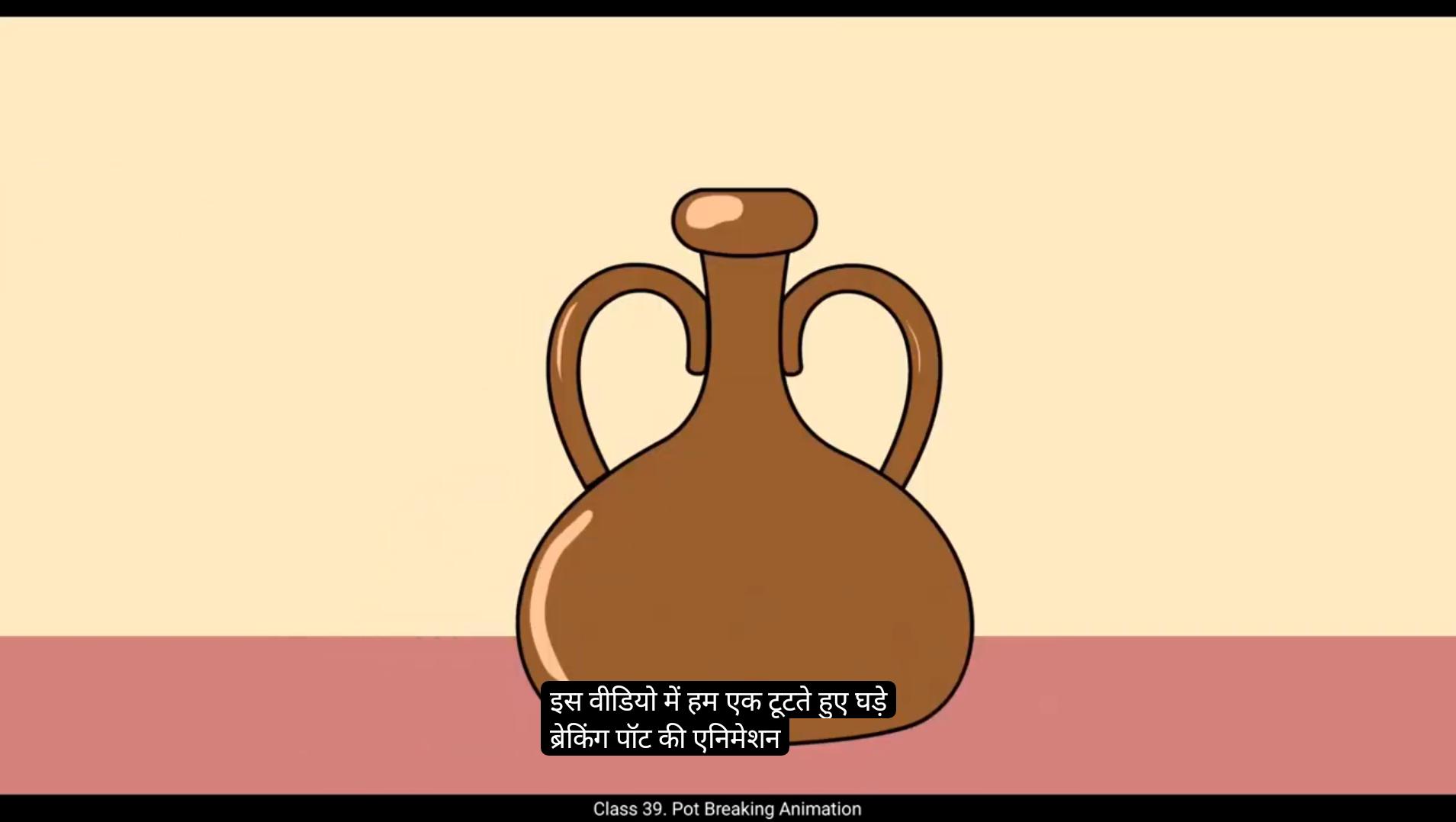
This video we are going to animate a breaking pot. The vector files required for this animation are provided in the downloadable material. Let's get started.We will extend the timeline till frame 90 using F5.Then we enter the main symbol by double clicking it, which has the stone and a broken pot in it.We again extend the timeline here till frame 90. We right click on the stone layer and select the Add Classic Motion Guide option from the menu.On the new layer which is named Guide, we draw a line using the Line tool. Here we are following the ARC principle in animation to create a natural and smooth motion. We curve the line using the selection tool. The shortcut is V.On the 1st keyframe we place the stone on the line as seen in the video.We add a keyframe on frame 20 and 30 using F6, and on keyframe 30 we place the stone on the right side of the line. We scale the stone down to 80% as it moves away from the screen, making it appear smaller in the distance.We select the frames in between and add classic tween from the menu.On the pot layer we add a blank keyframe on frame 30 using F7. We move the first keyframe on the broken pot to frame 30.We move the broken pot symbol to the place where the pot is sitting.We enter the broken pot symbol and extend the timeline.We add a keyframe on frame 7 using F6 and move the pieces down. Note that all the pieces are already converted into a symbol. You can also rotate or scatter them further if you want to experiment.We select random frame between the keyframe, right click and add classic tween from the menu.We can also make the pieces bounce a little to add an interesting and more realistic effect using ease in and ease out effect.Further, we add keyframes on frames 9 and 11 and move the pieces to show them scattering.Then we apply a classic tween and add a classic ease in cubic effect for smoother motion.After exiting the symbol, we go to layer four, select frames 30 to 35 and apply a classic ease in cubic effect.Finally, we extend the animation by adding extra frames on all layers inside the main pot symbol and on the main timeline to hold the animation for a few seconds.Press Control Enter to see the preview.Keep practicing and hope you found this tutorial helpful. Thanks for watching and happy animating. इस वीडियो में हम एक टूटते हुए घड़े (breaking pot) की एनीमेशन बनाएंगे। इस एनीमेशन के लिए ज़रूरी vector files आपको downloadable material में दिए गए हैं। तो चलिए शुरू करते हैं। हम टाइमलाइन को फ्रेम 90 तक F5 दबाकर एक्सटेंड करेंगे। इसके बाद हम main symbol में एंटर करेंगे, जिसे double click करके खोला जा सकता है। इस symbol के अंदर stone और broken pot मौजूद हैं। यहाँ भी हम टाइमलाइन को फ्रेम 90 तक एक्सटेंड करेंगे। अब stone layer पर right click करें और मेन्यू से Add Classic Motion Guide ऑप्शन सेलेक्ट करें। नई बनी हुई लेयर, जिसका नाम Guide है, पर हम Line Tool की मदद से एक लाइन ड्रॉ करेंगे। यहाँ हम ARC principle को फॉलो कर रहे हैं ताकि मोशन natural और smooth लगे। अब इस लाइन को Selection Tool (shortcut V) से curve करेंगे। पहले keyframe पर हम stone को लाइन पर उसी पोज़िशन में रखते हैं जैसा वीडियो में दिखाया गया है। फिर हम frame 20 और frame 30 पर F6 दबाकर कीफ्रेम्स ऐड करते हैं। Keyframe 30 पर, हम stone को लाइन के दाईं ओर रखते हैं और उसका scale घटाकर 80% कर देते हैं, ताकि वह स्क्रीन से दूर जाता हुआ छोटा दिखे। इसके बाद हम बीच के फ्रेम्स को सेलेक्ट करते हैं और मेन्यू से Classic Tween ऐड करते हैं। अब pot layer पर frame 30 में F7 दबाकर एक blank keyframe जोड़ते हैं। हम broken pot के पहले कीफ्रेम को फ्रेम 30 पर मूव करते हैं। अब broken pot symbol को उस जगह पर रखते हैं जहाँ घड़ा रखा हुआ है। इसके बाद हम broken pot symbol के अंदर एंटर करते हैं और टाइमलाइन को एक्सटेंड करते हैं। अब फ्रेम 7 पर F6 दबाकर एक keyframe ऐड करते हैं और घड़े के टुकड़ों (pieces) को नीचे की ओर मूव करते हैं। ध्यान दें कि सभी टुकड़े पहले से ही symbol में कन्वर्ट किए हुए हैं। अगर आप चाहें तो इन्हें थोड़ा rotate या scatter करके एक्सपेरिमेंट भी कर सकते हैं। अब किसी भी random frame को सेलेक्ट करें जो इन कीफ्रेम्स के बीच हो, फिर right click करें और मेन्यू से Classic Tween ऐड करें। हम इन टुकड़ों को थोड़ा bounce भी करवा सकते हैं ताकि एनीमेशन और दिलचस्प व रियलिस्टिक लगे। इसके लिए Ease In और Ease Out इफ़ेक्ट का इस्तेमाल करें। इसके बाद हम फ्रेम 9 और फ्रेम 11 पर कीफ्रेम्स ऐड करते हैं और टुकड़ों को मूव करते हैं ताकि वे बिखरते हुए दिखें। अब हम इन फ्रेम्स पर Classic Tween लगाते हैं और एक Classic Ease In Cubic इफ़ेक्ट ऐड करते हैं ताकि मोशन और स्मूद हो। सिंबल से बाहर निकलने के बाद, हम लेयर 4 पर जाते हैं, फ्रेम 30 से 35 तक के फ्रेम्स को सेलेक्ट करते हैं और उन पर भी Classic Ease In Cubic इफ़ेक्ट अप्लाई करते हैं। आख़िर में, हम एनीमेशन को थोड़ा और लंबा करने के लिए main pot symbol के अंदर की सभी लेयर्स और main timeline पर कुछ extra frames ऐड करते हैं, ताकि एनीमेशन कुछ सेकंड तक रुका रहे। अब Control + Enter दबाकर एनीमेशन का preview देखें। प्रैक्टिस करते रहें — उम्मीद है कि यह ट्यूटोरियल आपके लिए मददगार रहा होगा। Thanks for watching and happy animating!