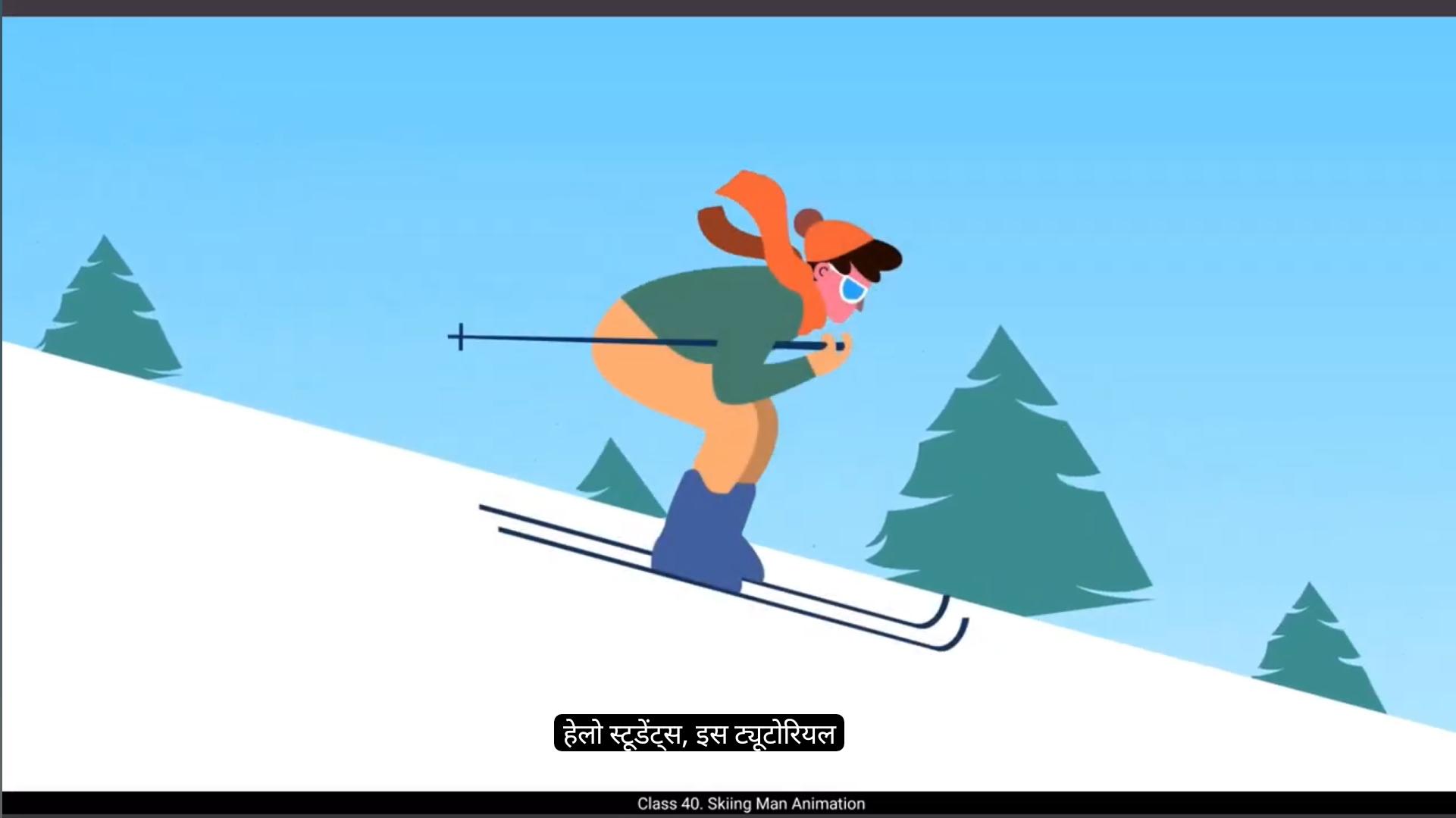
Hello students, in this tutorial we are going to learn how to create a skiing animation.The vector files required for this animation are provided in the downloadable material. Let's get started.Open the vector file provided in the downloadable material. On layer four we have sky background, on layer three we have ground and tree BG, and on layer two we have the skier.1st we will animate the overlay. To do this, we will create a pan effect similar to what we learned in the previous tutorial on background pan animation. If you have any doubts, feel free to rewatch that tutorial for better understanding.First select the ground background and convert it into a symbol.Then make a copy of it, move it to the right and align both ground levels properly.Create another copy, move it further to the right and ensure all ground levels match seamlessly. Next, to add variation, duplicate the ground symbols and reposition the trees.Scale them up and down randomly to create a more natural look while panning the background.Once the background is set, go to the main timeline, select the entire layer 3 and convert all objects into a single symbol.Now enter the symbol, extend the timeline to 75 frames and add a keyframe. 😘 On frame 75, move the background to the left to create the panning effect.Make sure the first and last frame positions match to avoid any glitches in the animation.Right click between the keyframes and select Create Classic Tween.Now to ensure the timing matches with the animation inside the layer, extend the frames until frame 75.The skier appears to be moving too slowly. To fix this we will remove a few frames to speed up the animation and create a more natural movement.Now that the pan animation is ready, let's move on to animating the muffler around the character's neck. Double Click to enter the character symbol, zoom in and select the brush tool.On the front layer of the muffler, we will start drawing frame by frame animation. 😘 To do this, we will add multiple keyframes by pressing F7 to create blank keyframes and draw each pose of the muffler's movement.We will be following the straight ahead animation principle where we draw each frame one by one in a sequential manner.Additionally, we will be using the drawing on 2's technique, meaning we are creating a drawing on every alternate frame. Enable onion skinning so that we can see the previous drawing as a reference while animating. Once we have drawn all the keyframes, play the animation in a loop. You will see the muffler animating naturally. Now let's add some finishing touches to refine the movement.Next, we will duplicate these keyframes, adjusting the duration to ensure the animation flows seamlessly.Once done, preview the animation to see the progress.Now let's animate the back part of the muffler, the portion behind the character's neck. Just like we did for the front side. We will draw multiple keyframes and then duplicate them to match the animations duration.Since this part of the muffler is behind the front section, we will use a darker shade of color to create depth and make it visually distinct.Follow the same process as before, adding keyframes and drawing each pose carefully. Our animation is now ready. Simply press Control Enter to see the preview.Hope you found this tutorial helpful. Thanks for watching and see you in the next tutorial. हेलो स्टूडेंट्स, इस ट्यूटोरियल में हम skiing animation बनाना सीखेंगे। इस एनीमेशन के लिए ज़रूरी vector files आपको downloadable material में दिए गए हैं। तो चलिए शुरू करते हैं। सबसे पहले downloadable material में दिया गया vector file खोलें। लेयर 4 पर हमारे पास sky background है, लेयर 3 पर ground और tree BG है, और लेयर 2 पर हमारा skier है। सबसे पहले हम overlay को एनीमेट करेंगे। इसके लिए हम एक pan effect बनाएंगे, जो हमने पिछले ट्यूटोरियल में सीखा था — background pan animation। अगर आपको इसमें कोई डाउट हो, तो वह ट्यूटोरियल दोबारा देखकर बेहतर समझ सकते हैं। अब सबसे पहले ground background को सेलेक्ट करें और उसे एक symbol में कन्वर्ट करें। फिर उसकी एक copy बनाएं, उसे right side में मूव करें और दोनों ground levels को सही से align करें। अब एक और copy बनाएं, उसे और दाईं तरफ मूव करें और यह सुनिश्चित करें कि सभी ground levels एक-दूसरे से seamlessly match हों। अब थोड़ा variation लाने के लिए, ground symbols को duplicate करें और trees को फिर से पोज़िशन करें। उन्हें randomly scale up और scale down करें ताकि बैकग्राउंड natural look दे जब हम उसे पैन करेंगे। जब बैकग्राउंड पूरी तरह तैयार हो जाए, तो main timeline पर जाएं, पूरी layer 3 को सेलेक्ट करें और सभी ऑब्जेक्ट्स को मिलाकर एक single symbol में कन्वर्ट करें। अब उस symbol में एंटर करें, timeline को 75 frames तक extend करें और एक keyframe ऐड करें। फ्रेम 75 पर बैकग्राउंड को लेफ्ट साइड में मूव करें ताकि panning effect तैयार हो सके। यह सुनिश्चित करें कि पहले फ्रेम और आख़िरी फ्रेम की पोज़िशन आपस में मैच करें, ताकि एनीमेशन में कोई glitch न आए। अब keyframes के बीच right click करें और Create Classic Tween सेलेक्ट करें। फिर, एनीमेशन का टाइमिंग लेयर के अंदर के एनीमेशन से मैच करे, इसके लिए फ्रेम्स को फ्रेम 75 तक extend करें। अब आप देखेंगे कि skier थोड़ा धीरे मूव कर रहा है। इसे ठीक करने के लिए हम कुछ फ्रेम्स हटा देंगे, ताकि एनीमेशन की speed बढ़े और मूवमेंट ज्यादा natural लगे। अब जब pan animation तैयार है, तो चलिए character की गर्दन पर पड़े muffler को एनीमेट करते हैं। इसके लिए character symbol को double click करके खोलें, फिर zoom in करें और brush tool सेलेक्ट करें। अब muffler की front layer पर हम frame-by-frame animation ड्रॉ करना शुरू करेंगे। इसके लिए हम F7 दबाकर कई blank keyframes ऐड करेंगे, ताकि हम muffler की मूवमेंट के हर पोज़ को अलग-अलग फ्रेम पर ड्रॉ कर सकें। हम यहाँ Straight Ahead Animation Principle को फॉलो करेंगे, जिसमें हर फ्रेम को एक के बाद एक sequential manner में ड्रॉ किया जाता है। इसके अलावा हम Drawing on 2’s technique का इस्तेमाल करेंगे, जिसका मतलब है कि हम हर alternate frame पर एक नया ड्रॉइंग बनाएंगे। अब Onion Skinning को enable करें, ताकि हम पिछले ड्रॉइंग को रेफरेंस के तौर पर देख सकें और मूवमेंट को स्मूद बना सकें। जब सभी keyframes ड्रॉ हो जाएं, तो एनीमेशन को loop में चलाकर देखें — आप देखेंगे कि muffler बहुत नैचुरली एनीमेट हो रहा है। अब हम finishing touches जोड़ेंगे ताकि मूवमेंट और रिफाइंड लगे। इसके बाद हम इन कीफ्रेम्स को duplicate करेंगे और उनकी duration को एडजस्ट करेंगे ताकि एनीमेशन seamlessly flow करे। जब यह हो जाए, तो preview चलाकर प्रोग्रेस देखें। अब हम muffler के पीछे वाले हिस्से को एनीमेट करेंगे, यानि वो हिस्सा जो character की गर्दन के पीछे है। जैसे हमने front side के लिए किया था, वैसे ही यहाँ भी हम multiple keyframes ड्रॉ करेंगे और फिर उन्हें duplicate करेंगे ताकि उनकी duration पहले वाले हिस्से से मैच करे। क्योंकि यह हिस्सा फ्रंट सेक्शन के पीछे है, हम इसमें थोड़ा darker shade का रंग इस्तेमाल करेंगे ताकि depth बने और यह visually distinct दिखे। पहले जैसे ही प्रोसेस को फॉलो करें — keyframes जोड़ें और हर पोज़ को ध्यान से ड्रॉ करें। अब हमारी एनीमेशन पूरी तरह तैयार है। बस Control + Enter दबाएं और preview देखें। उम्मीद है आपको यह ट्यूटोरियल मददगार लगा होगा। Thanks for watching and see you in the next tutorial!