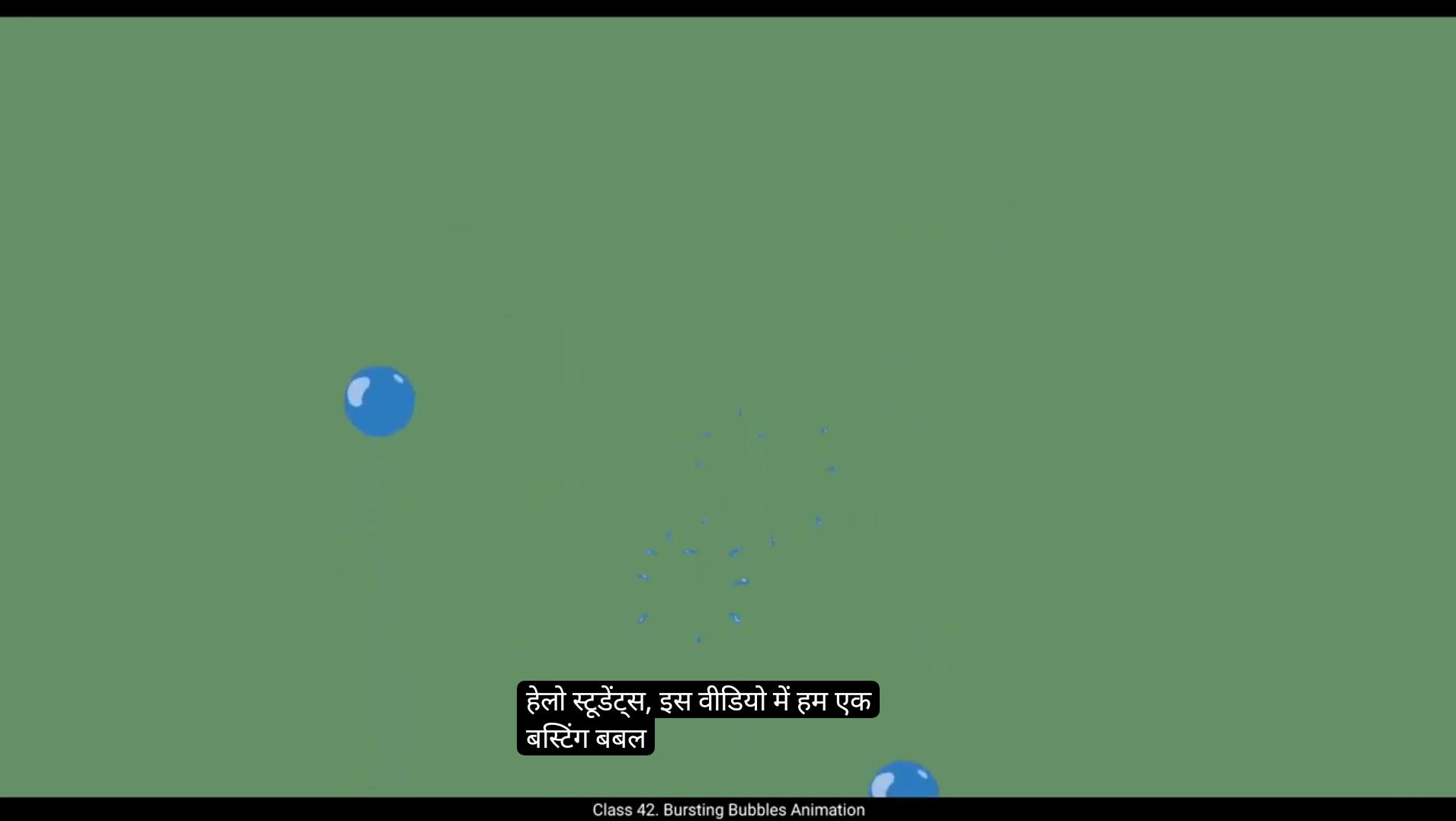
Hello students, in this video we're going to animate a bursting bubble and breakdown the entire process, so let's dive in.Lets Start by selecting the brush tool and the color we want for our bubble. You can always change the color later. On the 1st keyframe, draw a simple circle to represent the bubble. Once we have our circle, select it with the selection tool and press F8 to convert it into a symbol. Name. This symbol bubble burst.Now let's enter the symbol and move to frame 20. Press F5 to extend the frames.This will set the duration for the bubbles burst animation. We'll add a blank keyframe on frame 3 using F7 and begin drawing the bubble bursting.It's important to keep in mind that we're drawing on twos, meaning we're drawing every second frame for a smoother animation.Turn on the onion skin to help you see the previous and next drawings as references. This helps us get a sense of how the animation is progressing. We continue adding a blank keyframe on every second frame, working in twos. This gives us time to refine each droplet size, shape, and motion.Every droplet will get smaller as the frames progress, and this shrinkage is key to making the animation feel like the droplets are disappearing into the air. As the bubble bursts, the motion will follow the arc principle. The droplets will shoot out in arcs, making the animation feel more natural.When we think about a bubble bursting in real life, it's not just about the bubble popping. After the bubble bursts, tiny droplets scatter in all directions. These droplets get smaller and eventually disappear.Now as we animate this, we want to capture that realistic motion where each droplet varies in size and shape and they shrink over time. 😘 We have added five drawings and a blank keyframe on the 11th frame to stop the animation.We press the Enter key to see what we've got so far.We will now color the bubble and the key drawings. First add a new layer and draw a circle, then remove its fill.Add another layer and color the circle using the brush tool.On frame three, add a blank keyframe on both layers. Now fill the color using the brush tool for the droplets.On frame 5, add a blank keyframe on layer 3 and continue coloring droplets.Repeat this process on frame 7.Drag the keyframe from frame 9 of layer one to frame 9 of layer 3, as the size of the droplet is too small to color. Add a blank keyframe on frame 11. Now delete layer one and layer 2.Next, add a new layer to draw highlights.Use white color to add highlights to the bubble and droplets. Highlights help make the bubble look more 3 dimensional and realistic. For the droplets, highlights will emphasize their transparency and movement, giving them a sense of depth.With the bubble colored and the highlights in place, we'll animate the bubble floating. Select the bubble and press F8 again to convert it into a symbol. Name it multiple bubbles. Enter the symbol and extend the timeline to Frame 75 by pressing F5. Now select the symbol and go to the Properties tab. In the looping options, turn on the Play Single Frame button.Play single frame means that the symbol will play 1 frame at a.The time, which is useful when you want the symbol to stay on a single frame for a specific duration without Looping this is particularly helpful when you're animating something that needs to remain static for a few frames, like the bubble. 😘 Move the bubble down and out of the stage, then convert it into a symbol again and name it bubbles animation.Enter the symbol, right click on the layer and select Add Classic Motion Guide from the menu. Increase the timeline to Frame 25 by pressing F5.Now draw the path on the guide layer using the brush tool. Place the bubble at the start of the path on frame one.Extend the timeline to frame 50.On frame 40, press F6 to add a keyframe and position the bubble at the top of the path.Now add a classic tween to the layer. You should see the bubble moving up along the path.Select the bubble on frame 40 and in the looping options select the Play Graphic once button. Play graphic once means that the graphic will play just once and will not repeat. We exit the symbol and add a new layer.Copy the symbol and paste it onto the new layer, placing it at a random position.Add more layers and copy the symbol onto each new layer.You can make as many copies as you like to create more bubbles.Just the frames according to the speed of the animation to make sure everything flows smoothly.Now press Control Enter to preview your animation and that's how you animate a bursting bubble with floating droplets in Adobe Animate. Thanks for watching and keep practicing to improve your animation skills and see you in the next tutorial. हेलो स्टूडेंट्स, इस वीडियो में हम एक बर्स्टिंग बबल को एनीमेट करना सीखेंगे और पूरे प्रोसेस को स्टेप बाय स्टेप समझेंगे, तो चलिए शुरू करते हैं। सबसे पहले ब्रश टूल को सेलेक्ट करें और वो कलर चुनें जो आप अपने बबल के लिए चाहते हैं। आप हमेशा बाद में कलर बदल सकते हैं। पहले कीफ्रेम पर, एक सिंपल सर्कल ड्रॉ करें जो बबल को रिप्रेजेंट करेगा। जब हमारे पास सर्कल हो जाए, सेलेक्शन टूल से उसे सेलेक्ट करें और एफ8 दबाकर उसे एक सिंबल में कन्वर्ट करें। इस सिंबल का नाम रखें बबल बर्स्ट। अब सिंबल के अंदर जाएं और फ्रेम 20 पर जाएं। एफ5 दबाकर फ्रेम्स को एक्सटेंड करें। इससे बबल बर्स्ट एनीमेशन की ड्यूरेशन सेट हो जाएगी। हम फ्रेम 3 पर एफ7 दबाकर एक ब्लैंक कीफ्रेम ऐड करेंगे और बबल के फूटने की ड्रॉइंग शुरू करेंगे। यह ध्यान रखना जरूरी है कि हम ड्रॉइंग ऑन टूज़ पर काम कर रहे हैं, यानी हम हर दूसरे फ्रेम पर ड्रॉ कर रहे हैं ताकि एनीमेशन स्मूद दिखे। अनियन स्किन ऑन करें ताकि आप पिछले और अगले ड्रॉइंग को रेफरेंस के रूप में देख सकें। यह हमें यह समझने में मदद करता है कि एनीमेशन कैसे प्रोग्रेस कर रहा है। हम हर दूसरे फ्रेम पर ब्लैंक कीफ्रेम ऐड करते रहेंगे और टूज़ में काम करते रहेंगे। इससे हमें हर ड्रॉपलेट का साइज, शेप और मोशन बेहतर तरीके से बनाने का टाइम मिलता है। हर ड्रॉपलेट छोटा होता जाएगा जैसे-जैसे फ्रेम्स आगे बढ़ेंगे, और यही श्रिंकेज एनीमेशन को ऐसा फील देता है कि ड्रॉपलेट्स हवा में गायब हो रहे हैं। जब बबल फूटता है तो मोशन आर्क प्रिंसिपल को फॉलो करता है। ड्रॉपलेट्स आर्क्स में बाहर निकलते हैं जिससे एनीमेशन नैचुरल लगता है। जब हम रियल लाइफ में किसी बबल के फूटने के बारे में सोचते हैं, तो यह सिर्फ बबल पॉप नहीं होता। बबल फूटने के बाद छोटे-छोटे ड्रॉपलेट्स हर दिशा में फैल जाते हैं। ये ड्रॉपलेट्स छोटे होते जाते हैं और आखिर में गायब हो जाते हैं। अब जब हम इसे एनीमेट करते हैं, हमें यह रियलिस्टिक मोशन पकड़ना है, जहां हर ड्रॉपलेट का साइज और शेप अलग होता है और वो टाइम के साथ छोटा होता जाता है। 😘 हमने पाँच ड्रॉइंग्स और 11वें फ्रेम पर एक ब्लैंक कीफ्रेम ऐड किया है ताकि एनीमेशन रुके। अब तक हमने क्या बनाया है, ये देखने के लिए एंटर की दबाएँ। अब हम बबल और की ड्रॉइंग्स को कलर करेंगे। सबसे पहले एक नई लेयर ऐड करें और एक सर्कल ड्रॉ करें, फिर उसका फिल हटा दें। एक और लेयर ऐड करें और ब्रश टूल की मदद से सर्कल को कलर करें। फ्रेम 3 पर दोनों लेयर्स पर एक ब्लैंक कीफ्रेम ऐड करें। अब ब्रश टूल का इस्तेमाल करके ड्रॉपलेट्स को कलर करें। फ्रेम 5 पर, लेयर 3 पर एक ब्लैंक कीफ्रेम ऐड करें और ड्रॉपलेट्स को कलर करना जारी रखें। यही प्रोसेस फ्रेम 7 पर भी दोहराएँ। लेयर 1 के फ्रेम 9 का कीफ्रेम लेयर 3 के फ्रेम 9 पर ड्रैग करें, क्योंकि उस फ्रेम में ड्रॉपलेट बहुत छोटा है कलर करने के लिए। फ्रेम 11 पर एक ब्लैंक कीफ्रेम ऐड करें। अब लेयर 1 और लेयर 2 को डिलीट करें। इसके बाद, हाइलाइट्स ड्रॉ करने के लिए एक नई लेयर ऐड करें। सफेद रंग का इस्तेमाल करके बबल और ड्रॉपलेट्स पर हाइलाइट्स बनाएं। हाइलाइट्स बबल को ज़्यादा थ्री-डायमेंशनल और रियलिस्टिक दिखाने में मदद करती हैं। ड्रॉपलेट्स के लिए, हाइलाइट्स उनकी ट्रांसपेरेंसी और मूवमेंट को और उभारती हैं, जिससे उनमें डेप्थ नज़र आती है। जब बबल को कलर कर लिया गया हो और हाइलाइट्स लगा दी गई हों, तब हम बबल के फ्लोट करने की एनीमेशन बनाएंगे। बबल को सेलेक्ट करें और फिर से एफ8 दबाकर उसे एक सिंबल में कन्वर्ट करें। उसका नाम रखें “मल्टिपल बबल्स”। सिंबल के अंदर जाएँ और एफ5 दबाकर टाइमलाइन को फ्रेम 75 तक एक्सटेंड करें। अब सिंबल को सेलेक्ट करें और प्रॉपर्टीज टैब में जाएँ। लूपिंग ऑप्शंस में “प्ले सिंगल फ्रेम” बटन ऑन करें। “प्ले सिंगल फ्रेम” का मतलब है कि सिंबल एक बार में सिर्फ एक फ्रेम दिखाएगा, जो तब उपयोगी होता है जब आप किसी ऑब्जेक्ट को कुछ समय के लिए बिना लूप किए एक ही फ्रेम पर रखना चाहते हैं, जैसे यहाँ बबल को। 😘 बबल को नीचे की ओर और स्टेज के बाहर मूव करें, फिर उसे दोबारा एक सिंबल में कन्वर्ट करें और उसका नाम रखें “बबल्स एनीमेशन”। अब सिंबल के अंदर जाएँ, लेयर पर राइट क्लिक करें और मेन्यू से “ऐड क्लासिक मोशन गाइड” ऑप्शन सेलेक्ट करें। एफ5 दबाकर टाइमलाइन को फ्रेम 25 तक बढ़ाएँ। अब गाइड लेयर पर ब्रश टूल की मदद से एक पाथ ड्रॉ करें। फ्रेम 1 पर बबल को पाथ की शुरुआत में प्लेस करें। टाइमलाइन को फ्रेम 50 तक एक्सटेंड करें। फ्रेम 40 पर एफ6 दबाकर एक कीफ्रेम ऐड करें और बबल को पाथ के टॉप पर पोज़िशन करें। अब लेयर पर क्लासिक ट्वीन ऐड करें। अब आपको बबल को पाथ के साथ ऊपर की ओर मूव करते हुए दिखना चाहिए। फ्रेम 40 पर बबल को सेलेक्ट करें और लूपिंग ऑप्शंस में “प्ले ग्राफिक वन्स” बटन चुनें। “प्ले ग्राफिक वन्स” का मतलब है कि ग्राफिक सिर्फ एक बार प्ले होगा और रिपीट नहीं होगा। अब हम सिंबल से बाहर निकलते हैं और एक नई लेयर ऐड करते हैं। सिंबल को कॉपी करें और नई लेयर पर पेस्ट करें, उसे किसी रैंडम पोज़िशन पर रखें। और लेयर्स ऐड करें और हर नई लेयर पर सिंबल को कॉपी करें। आप जितनी चाहें उतनी कॉपियाँ बना सकते हैं ताकि और बबल्स क्रिएट हो सकें। एनीमेशन की स्पीड के हिसाब से फ्रेम्स को एडजस्ट करें ताकि सब कुछ स्मूद और नेचुरल फ्लो में चले। अब कंट्रोल + एंटर दबाकर अपनी एनीमेशन का प्रीव्यू देखें और इस तरह आप Adobe Animate में फ्लोटिंग ड्रॉपलेट्स के साथ एक बर्स्टिंग बबल एनीमेशन बना सकते हैं। देखने के लिए धन्यवाद और अपनी एनीमेशन स्किल्स को बेहतर करने के लिए प्रैक्टिस करते रहें, अगली ट्यूटोरियल में मिलते हैं।