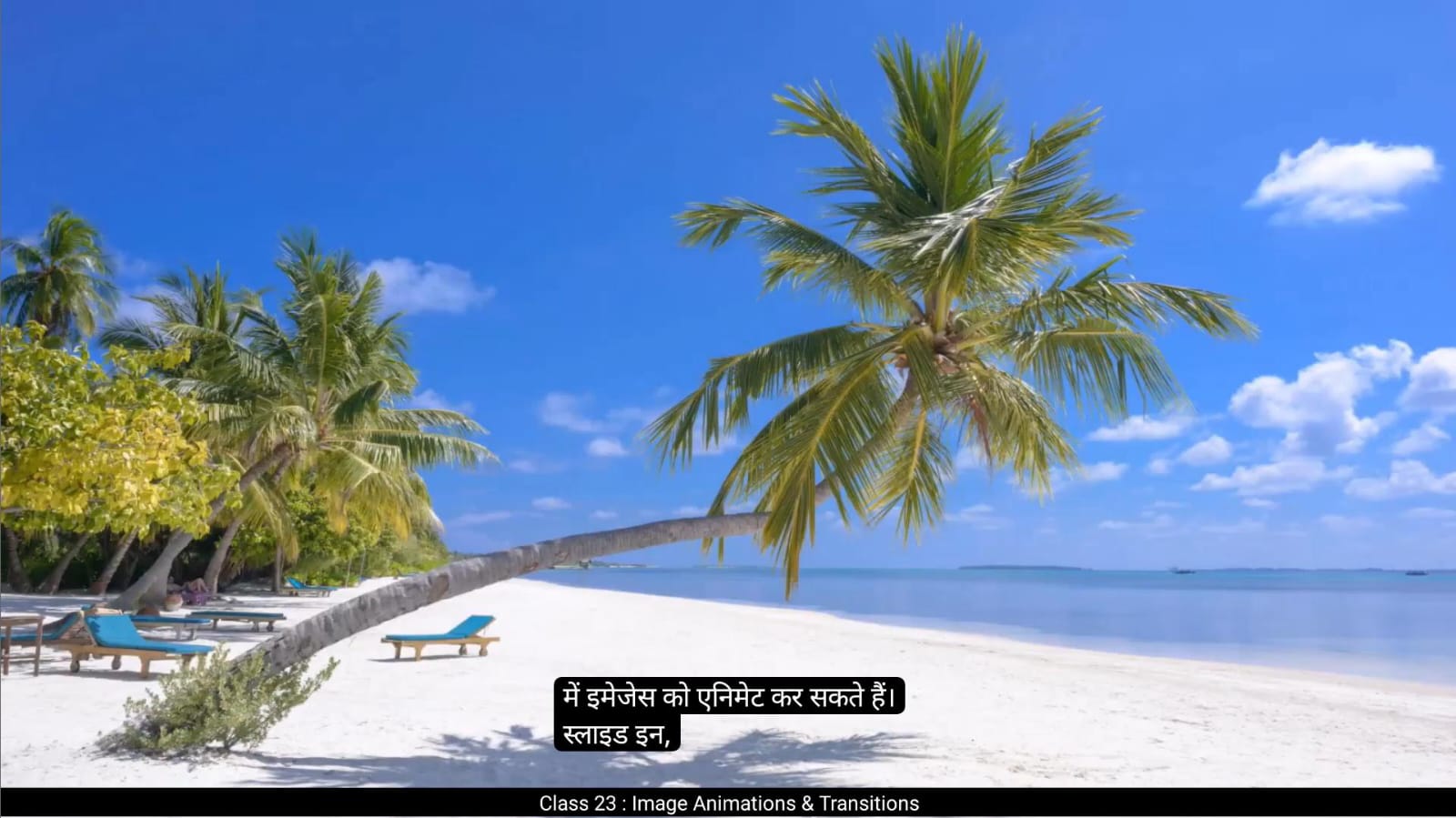
Hello Students, welcome to the Digital tutors in today's video Hello students, welcome to the digital tutors In today's video. We will learn how to animate images in six different effects. Slide in rotating, scaling.Masking.Blur effect.And the path animation. Let's get started.We'll use a full HD file as our workspace.Let's start by importing images to the stage. You can use the shortcut control R.Once you select an image, Adobe Animate might ask do you want to import all the images in sequence? If your images are named sequentially, click yes. This will place each image on a different keyframe. Here we have 6 images, so they are spread across 6 keyframes.Now let's organize all files in the library.Create a folder named images.Then create another folder called symbols.Move all your images into images folder.We move symbols to the symbols folder later.Next, convert each image into a symbol. Select image, then go to Modify and choose Convert to Symbol. Shortcut key is F8, rename it with appropriate name. Click OK.Convert all images into symbol. Now in the library you can see all symbols that we have converted.Select all symbols, then drag and place them in the symbols folder.Now let's prepare the timeline. First remove all existing keyframes using Shift F6. Then extend the timeline by pressing F5 to add frames till frame 60.Drag the first image symbol from the library to the stage.And rename the layer to image 001.Don't forget to align the image to the stage. Press Control plus K to open the align panel. If not available, make sure to align the image both horizontally and vertically and confirm that the Align to stage option is checked.Before moving forward, save your file with the name image animation.Let's create a slide effect.Add keyframes on the frame #25 shortcut key is F6.At frame one, move the image off screen to the left.Again, add keyframe on the frame #10.And then add a classic tween between the two keyframes.As you can see, the image slides in from the left. You can make it slide in from left, top or bottom as well.Go to properties, then frames to make the animation smoother. Apply ease in with an intensity of 100.You can also experiment with negative intensities if you want the image to slide in faster.And our slide in image animation is ready.For the next effect, we'll create a rotation animation. First add a new layer.And drag the second image symbol onto the stage.Ensure it is properly aligned to the stage using the align panel.Rename the layer to image 002 for better organization.And move the keyframe to the end of previous layer so that the animation starts after the previous 1 ends.Then insert keyframe at frame number 91.On frame 61, I will scale down the image to 5% using scale and rotate option.Now rotate image 180°.In the Properties panel, under Color Effect tab, select Alpha with Transparency value 0.Add keyframes at frame 71. ************ And add classic tween between the frames. This is how our animation looks.You can change rotation. Set the rotation to clockwise by selecting rotate option in properties panel. Also you can change number of rotation.Go to Properties, then Frames.To make the animation smoother, apply classic ease out effect with easing intensity of 100.And our image rotation animation is ready.Moving on, let's create a scaling effect.Add a new layer for the third image.And select frame 121, go to Modify timeline, then choose Convert to blank keyframes. Shortcut key is F7.Go to library, drag the third image symbol onto the stage.Align it horizontally and vertically using the align panel.Then to extend the timeline, add frames by pressing F5.Rename the layer to image 003.Insert keyframe at frame 180.Go to starting frame of this layer which is frame 121 and using free transform tool scale down image vertically. Then insert keyframe at frame 150.Now go to frame 121. This time scale down the image horizontally as well using the free transform tool.Adjust the size to make the image almost invisible as we want to start the animation with a very small size.Then add classic tween between all the keyframes.Select Frame 121 and in the Properties panel, navigate to the Frame tab. Under Tweening, go to the Effect drop down and select Sign Ease in.Next, select frame 150 and apply sign Ease out in the same way. This adjustment ensures our animation transition smoothly with a natural easing effect as it scales in and out.To preview just this animation, click on the Loop button in the timeline controls. Next, select the specific frames you want to preview by dragging the work area markers around those frames. Finally, press the Play button. This way you can preview only the selected frames without playing the entire timeline.So our scaling effect animation is also ready.Let's move to the next animation, creating a masking effect. Add a new layer for the 4th symbol.Select frame 211.And insert blank keyframe shortcut key F7.Go to library, drag the 4th image symbol onto the stage.Align it horizontally and vertically using the align panel.Then to extend the timeline, add frames till frame 300 by pressing F5.Rename the layer to image 004.Double click on the symbol to enter it.Extend the frames to frame 120 using F5.Rename the layer out.I'll name it image. *************** Next insert another layer and name it mask.Lock the image layer for better precision.Select the Rectangle tool. Shortcut is R.And draw a perfect square.Align it horizontally and vertically using the align panel.Rotate the square 45° to transform it into a perfect diamond shape.Then select.The free transform tool and scale up the diamond shape until it covers the entire stage area.Add a keyframe at frame 20 on the mask layer.Then go back to frame one.Using the Scale and Rotate option, scale down the diamond shape to 5%.To further minimize it, repeat the process and scale it down to 5% again, making the shape almost disappear.Right click between the keyframes on the mask layer and select Create Shape Tween. Next, go to the Properties panel and under tweening, select the Ease Out option with an easing intensity of 100 to make the animation smooth as the diamond shape shrinks. Then right click the mask layer and select Mask.The image will now appear through the diamond shape. Since the animation is a bit fast, let's slow it down by adding a few more frames. To do that, double click on the symbol to enter it, then increase the number of frames for the mask layer by simply dragging the frame's edge further out. This will extend the animation, giving it a smoother and slower pace.Now your masking effect will look even better.You can experiment with different shapes like squares, rectangles, hearts or any other shape to create unique effects. Just follow the same steps.Now let's move on to the next animation creating a blur effect.Add a new layer.Then select frame 301 and insert blank keyframe shortcut key F7.Go to library, drag the fifth image symbol onto the stage. Align it horizontally and vertically using the align panel.Then to extend the timeline, add frames till frame 390 by pressing F5.Rename the layer to image 005.Insert keyframe at frame 320 shortcut key F6. Go to Frame 301. Now go to the Properties tab and look for the Frame section. At the bottom you'll see a Filters option.Click the plus sign to add a filter and choose Blur.Next, increase the blur value for both the X&Y axis. I'm setting mine to 50 for a nice noticeable blur effect.Now scale the image up to 130%.And create a classic tween.To make the animation smoother, apply an ease out effect with an intensity of 100.Next, add two more keyframes at frames 325 and 330.On frame 325, scale the image down to 110%. ********** Then add a classic tween between these keyframes to create a subtle pop up effect.Adjust the keyframes to ensure a smooth transition.Now go to frame 320 and in the properties panel apply a classic ease in with a negative intensity of 100.At frame 324, apply a classic ease out with an intensity of 100.The pop-up effect might not look perfect yet, so let's refine it.Go to frame 301 and using the free transform tool scale down the image slightly. There's still a slight jerk, so we again scale down image on frame 301 and frame 324.Finally, to smoothen things further, add an extra frame between the last keyframe.On frame 324, change the ease out to ease in and set the intensity to -100.To speed up the animation, drag the 1st keyframe 5 frames backward.With all these adjustments, our blur effect animation is ready.Now let's move on to the last animation, the path animation or a guide layer animation.Add a new layer.Then insert blank keyframe at frame 391 shortcut key F7.Go to library, drag the last image symbol onto the stage.Align it horizontally and vertically using the align panel.Rename the layer to image 006.Then to extend the timeline, add frames till frame 510 by pressing F5.We'll add a new layer and name it path.Now insert a keyframe at frame 391 on this layer.Next, grab the line tool and draw a straight line starting from the center of the image to the bottom of the stage.Once that's done, switch to the selection tool and gently click and drag on the line to add a smooth curve just like this.Finally, make sure the line is perfectly adjusted so the starting point aligns with the center of the image, ensuring the pivot point is spot on.Lock the path layer to avoid accidental changes.Next, switch to the image layer and insert a keyframe at frame 420.Now go back to frame 391, select the image symbol and scale it down to just 2% of its size.After that, drag the image off stage and position it at the bottom of the curved line we just drew. Make sure that the pivot point is perfectly aligned at the center of the image.Add a keyframe on frame 400 of the image layer.And create a classic tween.Then apply a classic ease out effect with an intensity of 100 for a smooth motion.Now switch to the path layer, right click and select Guide.But you'll notice the image just appears on the screen, it's not following the path yet.To fix this, I'll first extend the keyframes to slow down the effect slightly.Next, select the line on the path layer and adjust the curve as needed.To make it clearer, I'll change the color and stroke size of the path so you can see it properly. Finally, drag the image layer under the path layer. Notice the path layer icon has now changed, meaning our path animation is linked and ready to go. I don't want too much of A curve here, so let's adjust the path.Select the sub selection tool and carefully tweak the curve in the line to get the exact shape we want.Next, at frame 430, I'll scale up the image to 105% to add a subtle finishing touch.And that's it. Our path animation is now ready.Let's review all the animations, press control enter, and watch the entire sequence play through.In conclusion, we've successfully created a variety of text and image animations, each with its own unique style and effect. Remember, the key to mastering these effects is practice and experimentation. The more you play around with different tools and techniques, the more versatile and creative your animations will become. Thanks for following along, and I hope you found this tutorial helpful. Hello students, आज के वीडियो में हम सीखेंगे कि कैसे हम छः अलग-अलग इफेक्ट्स में इमेजेस को एनीमेट कर सकते हैं। स्लाइड इन, रोटेटिंग, स्केलिंग, मास्किंग, ब्लर इफेक्ट, और पाथ एनीमेशन। चलिए शुरू करते हैं। हम अपनी वर्कस्पेस के लिए एक फुल HD फाइल का इस्तेमाल करेंगे। पहले, इमेजेस को स्टेज पर इम्पोर्ट करें। आप शॉर्टकट कंट्रोल R का इस्तेमाल कर सकते हैं। एक इमेज़ को चुनने के बाद, Adobe Animate आपसे यह पूछ सकता है कि क्या आप सभी इमेजेस को क्रमबद्ध तरीके से इम्पोर्ट करना चाहते हैं? अगर आपकी इमेजेस का नाम क्रमबद्ध तरीके से रखा गया है, तो 'हां' पर क्लिक करें। इससे हर इमेज को एक अलग कीफ्रेम पर रखा जाएगा। यहाँ हमारे पास 6 इमेजेस हैं, तो ये 6 कीफ्रेम्स में फैल जाएंगी। अब आइए, सभी फाइल्स को लाइब्रेरी में व्यवस्थित करते हैं। एक फोल्डर बनाएं जिसका नाम 'images' रखें। फिर दूसरा फोल्डर बनाएं, जिसे 'symbols' कहें। अपनी सारी इमेजेस को 'images' फोल्डर में मूव कर दें। बाद में हम symbols को symbols फोल्डर में मूव करेंगे। अगला, हर इमेज को एक सिंबोल में बदलें। इमेज को चुनें, फिर Modify में जाएं और Convert to Symbol चुनें। शॉर्टकट की F8 है, और उसे उपयुक्त नाम से रिनेम करें। OK पर क्लिक करें। सभी इमेजेस को सिंबोल में बदलें। अब लाइब्रेरी में आप सभी सिंबोल देख सकते हैं जिन्हें हमने कंवर्ट किया है। सभी सिंबोल्स को चुनें और फिर उन्हें symbols फोल्डर में ड्रैग और प्लेस करें। अब चलिए टाइमलाइन तैयार करते हैं। सबसे पहले, सभी मौजूदा कीफ्रेम्स को हटाएं, इसके लिए शिफ्ट F6 दबाएं। फिर टाइमलाइन को एक्सटेंड करने के लिए F5 दबाएं, ताकि 60 फ्रेम तक फ्रेम्स एड हो जाएं। पहली इमेज सिंबोल को लाइब्रेरी से स्टेज पर ड्रैग करें। और लेयर का नाम 'image 001' रखें। इमेज को स्टेज पर सही से अलाइन करना न भूलें। अलाइन पैनल खोलने के लिए कंट्रोल + K दबाएं। अगर अलाइन पैनल दिखाई न दे, तो यह सुनिश्चित करें कि इमेज दोनों दिशा में (होरिजेंटली और वर्टिकली) स्टेज से सही तरीके से अलाइन हो और 'Align to Stage' ऑप्शन चेक किया गया हो। आगे बढ़ने से पहले, अपनी फाइल को 'image animation' के नाम से सेव कर लें। आइए, अब स्लाइड इफेक्ट बनाते हैं। फ्रेम #25 पर कीफ्रेम ऐड करें, शॉर्टकट की F6 है। फ्रेम 1 पर, इमेज को स्क्रीन से बाएं की ओर बाहर ले जाएं। फिर, फ्रेम #10 पर एक और कीफ्रेम ऐड करें। इसके बाद, इन दोनों कीफ्रेम्स के बीच एक क्लासिक ट्विन ऐड करें। जैसा कि आप देख सकते हैं, इमेज बाएं से स्लाइड होकर आ रही है। आप इसे ऊपर, नीचे या बाएं से भी स्लाइड करवा सकते हैं। प्रॉपर्टीज में जाएं, फिर फ्रेम्स को स्मूथ बनाने के लिए, Ease in को 100 के इंटेन्सिटी के साथ अप्लाई करें। आप चाहें तो नेगेटिव इंटेन्सिटी के साथ एक्सपेरिमेंट कर सकते हैं, जिससे इमेज तेजी से स्लाइड होकर आ सकती है। और हमारा स्लाइड इन इमेज एनीमेशन तैयार है। अब अगले इफेक्ट के लिए, हम एक रोटेशन एनीमेशन बनाएंगे। पहले, एक नया लेयर ऐड करें। फिर दूसरी इमेज सिंबोल को स्टेज पर ड्रैग करें। यह सुनिश्चित करें कि यह स्टेज पर सही से अलाइन हो। लेयर का नाम 'image 002' रखें ताकि यह अधिक व्यवस्थित दिखे। फिर कीफ्रेम को पिछले लेयर के अंत में ले जाएं ताकि एनीमेशन पहले वाले के खत्म होने के बाद शुरू हो। अब फ्रेम #91 पर कीफ्रेम डालें। फ्रेम #61 पर, मैं इमेज को 5% तक स्केल डाउन करूंगा, इसके लिए स्केल और रोटेट ऑप्शन का उपयोग करें। अब इमेज को 180° घुमाएं। प्रॉपर्टीज पैनल में, Color Effect टैब में जाएं और Alpha को ट्रांसपेरेंसी वैल्यू 0 के साथ चुनें। फिर फ्रेम #71 पर एक और कीफ्रेम ऐड करें। **************** अब इन फ्रेम्स के बीच क्लासिक ट्विन ऐड करें। इस तरह से हमारा एनीमेशन दिखेगा। आप रोटेशन बदल सकते हैं। प्रॉपर्टीज पैनल में जाकर रोटेट ऑप्शन को चुनकर रोटेशन को घड़ी की दिशा में सेट कर सकते हैं। आप रोटेशन की संख्या भी बदल सकते हैं। प्रॉपर्टीज में जाएं, फिर फ्रेम्स पर जाएं। एनीमेशन को स्मूथ बनाने के लिए, क्लासिक ईज़ आउट इफेक्ट अप्लाई करें और ईज़िंग इंटेन्सिटी 100 सेट करें। और हमारा इमेज रोटेशन एनीमेशन तैयार है। आगे बढ़ते हैं, अब एक स्केलिंग इफेक्ट बनाते हैं। तीसरी इमेज के लिए एक नया लेयर ऐड करें। और फ्रेम 121 को चुनें, Modify में जाएं, फिर Convert to Blank Keyframes चुनें। शॉर्टकट की F7 है। लाइब्रेरी में जाएं, तीसरी इमेज सिंबोल को स्टेज पर ड्रैग करें। इसे हॉरिजेंटली और वर्टिकली अलाइन करने के लिए अलाइन पैनल का इस्तेमाल करें। फिर टाइमलाइन को एक्सटेंड करने के लिए F5 दबाकर फ्रेम्स ऐड करें। लेयर का नाम 'image 003' रखें। फ्रेम 180 पर कीफ्रेम ऐड करें। इस लेयर के शुरूआती फ्रेम, यानी फ्रेम 121 पर जाएं और Free Transform Tool का इस्तेमाल कर इमेज को वर्टिकली स्केल डाउन करें। अब फ्रेम 150 पर कीफ्रेम ऐड करें। फिर फ्रेम 121 पर जाएं। इस बार, इमेज को हॉरिजेंटली भी स्केल डाउन करें Free Transform Tool के जरिए। साइज को इस तरह से एडजस्ट करें कि इमेज लगभग गायब हो जाए, क्योंकि हमें एनीमेशन को बहुत छोटे साइज से शुरू करना है। *********** अब इन सभी कीफ्रेम्स के बीच क्लासिक ट्विन ऐड करें। फ्रेम 121 को चुनें और प्रॉपर्टीज पैनल में जाएं, फिर फ्रेम टैब में जाएं। Tweening के अंतर्गत Effect ड्रॉपडाउन से Sign Ease In चुनें। अब फ्रेम 150 को चुनें और वही तरीका अपनाते हुए Sign Ease Out अप्लाई करें। यह एडजस्टमेंट हमारी एनीमेशन को स्मूथ ट्रांज़िशन और नेचुरल ईज़िंग इफेक्ट देता है जैसे ही इमेज इन और आउट स्केल होती है। इस एनीमेशन को सिर्फ प्रिव्यू करने के लिए, टाइमलाइन कंट्रोल्स में Loop बटन पर क्लिक करें। फिर, उन फ्रेम्स को चुनें जिन्हें आप प्रिव्यू करना चाहते हैं, और वर्क एरिया मार्कर्स को उन फ्रेम्स के चारों ओर खींचें। अंत में, Play बटन दबाएं। इस तरह से आप केवल चुने हुए फ्रेम्स का प्रिव्यू कर सकते हैं, बिना पूरी टाइमलाइन को प्ले किए। तो हमारा स्केलिंग इफेक्ट एनीमेशन भी तैयार है। अब अगले एनीमेशन पर चलते हैं, मास्किंग इफेक्ट बनाते हैं। चौथे सिंबोल के लिए एक नया लेयर ऐड करें। फ्रेम 211 को चुनें और ब्लैंक कीफ्रेम ऐड करें, शॉर्टकट की F7 है। लाइब्रेरी में जाएं, चौथे इमेज सिंबोल को स्टेज पर ड्रैग करें। इसे हॉरिजेंटली और वर्टिकली अलाइन करने के लिए अलाइन पैनल का इस्तेमाल करें। फिर टाइमलाइन को एक्सटेंड करने के लिए F5 दबाकर फ्रेम्स ऐड करें, फ्रेम 300 तक। लेयर का नाम 'image 004' रखें। सिंबोल पर डबल क्लिक करके उसे खोलें। फिर F5 दबाकर फ्रेम्स को फ्रेम 120 तक एक्सटेंड करें। लेयर का नाम बदलकर इसे 'image' नाम दूंगा। ******************** अब एक और नया लेयर ऐड करें और उसका नाम 'mask' रखें। इमेज लेयर को लॉक कर लें ताकि सटीकता बनी रहे। फिर, रेक्टेंगल टूल का चयन करें। शॉर्टकट की R है। और एक परफेक्ट स्क्वायर ड्रॉ करें। इसे हॉरिजेंटली और वर्टिकली अलाइन करने के लिए अलाइन पैनल का इस्तेमाल करें। स्क्वायर को 45° घुमाएं ताकि वह एक परफेक्ट डायमंड शेप में ट्रांसफॉर्म हो जाए। फिर, Free Transform Tool का चयन करें और डायमंड शेप को स्केल अप करें जब तक वह पूरे स्टेज एरिया को कवर न कर ले। अब मास्क लेयर पर फ्रेम 20 पर एक कीफ्रेम ऐड करें। फिर, वापस फ्रेम 1 पर जाएं। Scale और Rotate ऑप्शन का इस्तेमाल करके डायमंड शेप को 5% तक स्केल डाउन करें। इसे और भी छोटा करने के लिए, यह प्रोसेस फिर से दोहराएं और इसे 5% और स्केल डाउन करें, ताकि शेप लगभग गायब हो जाए। अब मास्क लेयर के कीफ्रेम्स के बीच राइट क्लिक करें और Create Shape Tween चुनें। अब, Properties पैनल में जाएं और Tweening के तहत Ease Out ऑप्शन को चुनें, ईज़िंग इंटेन्सिटी 100 के साथ, ताकि एनीमेशन स्मूथ हो जाए जब डायमंड शेप सिकुड़ता है। फिर मास्क लेयर पर राइट क्लिक करें और Mask चुनें। अब इमेज डायमंड शेप के अंदर दिखाई देगी। क्योंकि एनीमेशन थोड़ा तेज है, चलिए इसे धीमा करते हैं, और कुछ और फ्रेम्स ऐड करते हैं। ऐसा करने के लिए, सिंबोल पर डबल क्लिक करके उसे खोलें, फिर मास्क लेयर के लिए फ्रेम्स की संख्या बढ़ाने के लिए फ्रेम की एज को खींचकर और बाहर ले जाएं। यह एनीमेशन को एक्सटेंड करेगा और इसे स्मूथ और स्लो बनाएगा। अब आपका मास्किंग इफेक्ट और भी बेहतर दिखेगा। आप विभिन्न शेप्स जैसे स्क्वायर, रेक्टेंगल, हार्ट्स या कोई भी और शेप का प्रयोग कर सकते हैं ताकि यूनिक इफेक्ट्स बनाए जा सकें। बस वही कदम फॉलो करें। अब अगले एनीमेशन पर चलते हैं, यानी ब्लर इफेक्ट बनाते हैं। एक नया लेयर ऐड करें। फिर, फ्रेम 301 को चुनें और ब्लैंक कीफ्रेम ऐड करें, शॉर्टकट की F7 है। लाइब्रेरी में जाएं, पांचवीं इमेज सिंबोल को स्टेज पर ड्रैग करें। इसे हॉरिजेंटली और वर्टिकली अलाइन करने के लिए अलाइन पैनल का इस्तेमाल करें। फिर टाइमलाइन को एक्सटेंड करने के लिए F5 दबाकर फ्रेम्स ऐड करें, फ्रेम 390 तक। लेयर का नाम 'image 005' रखें। फ्रेम 320 पर कीफ्रेम ऐड करें, शॉर्टकट की F6 है। फिर फ्रेम 301 पर जाएं। अब, Properties टैब में जाएं और Frame सेक्शन देखें। नीचे आपको Filters ऑप्शन मिलेगा। प्लस साइन पर क्लिक करके एक नया फिल्टर ऐड करें और Blur चुनें। फिर, X और Y एक्सिस के लिए ब्लर वैल्यू बढ़ाएं। मैं अपना 50 सेट कर रहा हूँ ताकि एक अच्छा ध्यान देने योग्य ब्लर इफेक्ट बने। अब इमेज को 130% तक स्केल करें। और क्लासिक ट्विन बनाएं। एनीमेशन को स्मूथ बनाने के लिए, Ease Out इफेक्ट अप्लाई करें और इंटेन्सिटी 100 सेट करें। फिर, फ्रेम 325 और 330 पर दो और कीफ्रेम्स ऐड करें। फ्रेम 325 पर, इमेज को 110% तक स्केल डाउन करें। ********** अब इन कीफ्रेम्स के बीच क्लासिक ट्विन ऐड करें ताकि एक सटल पॉप-अप इफेक्ट बने। कीफ्रेम्स को एडजस्ट करें ताकि ट्रांज़िशन स्मूथ हो। अब फ्रेम 320 पर जाएं और प्रॉपर्टीज पैनल में क्लासिक ईज़ इन अप्लाई करें, इसके साथ -100 की नेगेटिव इंटेन्सिटी सेट करें। फ्रेम 324 पर, क्लासिक ईज़ आउट अप्लाई करें और इंटेन्सिटी 100 सेट करें। पॉप-अप इफेक्ट अभी परफेक्ट नहीं लग सकता, तो चलिए इसे थोड़ा और सुधारते हैं। फ्रेम 301 पर जाएं और Free Transform Tool का इस्तेमाल कर इमेज को थोड़ा और स्केल डाउन करें। अभी भी एक हल्का जर्क है, तो हम फ्रेम 301 और फ्रेम 324 पर इमेज को फिर से स्केल डाउन करते हैं। आखिरकार, इसे और स्मूथ करने के लिए, अंतिम कीफ्रेम के बीच एक एक्स्ट्रा फ्रेम ऐड करें। फ्रेम 324 पर, Ease Out को Ease In में बदलें और इंटेन्सिटी को -100 सेट करें। एनीमेशन को तेज़ करने के लिए, पहले की कीफ्रेम को 5 फ्रेम्स पीछे खींचें। इन सभी एडजस्टमेंट्स के साथ, हमारा ब्लर इफेक्ट एनीमेशन तैयार है। अब चलिए अगले एनीमेशन पर चलते हैं, यानी पाथ एनीमेशन या गाइड लेयर एनीमेशन बनाते हैं। एक नया लेयर ऐड करें। फिर फ्रेम 391 पर ब्लैंक कीफ्रेम ऐड करें, शॉर्टकट की F7 है। लाइब्रेरी में जाएं, आखिरी इमेज सिंबोल को स्टेज पर ड्रैग करें। इसे हॉरिजेंटली और वर्टिकली अलाइन करने के लिए अलाइन पैनल का इस्तेमाल करें। फिर, लेयर का नाम 'image 006' रखें। फिर टाइमलाइन को एक्सटेंड करने के लिए F5 दबाकर फ्रेम्स ऐड करें, फ्रेम 510 तक। अब हम एक नया लेयर ऐड करेंगे और उसे 'path' नाम देंगे। फिर इस लेयर पर फ्रेम 391 पर कीफ्रेम ऐड करें। अब, लाइन टूल का चयन करें और इमेज के सेंटर से स्टेज के नीचे तक एक सीधी रेखा ड्रॉ करें। जब यह हो जाए, तो सिलेक्शन टूल पर स्विच करें और लाइन पर हल्का क्लिक करके उसे खींचें ताकि एक स्मूथ कर्व बन सके, जैसा कि यह है। अंत में, यह सुनिश्चित करें कि रेखा पूरी तरह से एडजस्ट हो, ताकि शुरुआती बिंदु इमेज के सेंटर के साथ अलाइन हो, और पिवट पॉइंट बिल्कुल सही हो। पाथ लेयर को लॉक कर दें ताकि कोई गलती से चेंज न हो। अब इमेज लेयर पर स्विच करें और फ्रेम 420 पर कीफ्रेम ऐड करें। फिर वापस फ्रेम 391 पर जाएं, इमेज सिंबोल को चुनें और उसे सिर्फ 2% तक स्केल डाउन करें। इसके बाद, इमेज को स्टेज से बाहर खींचकर उस कर्व रेखा के नीचे पोजीशन करें जो हमने अभी बनाई थी। सुनिश्चित करें कि पिवट पॉइंट बिल्कुल इमेज के सेंटर पर हो। इमेज लेयर पर फ्रेम 400 पर एक कीफ्रेम ऐड करें और क्लासिक ट्विन बनाएं। फिर, क्लासिक ईज़ आउट इफेक्ट अप्लाई करें और इंटेन्सिटी 100 सेट करें, ताकि मूवमेंट स्मूथ हो। अब पाथ लेयर पर जाएं, राइट क्लिक करें और Guide चुनें। लेकिन आप देखेंगे कि इमेज स्क्रीन पर आ रही है, पर वो पाथ को फॉलो नहीं कर रही। इसे ठीक करने के लिए, सबसे पहले मैं कीफ्रेम्स को एक्सटेंड करूंगा ताकि इफेक्ट थोड़ा धीमा हो जाए। फिर पाथ लेयर पर लाइन को चुनें और कर्व को जरूरत के हिसाब से एडजस्ट करें। इसे और क्लियर बनाने के लिए, मैं पाथ का रंग और स्ट्रोक साइज बदलूंगा ताकि आप उसे सही से देख सकें। आखिरकार, इमेज लेयर को पाथ लेयर के नीचे खींचें। देखिए, अब पाथ लेयर का आइकन बदल चुका है, इसका मतलब है कि हमारा पाथ एनीमेशन लिंक हो चुका है और तैयार है। मुझे यहां ज्यादा कर्व नहीं चाहिए, तो पाथ को थोड़ा और एडजस्ट करते हैं। सब सेलेक्शन टूल का इस्तेमाल करें और लाइन में कर्व को ठीक से ट्यून करें ताकि हमें जो शेप चाहिए, वो मिल जाए। अब, फ्रेम 430 पर, मैं इमेज को 105% तक स्केल करूंगा ताकि एक सटल फिनिशिंग टच दिया जा सके। और बस! हमारा पाथ एनीमेशन अब तैयार है। चलिए अब सभी एनीमेशन का रिव्यू करते हैं, कंट्रोल + एंटर दबाकर पूरी सीक्वेंस को प्ले करते हैं। अंत में, हमने सफलतापूर्वक विभिन्न प्रकार के टेक्स्ट और इमेज एनीमेशन बनाए हैं, हर एक के साथ एक यूनिक स्टाइल और इफेक्ट। याद रखें, इन इफेक्ट्स को मास्टर करने की कुंजी है प्रैक्टिस और एक्सपेरिमेंटेशन। जितना ज्यादा आप विभिन्न टूल्स और तकनीकों के साथ खेलेंगे, उतना ही ज्यादा आपका एनीमेशन वर्सटाइल और क्रिएटिव होगा। धन्यवाद इस ट्यूटोरियल को फॉलो करने के लिए, और मुझे उम्मीद है कि आपको यह मददगार साबित हुआ होगा।