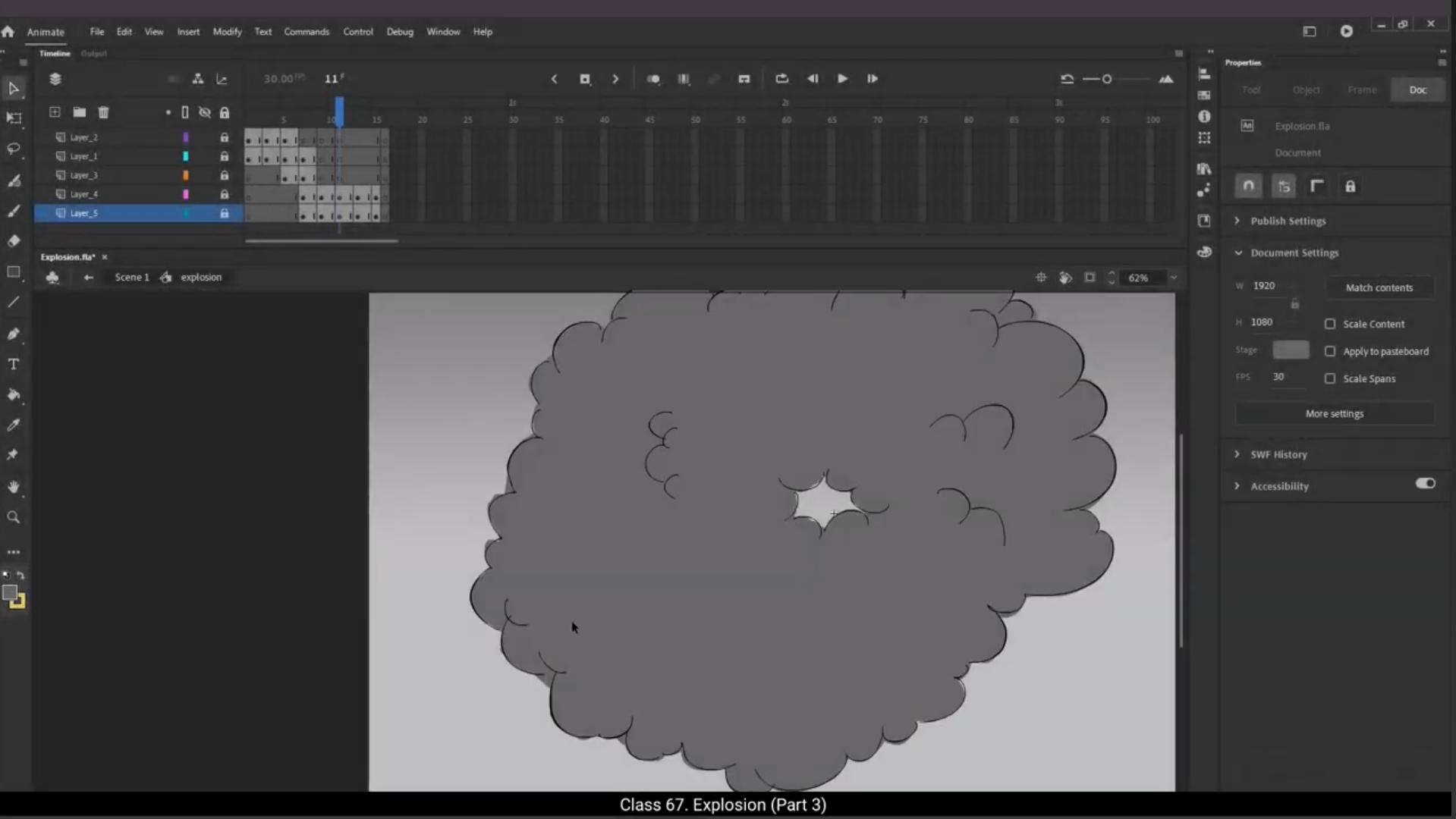
Welcome to Part 3. In this part of the tutorial we are going to add the in between drawings for the key drawings that we've done in the earlier part. This will make our animation much smoother, especially the smoke dissipation part. Now what we are going to do is make changes to the timings. We will need to keep the flashing light key drawings on one and the smoke drawings on 2. Which means each flashing light drawing will be seen for only one frame and each smoke drawing will be seen for only 2 frames. So we make the changes to the flashing light and before we move ahead we need to keep in mind that we are going to add in between drawings to the smoke. so When we adjust the timing for the smoke, we need to add 2 frames using F5 between two key frames of the smoke animation.This way, for now, each key drawing for the smoke animation will be held for four frames. We will then add the in betweens and then all the smoke drawings will be on twos.
We can see how we paint the in between drawings that we have done in the earlier part using the brush tool.Please feel free to choose the brush size that suits you best when painting. We've already seen where we can adjust the brush size several times, so you shouldn't have any trouble locating it. Please complete the painting of all the in between drawings so that we will be able to see a preview of the entire explosion animation.
Once all the drawings are painted. Let's do a preview using Control Enter to take a look at our explosion animation.
It's working very nicely. Hope you find this tutorial helpful. Thank you for watching.
Part 3 में आपका स्वागत है। इस ट्यूटोरियल के इस हिस्से में हम पहले वाले भाग में बनाए हुए key drawings के बीच वाले drawings add करने वाले हैं। इससे हमारी animation और ज्यादा smooth हो जाएगी, खासकर smoke dissipation वाला हिस्सा।
अब हम timings में बदलाव करने वाले हैं। हमें flashing light वाले key drawings को ones पर और smoke वाले drawings को twos पर रखना है। इसका मतलब ये हुआ कि हर flashing light drawing सिर्फ एक frame के लिए दिखेगी और smoke drawing दो frames के लिए।
तो हम flashing light में timing का बदलाव कर देते हैं और आगे बढ़ने से पहले ये ध्यान रखना है कि हम smoke में in between drawings भी add करने वाले हैं।
जब हम smoke की timing adjust करें, तो हमें दो key frames के बीच में 2 frames F5 से add करने होंगे। इस तरह अभी के लिए हर smoke key drawing चार frames तक hold होगी।
फिर हम in betweens add करेंगे और तब सभी smoke drawings twos पर होंगी।
हम brush tool का इस्तेमाल करके पहले वाले भाग में बनाए गए in between drawings को paint करते हैं। Brush size अपनी सुविधा के हिसाब से चुन सकते हैं। हमने brush size कहां adjust करना है, ये कई बार देख लिया है, इसलिए इसे ढूंढने में कोई दिक्कत नहीं होनी चाहिए।
सभी in between drawings को paint कर लें ताकि हम पूरी explosion animation का preview देख सकें।
जब सारी drawings paint हो जाएं, तो Control Enter से preview करके explosion animation देख लेते हैं।
ये बहुत अच्छे से काम कर रही है। उम्मीद है कि आपको यह tutorial मददगार लगा होगा। देखने के लिए धन्यवाद।