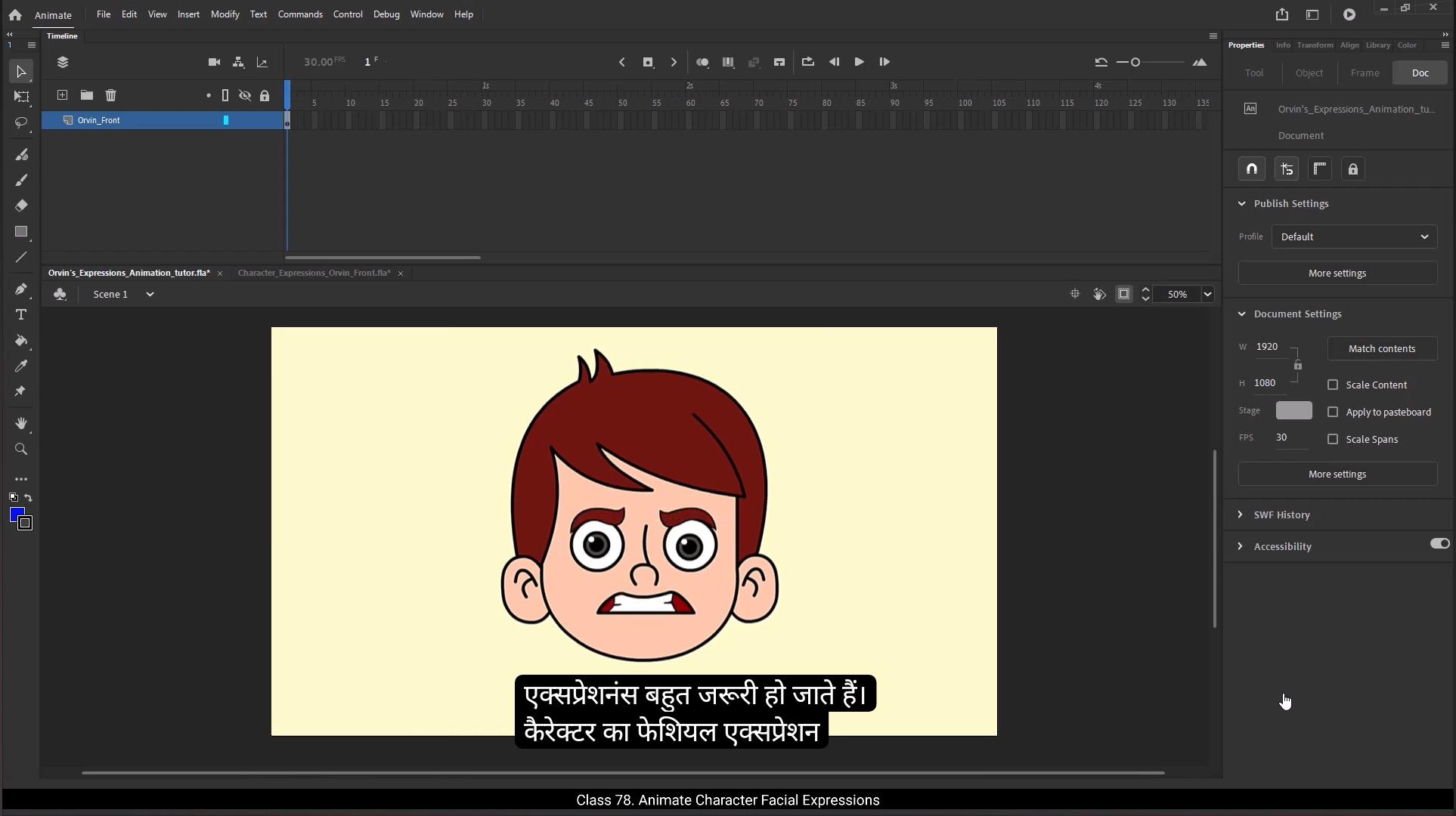
Hello students, welcome back to another exciting animation tutorial. In this session we're going to learn one of the most important aspects of character animation, animating facial expressions.When you're working on a production level animation, you'll often need to animate a character's reaction to a situation or a line of dialogue. This is where expressions become crucial. A character's facial expression combined with subtle body movements is what brings real personality and emotion to the performance. In our previous tutorial, we already created a full set of expression drawings for our character Orvin. If you followed along, you should have drawings for various emotions.Like happy, sad, angry, surprised, and more. In today's lesson, we'll learn how to use those expression drawings and apply them into an animated sequence, especially while syncing them with a voice line or reaction moment. For this demo, I'll be using the front view of Orvin's character. First, I'll create a new layer, Specifically for audio, now I'll import the audio file that contains the dialogue.We'll be animating too. As soon as the audio is placed on the timeline, I'll add a blank keyframe where the audio ends.Let's go ahead and listen to the audio first to understand the tone and emotion.I am sorry you are not selected.In this scene, someone tells Orvin that he hasn't been selected for something important.Naturally, we want to reflect that disappointment through his facial expressions and body language, so we'll animate a subtle emotional transition from a neutral face to a sad and disheartened expression.1st the dialogue begins with the words I'm sorry. 😘 Now, up to this point, Orvin is still processing what he's hearing, so during this line we'll give him a questioning or confused look. We can lower his eyebrows slightly to show uncertainty.The real emotional shift happens when he hears you are not selected. This line ends after frame 80 and that's our cue to change Orvin's expression to sad. And he looks down to reflect that disappointment.To create the Look Down pose in 2D animation, we'll slightly shift the facial elements, eyebrows, eyes, nose, and mouth downward on the face. This subtle adjustment gives the illusion that the character is tilting his head down.Now let's start animating. I'll first go inside the character symbol and on a new layer I'll insert the audio file.Then I'll go inside the head symbol and insert the same audio file there too.This step helps us sync facial expressions without jumping in and out of symbols while animating. You'll always want your audio available wherever you're doing timing based work.Now, before we change Orvin's expression, we need to plan his eye blink. Always add a blink just before an expression change, or even begin your expression change during the blink. This makes the transition smoother and more believable.Looking at our audio timeline, the phrase I'm sorry and somewhere around frame 46. So we'll place our blink and the questioning expression change between frame 46 and frame 57. This gives us enough space to animate the reaction naturally.Let's exit the head symbol for a moment.On the character symbol I'll add keyframes at frame 44 and frame 52.Then on frame 52, I'll slightly rotate Orvin's head and body to make him sit upright.Next, I'll apply a classic tween between these two keyframes and add a classic ease out to smooth out the ending motion. 😘 Now we'll switch to the SAD expression on frame 45.I'll go back into the head symbol.Add a keyframe on the jaw layer and select the jaw symbol.Then I'll open the frame picker and choose the sad mouth drawing that we've already prepared earlier.Now to settle the movement we just created, let's add a keyframe on frame 57.And on frame 52 will slightly adjust Orvin's head direction and scale it up just a bit.Then on frame 57, we'll move the head slightly downward to complete that head drop motion.After that, apply a classic tween and don't forget to add a classic ease out to make the movement more fluid and natural.Next, let's work on the eye blink.We'll go inside the head symbol and move the blink animation to frame 44 for both the left and right eye. Once the eyes open, we'll change the character's facial expression to a sad one. For that, I move the keyframe on jaw layer to frame 49.Now when we switch to the sad mouth shape, we might notice a jerk or sudden jump in the animation. This happens because the mouth shape changes to abruptly.To fix this, let's go inside the jaw symbol and copy the sad mouth drawing to frame 23 as an IB, which stands for In Between. After copying it, slightly reduce the mouth curve to make it less intense and scale it down just a bit. This creates A smoother transition between expressions. Back in the head symbol. I'll now shift the full SAT expression to frame 50 and insert a keyframe at frame 49. using the frame picker I'll select the IB mouth drawing we just created. This way the mouth transitions gradually into sadness, avoiding any sudden change.Moving on to the next sentence, in the dialogue, you are not selected. 😘 This line hits hard, so we want Orvin to tilt his head down, showing deeper disappointment. To do this, add keyframes on frame 81 and frame 88.And shift the head slightly down at frame 88.Then select all symbols, scale them down just a little.And apply a classic tween with classic ease out.Now to enhance the look down pose, go inside the head symbol and on all layers insert keyframes at frame 81 and frame 88.I'll also remove the previous eyebrow animation and add new keyframes for the eyebrows at these frames.Then I'll move the blink animation to frame 81 so it blends well with the reaction.On frame 88, we'll select the eyebrows, nose, and all eye elements and move them slightly downward.This gives a subtle illusion of the head looking down without rotating it entirely.To push Orvin's sad emotion even further, I'll open our expression drawing file, the one where we created all our facial expressions earlier. From here I'll use the lips drawing of the sad face in our current animation.Go inside jaw symbol and copy only lip drawing.Back in our animation file I'll insert a blank keyframe on frame 26, and on the lip layer I'll paste the sad lips drawing.Then I'll do the same with the jaw. Copy the sad jaw from the expression file and paste it into the jaw layer in our animation timeline.To animate the mouth movement further, we'll select the lips drawing and convert it into a symbol.I will slightly move lip upwards, then on frame 33 will add a keyframe and move the lips slightly downward to show a subtle mouth shift or emotional shake.Finally, create a classic tween between these two frames and add 100% classic ease out. To complete the animation, exit the jaw symbol. 😘 Then on the jaw layer, select the keyframe at frame 81 and move it forward by 1 frame to frame 82.This gives us space to control the expression change more precisely.Next, in the properties panel under the looping section, I'll check.The 1st frame value to 26, which is where our sad jaw drawing begins. Also make sure to select Play graphic once so the jaw plays that expression and stops. Now on frame 88, delete the existing keyframe and add a new one. This automatically brings in the value. Change the playback option to play single frame so the jaw drawing stays fixed from this point onward and doesn't shift unexpectedly.Then apply a classic tween between frame 82 and 88 on the jaw layer.Will apply Classic Tween for the ears, hair, eyebrows and nose layers between frame 81 and 88 to ensure all parts of the face move smoothly during the head tilt.Now let's animate the eyes.To enhance the sad look, we'll move the eyeballs downward and also animate the eye patches accordingly. Let's begin with the left eye.On the eye mask layer, which is a shape layer, create a shape tween from frame 81 to 88. Since this mask is a drawn shape, not a symbol, shape tweening is the correct choice here.Next, add a classic tween to the eyeball. An eye base layers between frames 81 and 88.Then on the outer outline, which is also a shape, create a shape tween as well.Repeat the exact same process for the right eye shape, tween for the mask and outline, and classic tween for the eyeball and eye base.Once all twins are in place, apply a classic ease out on both shape and classic tweens. This will make the eye movement start slowly and feel more emotionally grounded. 😘 You may notice a small glitch or misalignment in the eye blink patches during playback. To fix that, go to each keyframe where the eye patch appears and adjust its position carefully so it aligns perfectly with the eyes.After that, we'll remove the last blank keyframe from both eye patch layers. This ensures the final drawing stays visible and doesn't disappear.Next, I'll move the keyframe from frame 88 to frame 86 on both eyeball layers and shift the eyeballs downward to finish the sad look.Now we see the eyeballs slightly peeking out from the eye base. To fix this, go to frame 85 on both blink patch layers, add keyframes, then align the eye patches precisely with the eye outline to fully cover the eyeballs.Now let's animate the eyebrows to enhance the sad expression. To begin, open the expression drawing file and copy the eyebrow symbols from the sad face expression.Then go into the right eyebrow symbol, insert a blank keyframe on frame 82 and paste the copied eyebrow here.Repeat the same for the left eyebrow symbol, but after pasting the shape, don't forget to flip it horizontally so it mirrors correctly.Once both eyebrows are updated and at frame 88, select both eyebrow symbols and move them slightly downward.Now, you might notice that the left eye outline looks slightly off during the movement. That's because we may have missed tweening this layer earlier. To fix it, go to the left eye outline layer and add a shape tween from frame 81 to frame 88. Then apply a classic ease out.He also has seven levels in it.To enhance the illusion that Orvin is looking down, we'll also shift the ears slightly upward on frame 88, select both ears and move them up just a bit.This subtle movement makes the head tilt feel more dimensional and believable.Next, let's animate the hair. 😘 Go inside the hair symbol, extend the timeline by inserting frames, and then add keyframes at frame 81 and frame 88. Now select the hair shape and choose the sub selection tool.On frame 88, select the nodes near the forehead line and slightly move them downward.Then select a few nodes at the top of the head and move them slightly upward. This adds a soft bounce or shift in hair volume.After that, apply a shape tween between frame 81 and 88.Sometimes when shape tweening complex lines like hair, you might see distortion or wobbly lines. To control this will use shape hints.On frame 81, add 2 hints hint A and hint B. Place one at the top edge of the line and one at the bottom. Then go to frame 88 and place hint A&B at the matching positions on the line.If the distortion still continues even after using shape hints, here's an alternate solution. Manually add a keyframe on every frame between 81 and 88. Then go through each keyframe and delete any unwanted or distorted lines that appear.Sometimes strange overlapping or extra lines might appear during shape tweens. To fix this, select the distorted lines, copy them.Paste them back and slightly move them downward on each keyframe to realign them properly.Now, to settle down the animation smoothly, select frame 86 on all relevant layers, add a keyframe and drag it to frame 92. This extends the final pose a bit longer, allowing it to rest naturally.Next, remove the existing classic tween ahead frame 92 and create a new classic tween between frames 88 and 92.After that, make sure to synchronize all symbols so they stay in perfect alignment across the timeline.Next we'll add the expression patches over the eyes, open the expression drawing file and copy the eye patches. 😘 Then return to the animation file and paste them on frame 88 of both expression patch layers.Now move those keyframes back to frame 86 so the patch animation starts 2 frames earlier for a smoother transition.Then on frame 88, insert another keyframe on both layers.On frame 86, move the patches slightly upward and scale them down to begin the motion.Apply a shape tween between frames 86 and 88 to animate the transformation.On frame 87, insert a keyframe on both layers.Select and clean up any unwanted lines that may appear during the tween.For the left patch, you can use the ink bottle tool to add a fresh outline, then delete any unnecessary lines to maintain a clean design.Back on frame 86, we'll scale the patches down to 50% to make the transition more subtle and expressive.Next, insert a blank keyframe on both Blink patch layers at frames 87 and 88 to reset them cleanly.Finally, let's finish by moving the eyebrows slightly downward on frame 88 to complete the sad expression.And that's it, our sad expression change animation is complete. Let's hit play and preview the animation.I am sorry you are not selected.I am sorry you are not selected.Our Orvin is looking really sad and disappointed right now, so let's cheer him up with some good news. For this scene, I've taken the front angle of Orvin's character. To begin, we'll create a new layer for the audio and then import the dialogue file. Once the audio appears on the timeline, we'll add a blank keyframe right where the audio ends.Now let's play the audio and hear it together.You have got the first prize in car. In this Dialogue Someone tells Alvin that he won first prize in the competition. 😘 And that's the moment we're going to bring a big change in his expression from a still neutral face to a joyful and excited reaction from a round frame #55 when he hears the words first prize, his facial expression will start to change. We'll begin with a simple eye blink, which acts as a natural lead in to an emotional shift.Then, once the audio is complete, around frame 90, Orvin's reaction will fully bloom into happiness and excitement. Let's begin setting this up. First, go inside the character symbol and extend the timeline to about four seconds, which is 120 frames.Then go inside the head symbol as well and similarly extend the timeline there so it matches the main timeline.Now we'll add a new layer for the audio inside the character symbol. Select the layer, go to the Properties panel and insert the audio file.Finally, scroll to where the audio ends and add a blank keyframe to mark that spot.Now let's decide where to start the eye blink animation.As Orvin hears the words first prize, we'll place the first blink to help transition into his emotional reaction. Since the phrase ends around frame 50, we'll simply move our existing blink animation to end at this point.Next, on the jaw layer, we'll add a keyframe on the same frame, frame 50. Then using the frame picker tool, we'll choose a smiling mouth drawing from our earlier expression library.We'll actually move this keyframe a bit earlier to around frame 47, so the expression shift aligns just as he finishes hearing first prize.This gives us a more natural transition into his happy reaction.Now this is a basic smile at first, but Orvin isn't just happy, he's overjoyed. After all, he just found out he's won first prize. So to show that heightened excitement, we'll apply a more expressive, joyful face, the one we drew earlier in our expression drawing tutorial. 😘 We'll animate this overjoyed expression starting after the word competition ends, which is a round frame 86.At this point, we'll also add another eye blink to punctuate the second emotional shift. It helps to ground the movement and reset the face before the big reaction.Next, we'll copy the eyebrows animation to frame 86.Then, on the last keyframe of that blink animation, we'll raise the eyebrows upward to enhance the look of surprise and excitement. One small but important detail.Move the hair layer above the eyebrows layer to maintain the correct visual hierarchy. This prevents any overlap issues and keeps the animation clean.Now, in our happy expression drawing, you might have noticed a small patch under the eyes. That extra detail inside the eye layer adds a lot of emotion. We'll use that same expression patch in our current animation. First, let's prepare the layers. Go back to the animation file and add a new layer above the left eye blink patch layer. This will be used for the left eye expression patch.Then.Add another layer above the right eye blink patch layer for the right eye expression patch.Next, we'll begin the eyelid patch animation for both eyes, starting from frame 87.Orvin fully opens his eyes on frame 95, so we'll add blank keyframes on frames 94 and 95 on both expression patch layers to prepare the transition.Now go to the expression drawing file, copy the expression patch and paste it into the left eye expression patch layer at frame 94.After pasting, move the left patch layer above the outer outline layer to ensure it displays correctly. Then on frame 95, use Shift F6 to remove the blank keyframe and instead insert a keyframe on that frame to hold the expression. Repeat the same steps for the right eye. 😘 Move the right patch layer above the outer outline layer. Paste the expression patch on frame 94 and align it properly with the left patch.Remove the blank keyframe on frame 95 and insert a keyframe there as well.On frame 94, select both patches, move them slightly downward, and scale them down to about 80%. This will make them emerge subtly from below, giving a more believable appearance as Orvin's eyes light up with joy.Now, on the same frame, frame 94, we'll go ahead and change Orvin's expression to reflect that full happiness. To start, we'll add a keyframe on the jaw layer at frame 94, then go inside the jaw symbol.On frame 25, we'll insert a blank keyframe. This is where the new happy expression drawing will go.Let's keep things organized. So I'll add a new layer just for labeling which helps us understand the timeline better. Extend this layer till frame 50.The section from frame 1 to 25 is for the dialogue animation, and from frame 26 onwards we'll use it for expressions.Now let's switch over to our expression drawing file, and this time we'll copy both the jaw and lip drawings from the happy expression. First copy only the jaw drawing, then go back to the jaw layer in our animation and paste it at frame 25.Then copy the lips drawing and paste it on the lips layer at the same frame.After placing the drawings, go back to frame 94 on the head symbol timeline.Under the looping section in the Object tab, change the 1st frame value to 25.This ensures that the happy expression we just added starts playing from this frame onward. But right now the expression change feels too sudden. It jumps directly from a neutral face to a happy 1 without any transition.To fix that and make it feel more natural, we'll add a keyframe on frame 93 on the jaw layer. 😘 Then, using the frame picker option, we'll select an open mouth lip drawing. This creates a nice intermediate step where Orvin first opens his mouth slightly in surprise before going into the full happy smile.Now, to keep everything In Sync, especially with the eye patches, we'll shift the expression patch animation 1 frame backward. This helps the visual flow line up better with the mouth movement. Let's preview how the animation is coming along so far.Now up to this point we've only worked on facial expression changes, but to really sell the emotion we need to add body and head movement too, so let's animate that as well. First, inside the character symbol, let's add a new layer for audio and select the audio from the library and insert it onto this layer.Next, on frame 95, we'll add keyframes across all layers. This will be the starting point for Orvin's overjoyed body movement.Go back to frame 1 and pose Orvin as if he's leaning slightly to the right, as though he's listening attentively.Now when he hears the words first prize, we want his body to straighten up and then tilt slightly to the left to show excitement. So on frame 53, add keyframes again and this time rotate Orvin's head and body in the opposite direction.Then we'll add keyframes on frame 47. This makes frame one and frame 47 identical, keeping the pose consistent up to that point.Now, since Orvin's eye blink ends at frame 50, we'll start changing his body position from frame 50, not 53. This way, as he opens his eyes, his body reacts to the good news with a joyful motion. To sync this movement better, we'll begin the body animation from frame 42 when the eye blink actually starts. 😘 This creates a nice anticipation leading into the expression change.Whenever you move or adjust keyframes, always select all symbols, apply a classic tween, synchronized symbols, and then immediately remove the tween. This synchronised the symbol timelines and keep Animation clean after shifting keyframes.Now, Let's go ahead and add a classic tween between frames 42 and 50. Also, don't forget to apply a classic ease out effect to make the movement slow down nicely as it reaches the end pose. To settle the movement a bit more, let's add keyframes on frame 54 and slightly rotate Orvin's head and body to the right, making his posture a little straighter.Next, add a classic tween and check the animation.When we preview this, the movement still feels a bit too much, so I'll move these keyframes to frame 56 and instead rotate the head and body slightly to the left. This adds balance. Also, we'll slightly scale down the head and lower body just a little to add weight and settle the animation more naturally.Now let's work on the overjoyed expression. This animation will begin as soon as Orvin hears the full dialogue.First, we'll move all the keyframes from frame 95 back to frame 90, so that the final reaction happens a bit sooner.Next we'll go inside the head symbol.And shift the eye blink animation to start at frame 15.Do the same with the eyebrow animation, move it to frame 15 as well.Let's check the sequence quickly. First we've added an eye blink, then a happy expression, and finally an overjoyed reaction right after the second blink.To make everything tighter and more dynamic, let's remove 10 frames so that the overjoyed animation starts 10 frames earlier. 😘 Now drag the last keyframe on the audio layer to cover the full dialogue. When frames are removed, the audio layer shortens too, so it's important to readjust it properly. Since our animation now begins from frame 75, let's go inside the Orvin front symbol and add keyframes on frame 75.At frame 80, as Orvin closes his eyes, we'll add keyframes to begin his anticipation movement, rotate his head and body to make him sit up straight.Slightly scale him down for a more grounded pose and move the head downward closer to the neck to build tension.Then at frame 85 we'll add keyframes and move the head upwards.Slightly rotate the body and gently scale it up. This gives a joyful energy as he starts reacting.Repeat similar adjustments for the head and body at frame 90 to complete the final part of the motion.Once done, add a classic tween between keyframes and apply a classic ease out effect for smoother movement.Now preview the animation and closely watch how the body moves.Make fine adjustments wherever needed.And that's it. Our happy to overjoyed facial animation is ready. Let's watch the final result.You have got the first prize in competition.You have got the first prize in competition. I hope you found this tutorial helpful and picked up some useful techniques for animating character emotions. Thanks for watching and I'll see you in the next tutorial.