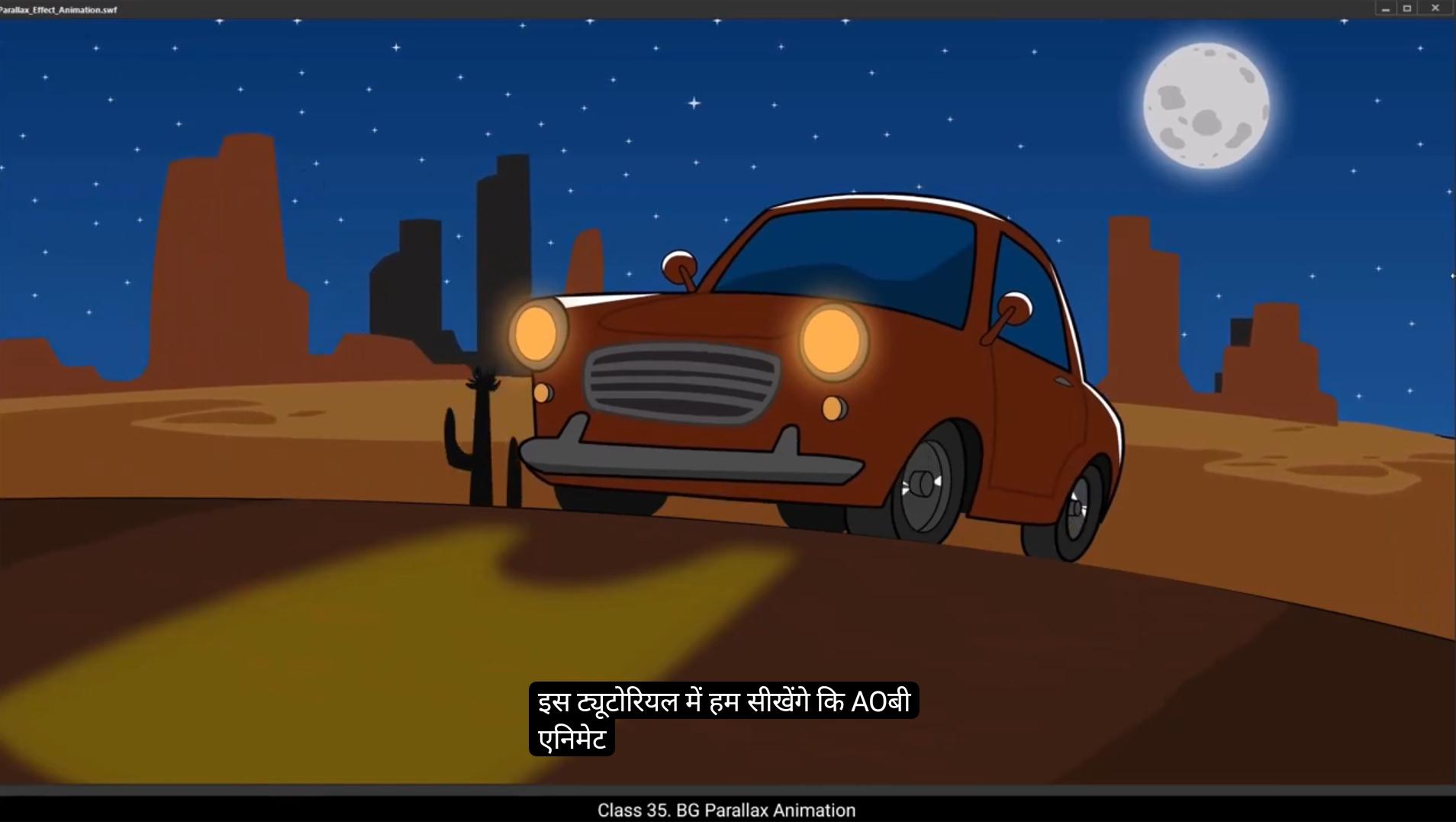
In this tutorial, we'll learn how to create an engaging parallax effect animation in Adobe Animate. Where the road moves, the patches slide, the car wheels rotate, and the entire scene comes to life with realistic motion. Let's bring this scene to life step by step.We'll use.Pre-rigged vector file with all elements neatly organized into separate layers. You can see here that we have our background, car and foreground. We also have a separate layer for the road because we will be adding animation to it. Additionally, there are three cacti, Cactus 1, Cactus 2 and Cactus 3 each on separate layers. The entire scene has been rigged properly.Similarly for the car, all its components are on separate layers.Even the highlights, bumper, grill, body and mirrors have been individually layered. The main highlight is the wheels. Both the front and rear wheels are on separate layers for easier animation. Similarly for the road, we have a separate layer for the road itself and another layer for the patches on the road. This ensures we have a perfectly rigged vector file ready for animation.To begin, we will save the file with a different name to keep the original. Intact, use the same as option and rename the file as parallax effect animation. This way we can work on the animation without altering the original file first. We will begin by animating the road. To do this, lock all other layers and unlock the road layer.Then enter the road symbol.Inside the road symbol, you can see the small patches on the road. If you switch to outline mode, you'll clearly see these patches. These patches will be moved to create an effect where the road appears to move backward, giving the illusion that the car is moving forward, even though the car will remain in the same position throughout the animation. ******************** To start, add frames up to frame 7 by pressing F5 on both the road and patch layers.Next, lock the road layer and focus on the patch layer.On frame three, insert a keyframe and move all the patches slightly forward.Similarly, on frame 5, insert another keyframe, move the patches further ahead, and bring the patches that have moved out of the road back inside to create a seamless looping effect.Finally, on frame 7, add another keyframe and move all the patches forward again.To establish the animation, insert an additional frame on frame 8. For added effect, use Shift Alt to skew the shape of the patches and reposition them slightly so that they appear to flow along the road and even extend slightly outside its edges.Next, we will apply the mask effect to ensure that only the patches within the road area are visible. To do this, add a new layer and rename it Mask.Then select the 1st frame of the road layer, hold down the Alt key and drag it to the mask layer.This will create a copy of the road layers 1st frame in the mask layer.Afterward, right click on the mask layer and select the mask option. By doing this, the patches will be masked, meaning only the portions of the patches that fall within the boundaries of the road will be visible in the final animation. The rest of the patches outside the mask will be hidden. As a result, we will achieve an animation where the patches appear to seamlessly move within the boundaries of the road. Next we will add animation to the road by creating a WAVY effect on the sides, giving the illusion of motion.To begin, insert a keyframe on frame three of the road layer by pressing F6. Then select the brush tool and set the stroke size to 8.Start by drawing a line along one side of the road border to create the wave effect. ********************* Use the eraser tool to remove any unwanted patches or extra lines extending beyond the road.Repeat the same process for the other side of the road. Draw a line along the border and erase any excess strokes outside the road.Next, go to frame 5 and add another keyframe by pressing F6.To better visualize the changes, enable Onion Skin mode and Outline mode, then draw another line on both sides of the road to enhance the wave effect. Use the Eraser tool as needed to refine the lines and achieve a smooth, WAVY motion.On frame 7, add another keyframe by pressing F6.Now let's go back to frame 5, where we need to erase the lines a bit more to enhance the WAVY effect.So go ahead and erase any extra lines and draw new lines to further refine the animation. At this point we will have 4 different drawings for the road with distinct wave effects. Now we need to copy these drawings to the mask layer. To do this, select all keyframes of the road layer. Press and hold the alt key on your keyboard and drag them onto the mask layer. This will ensure that the road animation is correctly masked and follows the same motion as the patches. Once this is done, we will have a smooth animation of the road and patches moving. The road will appear to move dynamically giving the illusion.Of motion while maintaining the integrity of the parallax effect.Let's now work on the car. We will keep the car in the same position and animate the wheels to create the illusion that the car is moving forward. This technique is similar to what we did in our previous tutorial on car animation with background pan. ********************** However, instead of rotating the entire wheels, we will draw two key frames to rotate the white lines on the wheels which represent the shine or highlights.To begin, lock the road layer and unlock the car layer. Then enter the car symbol to start working on the animation.Extend the duration of our scene to about 7 seconds so we have enough time for the animations. To do this, we'll simply increase the frames on all layers by pressing F5.Now let's focus on the front wheel and back wheel layers.First, lock all the other layers and unlock the wheel layers. This helps us stay organized and avoid accidental edits.Enter to the left front wheel symbol and add frames up to frame 4 by pressing F5.On frame three, we'll insert a keyframe by pressing F6.Now let's create that rotating effect for the highlight on the wheels. Enter inside the drawing group and select the highlight drawing.Using the free transform tool, rotate the highlight slightly to give it the appearance of movement.Clean up any extra parts of the drawing using the eraser tool to keep things tidy.Adjust the size of the highlight so it fits perfectly within the wheel's outline.To make it look even sharper, select the highlight patch and use the Straighten tool from the toolbar to refine the edges.Reshape it so it aligns seamlessly with the wheel outline. Once done, you'll have a smooth rotating effect that makes it look like the car's wheels are in motion even though the car itself stays in place.Now let's move on to the back wheel and bring it to life with some smooth animation.First, we'll extend the frames up to frame 4 by pressing F5.Next, insert a keyframe on frame 3. Now let's enter into the group of highlight drawing. Here, select all the highlight patches using the free transform tool. ******************* Rotate the highlights.But it's not rotating the way I want. No problem. Let's take a different approach. Delete the current highlight and create brand new ones for a clean start. Here's how we'll do it. Select the Rectangle tool.In the Properties panel, go to the Tools tab and turn on Object Drawing mode.Draw a rectangle and delete its outline to simplify it. Now reposition and reshape the rectangle to match the highlight.To make sure everything aligns perfectly, enable onion skin mode and turn on the outline layer as a guide. Using this reference, move and reshape the highlight so it blends seamlessly with the wheels outline.Next, let's duplicate this highlight. Hold alt and drag the highlight to create a copy. Then reposition and reshape the copy to match the design.Finally, we'll repeat this process one more time to create another copy.Place it exactly where it's needed, as shown in the video.And there you have it. With these adjustments, we've successfully created a smooth wheel rotation animation for the wheels. Now let's add some fun dynamics to the car by giving it a slightly bouncy effect.First, unlock all the layers, but make sure to lock all-wheel layers. This way we're only working on the other parts of the car except the wheels.Next, on frame three, add keyframes on all layers except the wheel layers.Select all the keyframes or objects of the car except the wheels.Using the arrow keys on your keyboard, gently nudge the car slightly upwards. This simple movement creates the illusion that the car is bouncing slightly as it navigates over the rough Rd.On frame 5, let's add a keyframes.Then move the car downwards using the down arrow on the keyboard just to create the next part of the bounce. ******************* Next, on frame 7, add another keyframe and move the car upwards again to complete the bounce effect.Now here's where we make it a little more interesting and different from our last tutorial. Instead of keeping it repetitive, we're going to give it a mix of smooth and bumpy effects. We'll randomly place these keyframes on the timeline so the car has a smoother ride through some sections, but then hits bumps at other points, mimicking the uneven Rd. What we'll do? Select all the keyframes and by pressing Alt on the keyboard, drag them forward on the.Timeline to randomize the timing of the bumpy movement. This will give us that random bumpy effect as the car moves forward. So we get a bumpy effect here. Then in the middle sections, the car will move smoothly and again it will have bumpy effect. For the remaining timeline, we will repeat the same process, select all the key frames, drag them to a new position and continue the smooth to bumpy effect throughout the animation.Now, to avoid the same bumps repeating throughout the animation, we're going to add a little more variety to the bouncers, giving the car a more natural, shaky feel.For that, on frame 39, select all the key frames, then use the free transform tool. Move the car up slightly and rotate it slightly to the right, creating a shake to the right side of the screen.Now on frame 37, do the opposite. Select all the elements of the car and rotate them slightly to the left to create a bounce in the opposite direction. This will give the car a shaky bump effect. It will feel like it's bouncing in a more random, natural way. Instead of repeating the same movement every time, let's continue this effect for the alternate bumps.On frame 118, select all the car elements.And move them upwards again. ***************** Rotate the car slightly to the right for that rightward bump effect.Then on frame 116, rotate the car slightly to the left, just like we did earlier.Let's see how our animation looks so far.By alternating these movements for the bumps, you get a much more dynamic and uneven bouncy effect, making the car's motion feel less mechanical and much more realistic.Now let's add a bit of refinement to the car's bouncing effect.First, we'll go to frame 3 and frame 5, and for both frames slightly adjust the position of the car. You can also add a little rotation here to make the movement feel a bit more organic.Once that's done, we'll move on to the next bumpy spots and repeat the same steps.At this point your animation should look like this, smooth with some subtle bounces and a realistic shaking effect for the car.Now let's work on the cactuses. Unlock the cactus one layer and reset its position, moving it outside the screen to start with.For now, hide the other cactuses so we focus on the one we're animating on the 1st keyframe. We'll scale up the cactus using the free transform tool so it starts to appear larger as it moves into the frame. This will create a nice zooming in effect for the cactus.On frame 9, add a keyframe on the cactus one layer. Then reposition the cactus and scale it down a bit to make it look like it's moving further into the background.These two frames will give us the zoom in effect we want for the cactus.Next, we want the cactus to move behind the foreground, but if we just try to add a keyframe and move it behind the foreground layer, it won't work as expected.So here's what we'll do. We create a new layer below the foreground layer.Now go to frame 9 on the Cactus one layer and holding the Alt key, drag that keyframe onto frame 10 of the newly created layer. ***************** This makes a copy of the keyframe on the new layer on frame 19. Add another keyframe on this new layer to continue the cactus movement.At this point, if we hide the original cactus layer, we'll still see the cactus animation happening on the new Cactus One layer. To avoid any confusion, let's rename this new layer to Cactus One Behind.On frame 19 of the cactus, one behind layer, move the cactus down and behind the car. To do this, drag this layer below the car layer. This drag this layer below the car layer. This ensures the cactus moves behind the car as it travels across the screen.For better organization, let's rename the cactus layer Cactus 1 front. Since we don't want the cactus to appear from frame 10 onwards, we will use the blank keyframe option to remove the unnecessary frames. This way we can keep the cactus only visible till frame 9. Now add a motion tween between the keyframes. If you don't see the motion tween immediately, you might need to remove the keyframe and manually scale down.Reposition the cactus on the stage, making sure the cactus is placed at correct position.Once everything is in place, adjust the motion of the cactus along the roadside, making sure it follows the road's flow to give it a smooth movement effect.Now on the cactus one behind Leia, we remove the frames after frame 19 and add a classic motion tween. Then we remove the last keyframe. Now we adjust the position of the cactus and its motion path.Using the selection tool, we add a curve to the path, right click and choose Refine Motion for better adjustments.With these adjustments, the cactus will now appear to move seamlessly and realistically along the edge of the road.Now let's move on to animating Cactus 2. ********************* We'll start at frame 60, so we will move the first keyframe of the cactus to this frame. For better organization, let's rename this layer to Cactus 2 Front.Next, we'll add a classic motion tween starting from frame 60.At frame 60, reset the position of the cactus and move it outside the screen, keeping it ready to enter the scene. Now on frame 70, scale down the cactus using the free transform tool and reposition it closer to the car.To refine the movement, use the Refine Motion tool and the Selection tool to adjust the motion curve. This ensures the cactus moves naturally following the edge of the road.Now add a new layer above the cactus, one behind layer.On frame 70 of the Cactus 2 front layer, press Alt on the keyboard and drag this keyframe to the new layer. This will create a duplicate. Then extend the frames by dragging on the new layer timeline. At the last frame, which is frame 80. Use the free transform tool to scale down the Cactus and move it down behind the road to create a smooth motion along the road's edge.Right click and select Refine Motion Tween. Using the selection tool, add a curve to the path, ensuring it follows the edge of the road.Next, remove the motion tween from the Cactus 2 front layer and add blank frames starting from frame 70.On frame 69, resize and reposition the cactus.Then create a motion tween for this layer.The motion path isn't created yet, so we'll need to adjust the position of the cactus manually. First, on frame 60, resize the cactus and move it to the left of the screen.Then on frame 69, position the cactus near the edge of the road close to the car.Using the selection tool, we'll fine tune the motion path by adjusting its curve, ensuring that it follows the edge of the road seamlessly. **************** Before that, rename this layer to Cactus two behind for better clarity.However, notice the cactus is moving too slowly and the path doesn't align correctly.To address the issue, let's first remove the motion tween for Cactus two behind and then recreate the motion tween for a smoother curve. One key thing to remember about motion tweening is that it's a trial and error process. To achieve the desired result, you'll often need to create a motion between, test it, and refine it. Unlike classic tweens, motion tweens cannot be edited directly. If the motion path or effect doesn't turn out perfect, you'll need to delete the.Existing motion tween and create a new one. While this may seem repetitive, it's the most effective way to ensure precision and smoothness in your animation. Motion tweens typically yield better results than classic tweens, which is why we've used them extensively in this project. Even though the process involves multiple iterations, the final output is worth the effort.So if you find yourself removing and reapplying motion tweens several times.Don't worry, that's all part of the animation journey. It's this persistence and attention to detail that elevates your work from good to great.On frame 80, reposition the cactus so it's placed correctly behind the road.Next, use the selection tool to refine the motion by adding a gentle curve to the path.Let's check the alignment using the Onion Skin tool.Perfect. It looks smooth and natural now.Now we'll follow the same process for Cactus 3 to create a random effect. Will offset the animation slightly by delaying Cactus 2's effect by two seconds.To do this, select all the frames before the keyframe and press F5 on the keyboard to add additional frames. Similarly for the Cactus two behind layer, select all the keyframes before the animation starts and press F5.Finally, remove any extra keyframes to clean up the timeline and ensure the animation runs smoothly. ******************* Now let's start animating Cactus 3 from frame 61st. Drag the first keyframe to frame 60 on the timeline and rename the layer to Cactus 3 Front for clarity.On the 1st keyframe, position the cactus to the left of the screen and scale it up so it appears closer to the camera, creating a perspective effect.Next, remove the frames beyond frame 70 by pressing F7. Now add a motion tween for this layer. On frame 70, scale the cactus down and reposition it towards the right side, aligning it with the edge of the road.To ensure the motion path matches the curve of the road, adjust the cactus's position slightly on frame 60 and frame 70.Then use the selection tool to refine the motion by adding a smooth curve, ensuring the cactus moves naturally along the road's edge. Now, just like we did before, let's add a new layer above the Cactus two behind layer. Then select the last keyframe of the Cactus 3 front layer, hold Alt and drag it at frame 71 onto the new layer we just created. Next, extend the frames on this new layer to frame 82 by dragging the timeline on frame 82. Select the cactus, scale it down, and reposition it so it moves behind the road.Now use the selection tool to refine the motion path by adding a smooth curve.Let's turn on the Onion Skin tool to check the motion.It's looking good, the perspective is coming together nicely. However, we'll need to remove a few extra frames and slightly adjust the cactus's positions for a better flow.to clean up and refine the motion remove the motion tween and then recreate the motion tween for To clean up and refine the motion, remove the motion tween and then recreate the motion tween for a smoother result.On frame 77, tweak the cactus's position once again.And use the selection tool to give the path a slight curve. ********************** Now let's address a small issue. There's a pause on frame 70 because the cactus size remains the same on both frames. To fix this, we'll use the onion skin tool smartly to edit the cactus three position.We'll carefully match the position on frame 70 with the next frame by scaling and repositioning the cactus. This ensures the motion flows smoothly without any pauses.Similarly, if we check Cactus One, it's slightly elevated from the ground. To fix this, we'll adjust its position so it aligns perfectly with the ground.For Cactus 2, there's a noticeable gap between the front and behind layers. To correct this, we'll add frames before the keyframe on the Cactus 2 front layer and remove any extra frames.Let's play the animation so far and see how it's coming together.To get better results, we'll need to increase the timing for the cactus animation since it's moving too fast.First add a few frames between the keyframes.Using the Onion skin tool will check its position along the path.Right now, the motion looks too curvy.So on behind layer, we'll need to remove the motion tween and add a new one for smoother movement.Next, resize and adjust the cactus position on the last keyframe.Once again on front layer, remove the motion tween and create a fresh 1 to ensure the transitions are seamless. Again resize and adjust cactus position.Using the selection tool, add a slight curve to the path for a natural motion.Finally, on frame 23, within the cactus one behind layer, adjust the cactus position and refine the curve of the path to make it flow perfectly.Now let's refine the Cactus three layer to make the animation smoother. First, add more frames to this layer and check its positioning using the Onion Skin tool.The motion isn't quite right.So we'll need to add a new motion tween for better flow.Next, resize and adjust the cactus position on the last keyframe. ******************* Using the selection tool, add a curve to match the road's edge. For further refinement, remove the motion tween and create a new one on the cactus three behind layer.Once again, resize and adjust the position and use the selection tool to add a curve for a more natural motion.After that, remove any extra frames and extend the timeline to frame 180.Lastly, we'll make a slight adjustment by moving Cactus 3 slightly to the left to ensure it doesn't shift too far to the right of the screen.Now let's bring some subtle animation to the background to make it more dynamic.First, we'll lock all other layers to avoid accidental edits and focus on the background plane layer. Select it, go inside the layer and extend the frames to 8 seconds by pressing F5.In this background setup, each element sky, stars, moon, ground and mountains is on a separate layer.We'll begin by adding a soft glow to the moon for a magical touch. Unlock the Moon layer and select the 1st frame. Head to the Properties panel. Under Frames tab, find the filters and click the Plus sign from the options. Choose Glow and change its color to white for a gentle effect.Next, set the quality to high and add some blur to enhance the glow.This subtle glow effect will give the moon a realistic and enchanting feel in the animation.Alright, now let's add some motion to the ground and mountains. First, unlock the ground and mountain layers and go to frame 210.Add keyframes to these layers. Then using shift arrow keys, gently move them slightly to the right and a bit downward. This will simulate subtle movement.Next, add a classic tween between the keyframes so the motion flows smoothly. ****************** Now let's focus on the sky, stars and moon layers.On frame 240, add keyframes to all three layers.Select all the objects and shift them slightly to the left to create a soft drifting effect. Add a classic tween here as well.Let's add a small touch to the moon on the last keyframe. Move it slightly upward for a gentle finish.Finally, let's enhance our animation by adding a car's headlight beam light on the road.To create this effect, start by creating a new layer and renaming it Headlight Beam.Next, use the Rectangle tool to draw a rectangle.Fill it with a yellow color using the paint bucket tool. Then use the selection tool to adjust the beam's position so it aligns perfectly with the car's headlights.Remove the outline of the rectangle and for finer adjustments switch to the sub selection tool and tweak its shape as needed.Once you're satisfied, exit the drawing object and head to the Properties panel. Under the object section, go to Color and Style and reduce the opacity to 27%.Now in the Frames tab, add a blur filter. Keep the quality to high and adjust the blur values to 20% for a smooth diffused light effect.And that's it. Let's check the animation.The animation is looking fantastic. The parallax effect is an animation technique where background elements move at different speeds relative to the foreground, creating an illusion of depth and dimension. For example, in our scene, the car and road move faster than the mountains, sky and stars. This technique makes 2D animations feel more 3 dimensional and visually immersive.I hope you found this tutorial helpful.Thank you for watching and see you in the next video. अब ध्यान देते हैं Sky, Stars और Moon Layers पर। Frame 240 पर इन तीनों लेयर्स में Keyframes ऐड करो। अब सभी ऑब्जेक्ट्स को सिलेक्ट करके उन्हें थोड़ा लेफ्ट साइड में मूव करो ताकि एक सॉफ्ट ड्रिफ्टिंग इफेक्ट बने। यहाँ पर भी एक Classic Tween ऐड करो ताकि मूवमेंट स्मूथ दिखे। अब Moon Layer के लास्ट कीफ्रेम पर एक छोटा सा टच ऐड करते हैं — मून को हल्का सा ऊपर की ओर मूव करो ताकि एक जेंटल फिनिश मिले। अब अपनी एनिमेशन को और बेहतर बनाते हैं एक Car Headlight Beam Light ऐड करके जो रोड पर पड़ेगी। इसके लिए एक नई Layer बनाओ और उसे नाम दो Headlight Beam। फिर Rectangle Tool से एक रेक्टैंगल ड्रॉ करो। अब Paint Bucket Tool का इस्तेमाल करके इसे Yellow Color से भर दो। फिर Selection Tool से इसकी पोज़िशन एडजस्ट करो ताकि यह कार की हेडलाइट्स के साथ परफेक्टली अलाइन हो जाए। रेक्टैंगल की आउटलाइन हटा दो, और Sub Selection Tool का इस्तेमाल करके इसकी शेप को फाइन-ट्यून करो ताकि बीम और नैचुरल दिखे। जब यह सही लगने लगे, तो Drawing Object से बाहर आओ और Properties Panel में जाओ। अब Object Section → Color and Style में जाकर Opacity को 27% तक घटा दो। फिर Frames Tab में जाओ, Blur Filter ऐड करो, Quality = High रखो और Blur Value = 20% सेट करो ताकि लाइट स्मूथ और डिफ्यूज़ दिखे। बस! अब एनिमेशन को प्ले करो। यह शानदार लग रही है! 🌙🚗✨ इसमें जो इफेक्ट बना है, उसे कहते हैं Parallax Effect — यानी एनिमेशन में अलग-अलग बैकग्राउंड एलिमेंट्स अलग-अलग स्पीड से मूव करते हैं ताकि Depth और Dimension का इल्युज़न बने। जैसे हमारे सीन में — Car और Road तेज़ी से मूव कर रहे हैं जबकि Mountains, Sky और Stars धीमे मूव हो रहे हैं। इससे हमारी 2D एनिमेशन एकदम 3D और विज़ुअली इमर्सिव लगती है। मुझे उम्मीद है कि आपको यह ट्यूटोरियल पसंद आया होगा ❤️ Thank you for watching, और मिलते हैं अगले वीडियो में!